

How to Create a collapsible Gallery control in Canvas Power App
In this blog, I am going to show how we can create a collapsing and retracting gallery control in Canvas Power app.

Let’s start making this into our Canvas PowerApps
Step 1: Insert a Flexible Height Gallery on the screen.
For the current example, I’m using a table of User details.
Items property of Gallery

Step 2: Adding a ‘button’ which is stay visible all time and a ‘Container’ which will only be visible when that specific record is selected.
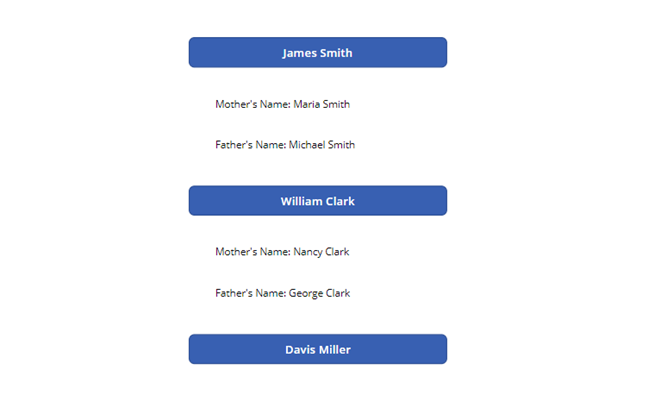
Step 3: Adding variables to store information of selected record unique ID.
OnSelect property of Button,

Visible property of Container,
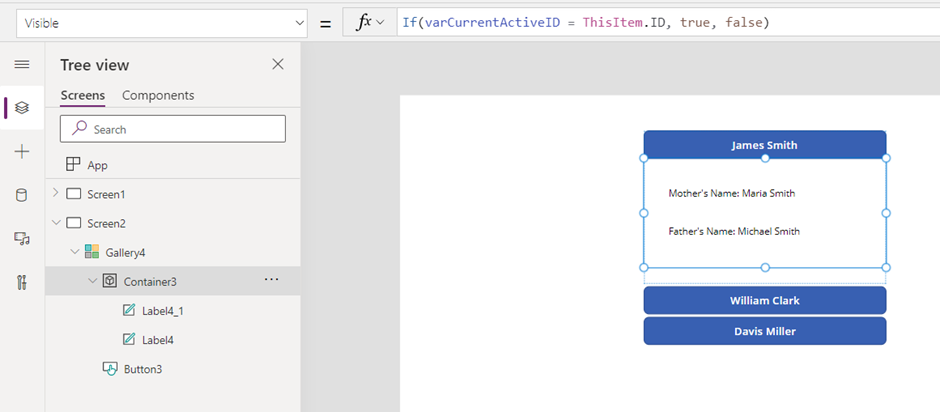
Step 4: Modify as you like,
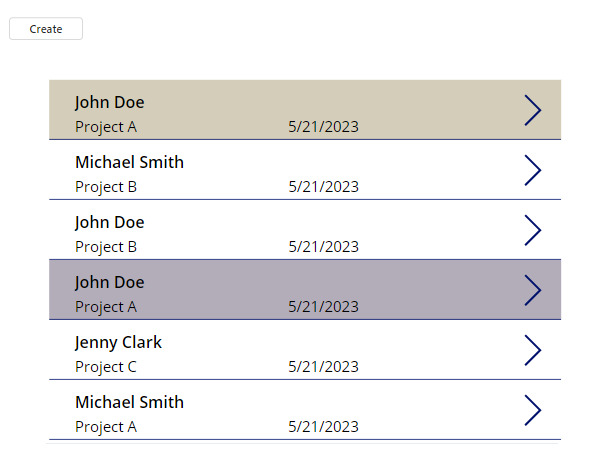
I’ve added color indication which record is selected.
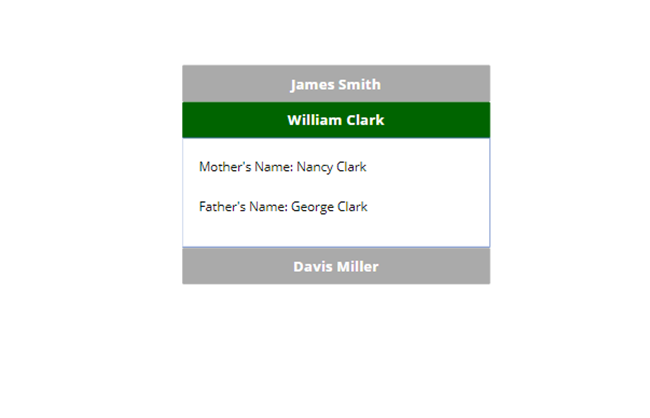
That’s all,
We have finally created the collapsible Gallery control in Power App.
Hope this helps!!
Related posts:
How to Fix the error ‘’isGlobal information provided True doesn’t match the value stored in DB False...
Highlight Duplicate Records in Canvas PowerApps in Gallery Control
Gain Business Insights faster by generating Power BI Reports quickly with just 1 click in Dataverse

