

Change colour of selected record of the Grid
Introduction:
In this blog, we will learn how to change the colour of selected record of the Grid.
Use Case:
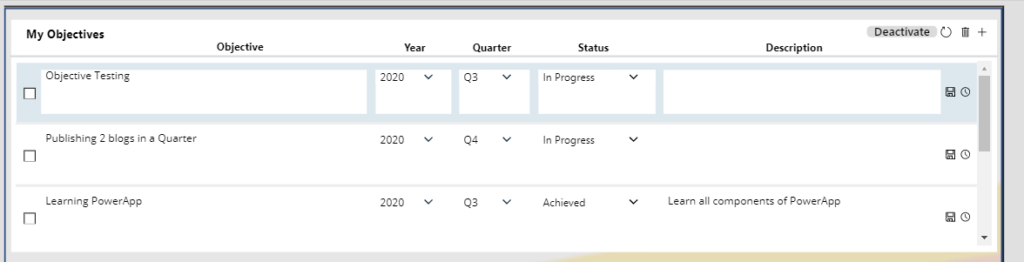
We have a requirement where there is a Grid of CDS Data Source, on clicking any record, it should get highlighted.
Steps:
- There is a Screen on which there a Editable grid of custom Entity Objective.
- To Create an Editable Grid refer to the following link. https://www.cloudfronts.in/create-an-editable-grid-view-in-powerapps/
- To add Lookup Fields in the Grid refer to the following link. https://www.cloudfronts.in/add-lookup-fields-in-an-editable-grid-using-powerapps/
- This is the grid without highlighting any record.

- To change the colour of selected records, update the TemplateFill Property:
TemplateFill property of the Deactivate Button:

Set Gallery.TemplateFill =
If(
<Guid of record> = <Selected Record GUID>,
Color,
Color
 )

For eg: BrowseGalleryObjectives.TemplateFill=
If(
Objective = BrowseGalleryObjectives.Selected.Objective,
RGBA(220, 231, 238, 1),
RGBA(0,0,0,0)
)

- This is the grid with highlighting record.
Conclusion:
Hope above Blog helps you change the colour of selected record of the Grid.
Related posts:

Resolving SSL/TLS Secure Channel Trust Errors in Dynamics 365 Finance and Operations

How to change a Bill of material (BOM) item on a production order

How to Set Up a Local Development Environment for D365 Finance and Operations Without Azure Costs
![Shopify Meets Dynamics 365 Finance and Operations: A Guide to Integration [Part 2]](https://www.cloudfronts.in/wp-content/uploads/2024/12/DALL·E-2024-12-14-12.29.44-A-professional-illustration-depicting-the-integration-between-Shopify-and-Dynamics-365-Finance-and-Operations.-The-image-shows-Shopify-on-one-side-wit-150x150.webp)
