

Set Name Format In D365 CRM
Introduction: In some scenarios, we might need that Full name of Contact Person should be Last Name and then First Name.
In this blog we will see how to change the Format of Full Name for Contact Entity.
Step 1: Go to Advanced settings -> Administration -> System settings
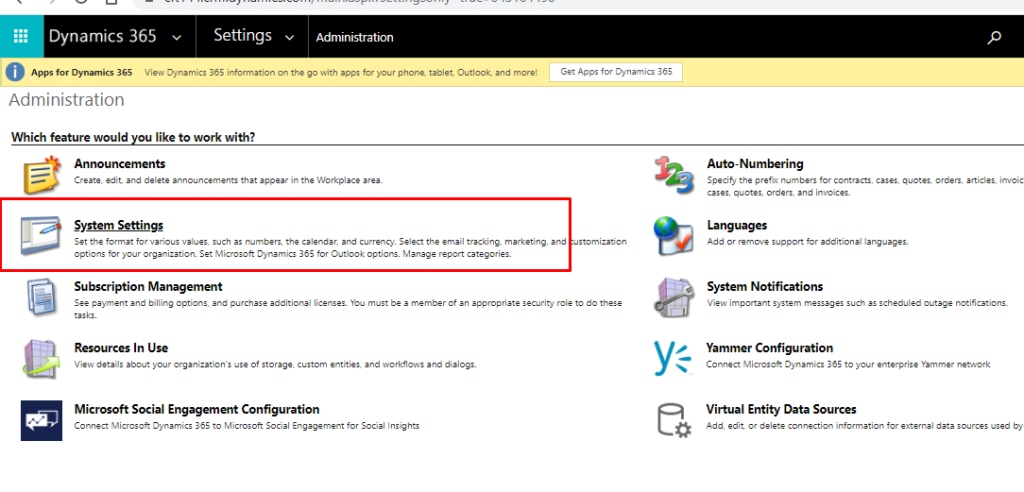
Step 2: Open System settings -> you will see Option to select different Name format -> Select Format you want and click OK.
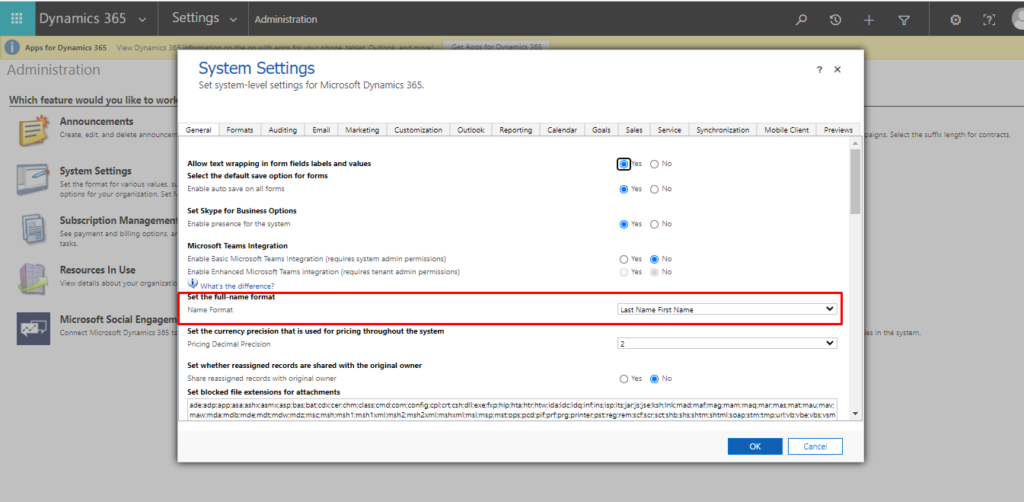
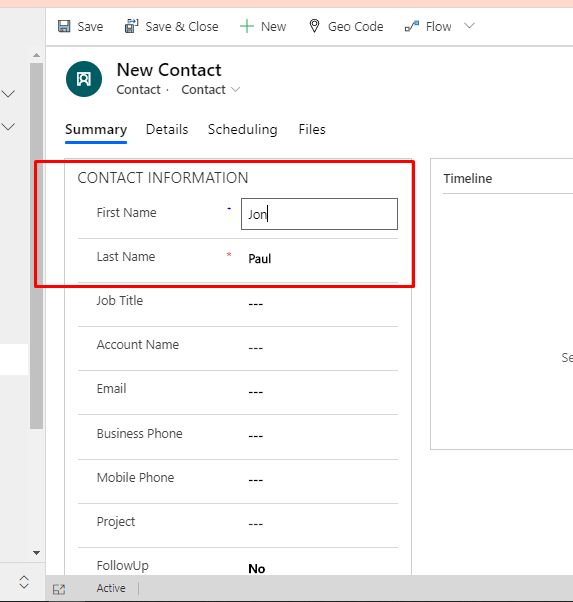
Step 3: here is the short Demo:
I have created a Contact with First Name as Jon and last Name as Paul
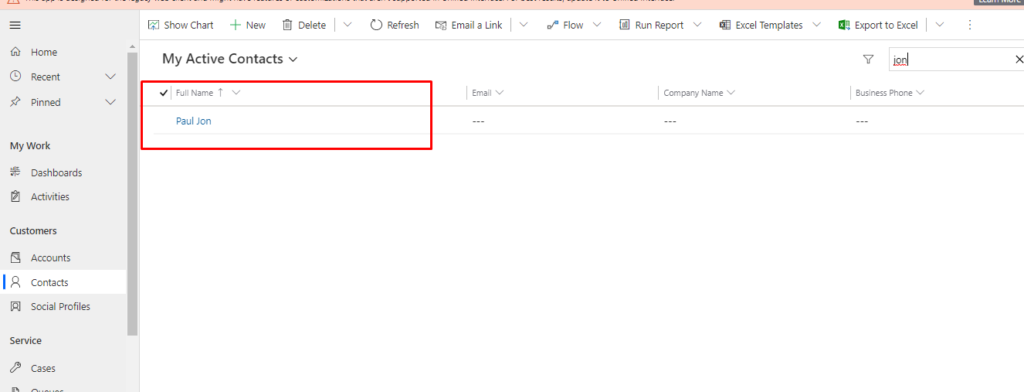
Below is the Output:
Note : This can not be exported into Solution.
I hope this blog will help you to format Contact’s Name
Related posts:

Resolving SSL/TLS Secure Channel Trust Errors in Dynamics 365 Finance and Operations

How to change a Bill of material (BOM) item on a production order
![Shopify Meets Dynamics 365 Finance and Operations: A Guide to Integration [Part 2]](https://www.cloudfronts.in/wp-content/uploads/2024/12/DALL·E-2024-12-14-12.29.44-A-professional-illustration-depicting-the-integration-between-Shopify-and-Dynamics-365-Finance-and-Operations.-The-image-shows-Shopify-on-one-side-wit-150x150.webp)
Shopify Meets Dynamics 365 Finance and Operations: A Guide to Integration [Part 2]
