

Filter a Lookup Field on New Form Using PowerApps.
Introduction:
In this blog, we will learn how to filter a Lookup Field on the New Form.
Use Case:
We have a requirement where there is a Lookup Field on the form, which should only show those values whose Status is Active.
Steps:
1. This is the form of Quote Product. We want to filter the Existing Product field.
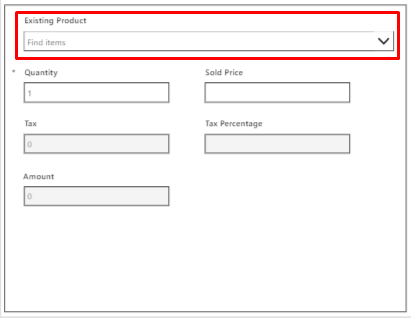
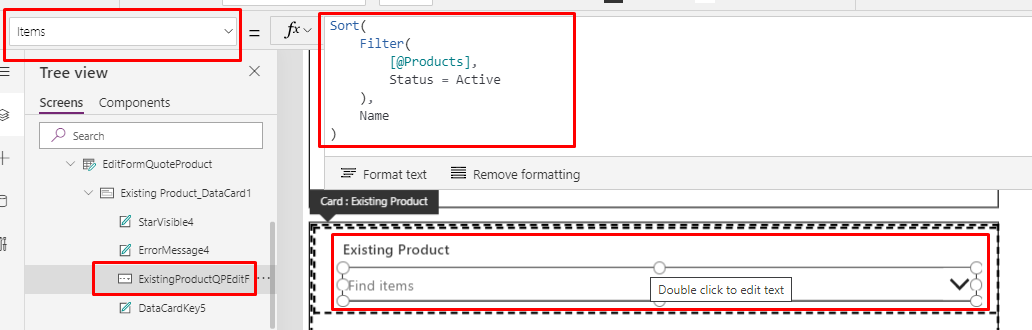
2. To filter the field, click on the Combo Box.
Items property:
         Set   ExistingProduct.Items =  Filter(<Data Source>,Status = <Field Name>.Active)
         For eg: ExistingProductQPEditForm.Items = Filter([@Products],Status = 'Status (Products)'.Active)
Conclusion:
Hope the above Blog helps you to filter a Lookup Field on the New Form.
Related posts:

Resolving SSL/TLS Secure Channel Trust Errors in Dynamics 365 Finance and Operations

How to change a Bill of material (BOM) item on a production order

How to Set Up a Local Development Environment for D365 Finance and Operations Without Azure Costs
![Shopify Meets Dynamics 365 Finance and Operations: A Guide to Integration [Part 2]](https://www.cloudfronts.in/wp-content/uploads/2024/12/DALL·E-2024-12-14-12.29.44-A-professional-illustration-depicting-the-integration-between-Shopify-and-Dynamics-365-Finance-and-Operations.-The-image-shows-Shopify-on-one-side-wit-150x150.webp)
