

Hide certain Field of the form depending on Security Role of the User using PowerApps.
Introduction:
In this blog, we will learn how to hide fields from the form based on the Security Role of the Logged in User.
Use Case:
We have a requirement where there are some Fields in the form, which should be hidden to the users who does not have the Security Role as Manager.
Steps:
1. This is the form of Quote Product. We want to hide the Price Overriden field from the form to certain Users.
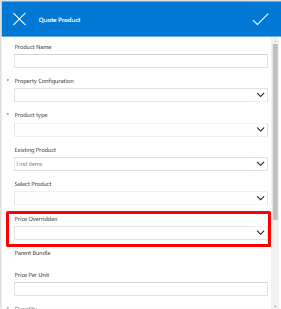
2. To hide the field, click on the DataCard.
Visible property of the DataCard:
Set Price Overridden_DataCard.Visible = If(LookUp([@'Security Roles'],Name = "Manager",Role) in Concat(LookUp([@Users],'Full Name' = User().FullName).'Security Roles(systemuserroles_association)',Role & ";"),true,false)

Conclusion:
Hope the above Blog helps you to hide fields from the form based on the Security Role of the Logged in User.
Related posts:

Resolving SSL/TLS Secure Channel Trust Errors in Dynamics 365 Finance and Operations

How to change a Bill of material (BOM) item on a production order

How to Set Up a Local Development Environment for D365 Finance and Operations Without Azure Costs
![Shopify Meets Dynamics 365 Finance and Operations: A Guide to Integration [Part 2]](https://www.cloudfronts.in/wp-content/uploads/2024/12/DALL·E-2024-12-14-12.29.44-A-professional-illustration-depicting-the-integration-between-Shopify-and-Dynamics-365-Finance-and-Operations.-The-image-shows-Shopify-on-one-side-wit-150x150.webp)
