

Download SSRS report as a PDF with Power Automate – Part 2
Checkout Download SSRS report as a PDF with Power Automate – Part 1
In this blog, we will see how to extract the value for PdfDownloadUrl so we can load it into another request and get our PDF. We’ll do this in 3 parts.
Step 7 – The start of the URL – Add a compose action for the following:

add(indexOf(outputs('HTTP_-_POST_Report_Viewer')?['body'],'"PdfDownloadUrl":"'),18)Step 8 – Length of PdfDownloadUrl – Add a compose action for the following:

sub(indexOf(outputs('HTTP_-_POST_Report_Viewer')?['body'],'","PdfPreviewUrl"'),outputs('PDF_Download_Start_-_Index'))Step 9 – Extract and convert the PdfDownloadUrl from the body – Add a compose action for the following:

Replace(substring(outputs('HTTP_-_POST_Report_Viewer')?['body'],outputs('PDF_Download_Start_-_Index'),outputs('PDF_Download_String_Length')),'\u0026','&')
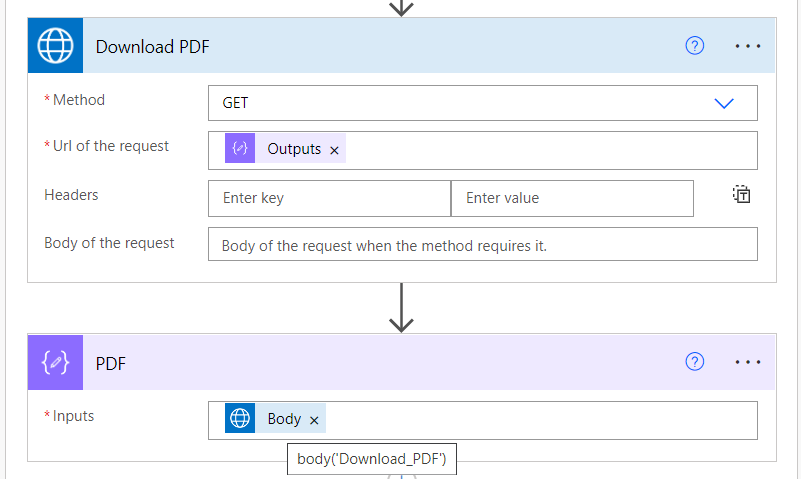
Step 10 – Download PDF
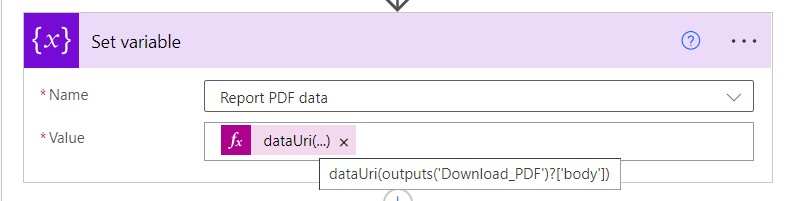
Step 11 – Use a variable to send the Report PDF data
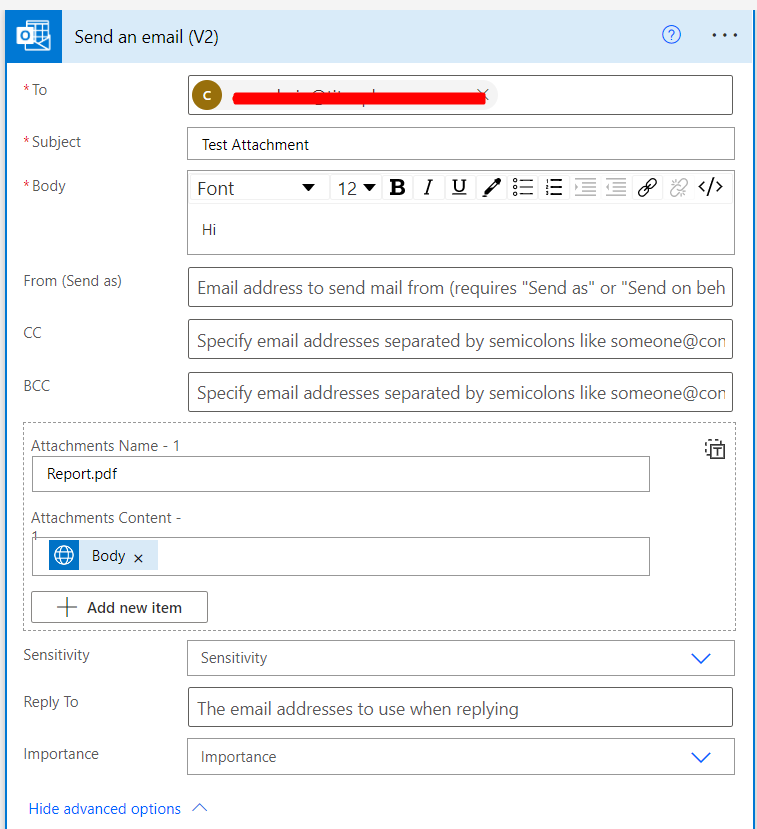
Step 12 – Send an Email
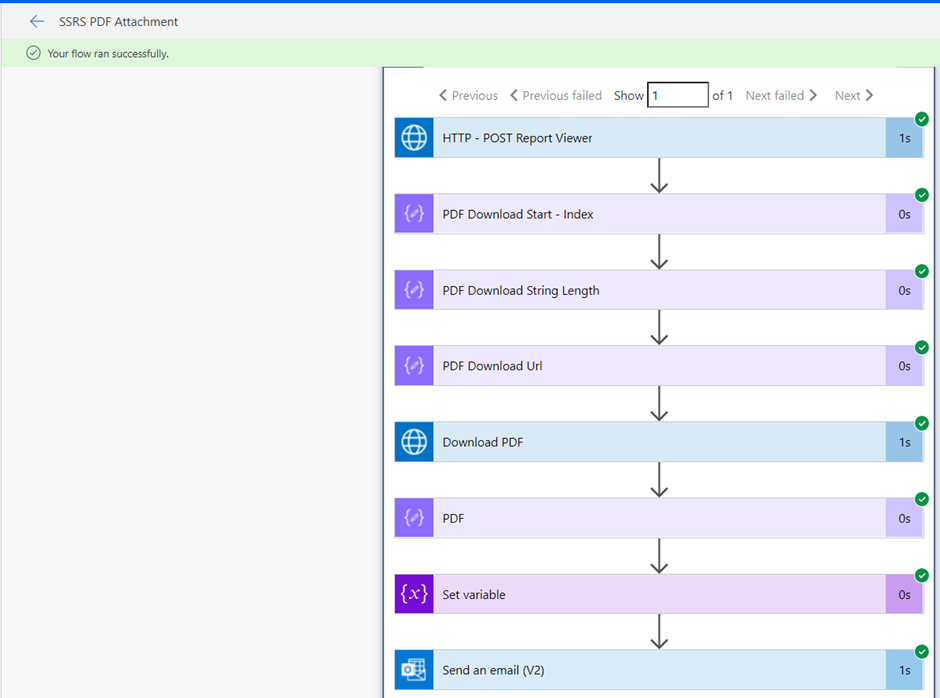
Output –
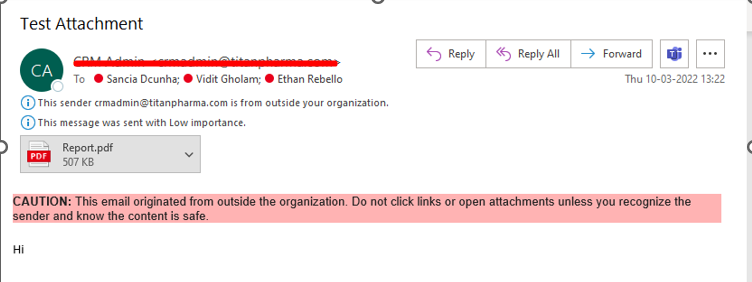
Hope this helps!
Related posts:

Resolving SSL/TLS Secure Channel Trust Errors in Dynamics 365 Finance and Operations

How to change a Bill of material (BOM) item on a production order

How to Set Up a Local Development Environment for D365 Finance and Operations Without Azure Costs
![Shopify Meets Dynamics 365 Finance and Operations: A Guide to Integration [Part 2]](https://www.cloudfronts.in/wp-content/uploads/2024/12/DALL·E-2024-12-14-12.29.44-A-professional-illustration-depicting-the-integration-between-Shopify-and-Dynamics-365-Finance-and-Operations.-The-image-shows-Shopify-on-one-side-wit-150x150.webp)
