

Download SSRS report as a PDF with Power Automate – Part 1
In this blog, we will see how to retrieve PDF Download URL from the console using the SSRS report.
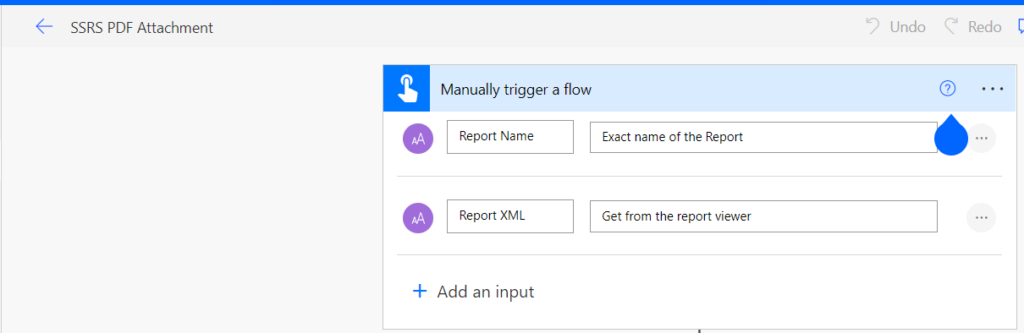
Step 1 – Create a new flow and set the trigger to Manually trigger a flow.
Step 2 – After you have your trigger, you need to add two inputs to it, Report Name and Report XML.
Step 3 – Then, add a List Rows action from the Dataverse connector and configure it to lookup the report by the Report Name.
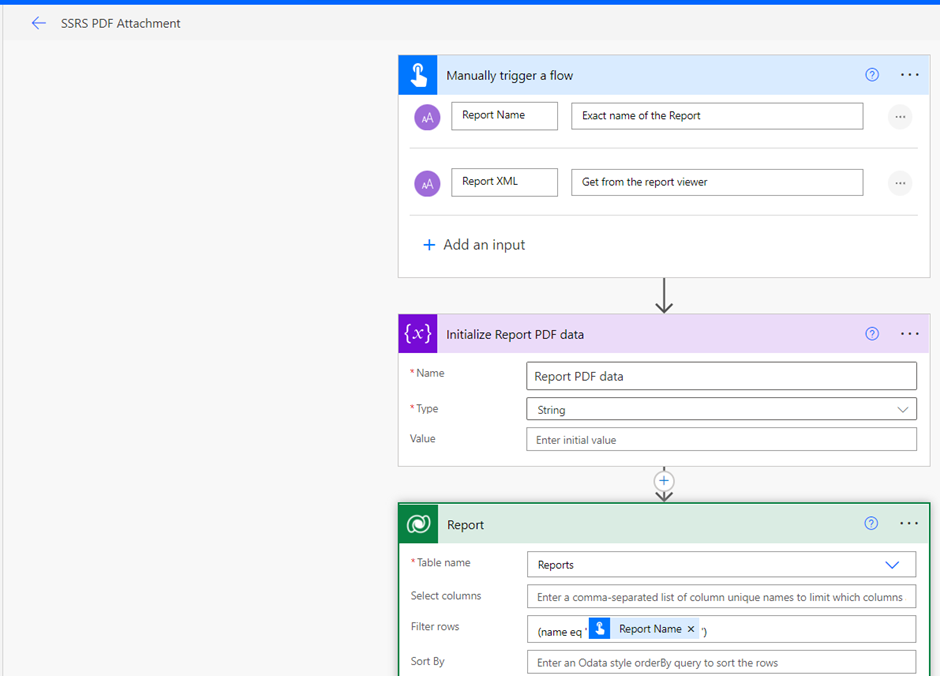
Step 4 – Setup the report viewer – We do this using the HTTP with Azure AD connector, specifically the Invoke an HTTP request action.
Step 5 – We need to authorize our connection to use this action. If you’re using Dynamics 365 online, grab your CRM URL (including https://) and paste it in for both Base Resource URL and Azure AD Resource URL.
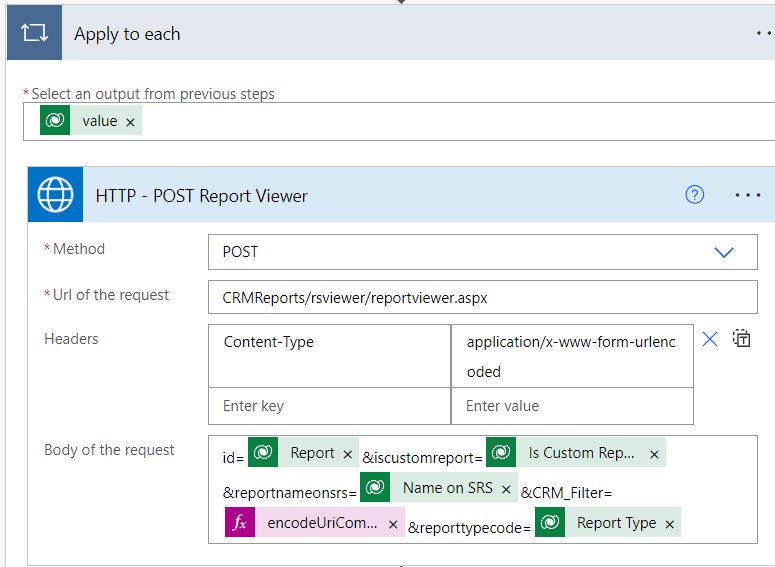
| Method | POST |
| Url of the request | /CRMReports/rsviewer/reportviewer.aspx |
| Headers | Content-Type: application/x-www-form-urlencoded |
| Body of the request | id=report&iscustomreport=Custom Report&reportnameonsrs=Name on SRS&CRM_Filter=encodeUriComponent(ReportXML)&reporttypecode=Report Type |
For encodeUriComponent – Use the following
encodeUriComponent(triggerBody()[‘text_1’])
Step 6 – Extract the PdfDownloadUrl from the Report Viewer page.
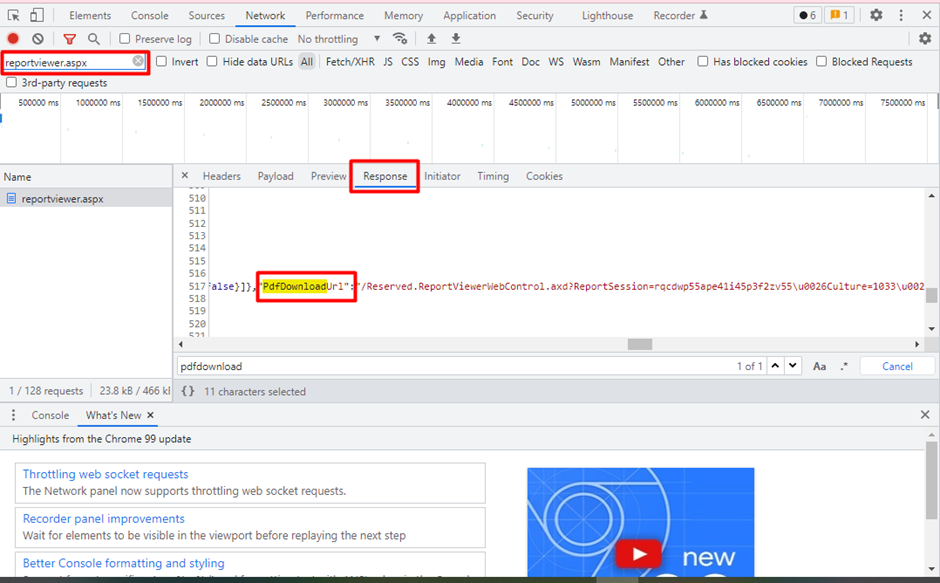
Let’s extract the value for PdfDownloadUrl so we can load it into another request and get our PDF. We’ll do this in 3 parts in Part 2.
Related posts:

Resolving SSL/TLS Secure Channel Trust Errors in Dynamics 365 Finance and Operations

How to change a Bill of material (BOM) item on a production order

How to Set Up a Local Development Environment for D365 Finance and Operations Without Azure Costs
![Shopify Meets Dynamics 365 Finance and Operations: A Guide to Integration [Part 2]](https://www.cloudfronts.in/wp-content/uploads/2024/12/DALL·E-2024-12-14-12.29.44-A-professional-illustration-depicting-the-integration-between-Shopify-and-Dynamics-365-Finance-and-Operations.-The-image-shows-Shopify-on-one-side-wit-150x150.webp)
