

Identify who imported the solution – Dynamics 365 CRM
Introduction:
Sometime there is a need to know when and who imported the solution in to CRM. This will be done by XrmToolBox plugin called “Solution History”.
Purpose of Solution History:
The purpose of the tool is to view a historical list of solutions that have been imported. This provides sort of audit functionality for solutions, as the OOB solution view doesn’t really display how many times a solution has been imported, version number that was updated, error/warning messages that were encountered during solution import.
Steps:
- Install Solution History plugin from Plugin Store in XrmToolBox.
- Open the plugin and connect to the environment.
- Select the time frame for the solution.
- The solutions will be displayed as below. Select the solution for which you want to check the details.

- Click on Load Solution History. The details will be shown as highlighted below.
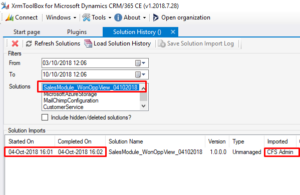
Other methods of knowing this are listed below:
1) Looking in to the database
2) Checking XML
Hope this helps!!
Related posts:

Resolving SSL/TLS Secure Channel Trust Errors in Dynamics 365 Finance and Operations

How to change a Bill of material (BOM) item on a production order
![Shopify Meets Dynamics 365 Finance and Operations: A Guide to Integration [Part 2]](https://www.cloudfronts.in/wp-content/uploads/2024/12/DALL·E-2024-12-14-12.29.44-A-professional-illustration-depicting-the-integration-between-Shopify-and-Dynamics-365-Finance-and-Operations.-The-image-shows-Shopify-on-one-side-wit-150x150.webp)
Shopify Meets Dynamics 365 Finance and Operations: A Guide to Integration [Part 2]
