

Create Leads when Email is received to the Queue
Introduction:
This blog explains how to Create Leads when Email is received to the Queue.
Creating Queue in MS CRM:
- Settings -> Service Management -> Queues
- Click on “+NEW”
- Enter Name and Incoming Email for the Queue.

- Save record.
- After Saving the record Mailbox will be created for the Queue.
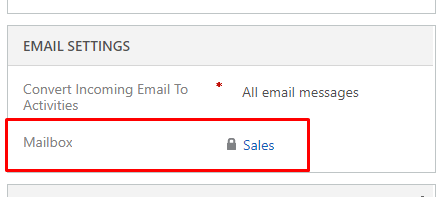
Configuring the Mailbox
- Open the Mailbox
- Click on Approve Email
- Click on Test & Enable Mailbox
- After Configuring Successfully, you can see Status as Success for Incoming and Outgoing Email.
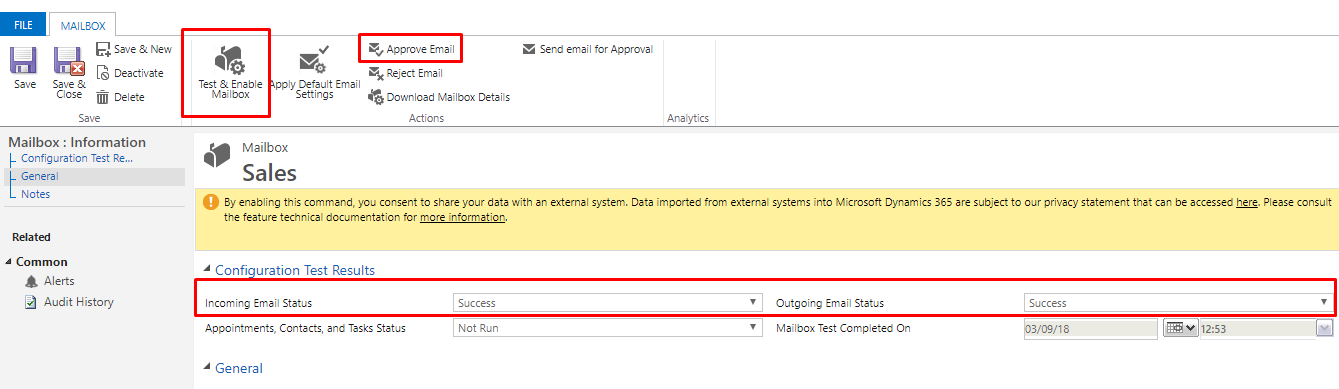
Create Workflow to Create Lead:
- Go to Settings -> Processes
- Create new process.
- Select Entity: Email
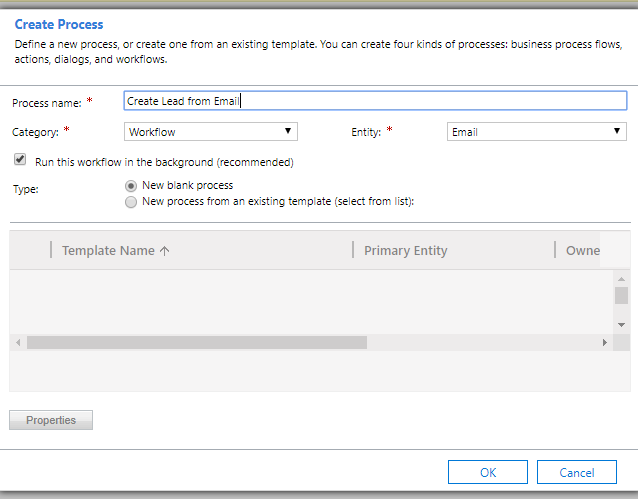
- Below is the Workflow:

- To set the regarding of email. Click on Set Properties of Update Email Step.
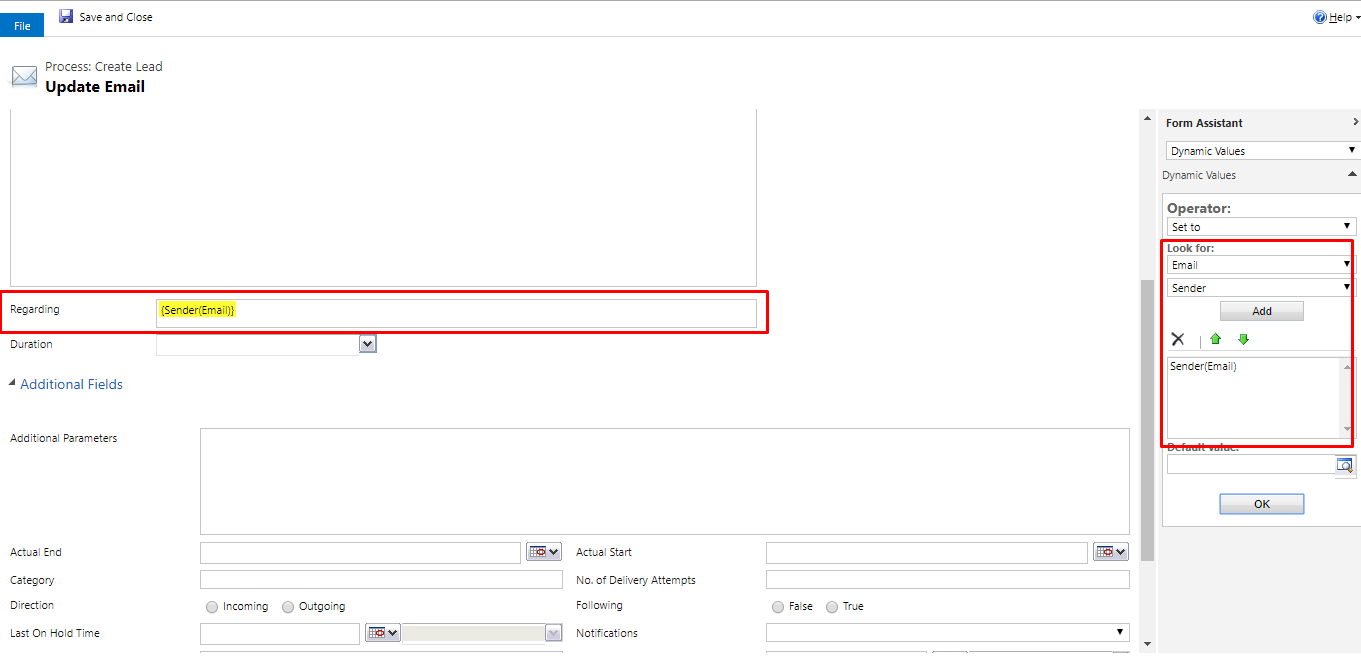
- Click on Set Properties of Create Lead Step and add details in fields.
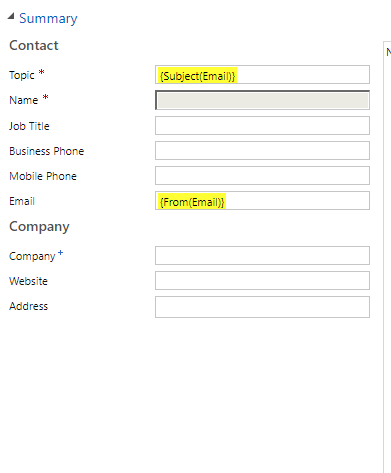

- After Writing all the steps Activate the workflow.

Related posts:

Resolving SSL/TLS Secure Channel Trust Errors in Dynamics 365 Finance and Operations

How to change a Bill of material (BOM) item on a production order
![Shopify Meets Dynamics 365 Finance and Operations: A Guide to Integration [Part 2]](https://www.cloudfronts.in/wp-content/uploads/2024/12/DALL·E-2024-12-14-12.29.44-A-professional-illustration-depicting-the-integration-between-Shopify-and-Dynamics-365-Finance-and-Operations.-The-image-shows-Shopify-on-one-side-wit-150x150.webp)
Shopify Meets Dynamics 365 Finance and Operations: A Guide to Integration [Part 2]
