

Enabling Change Log in Business Central
Introduction:
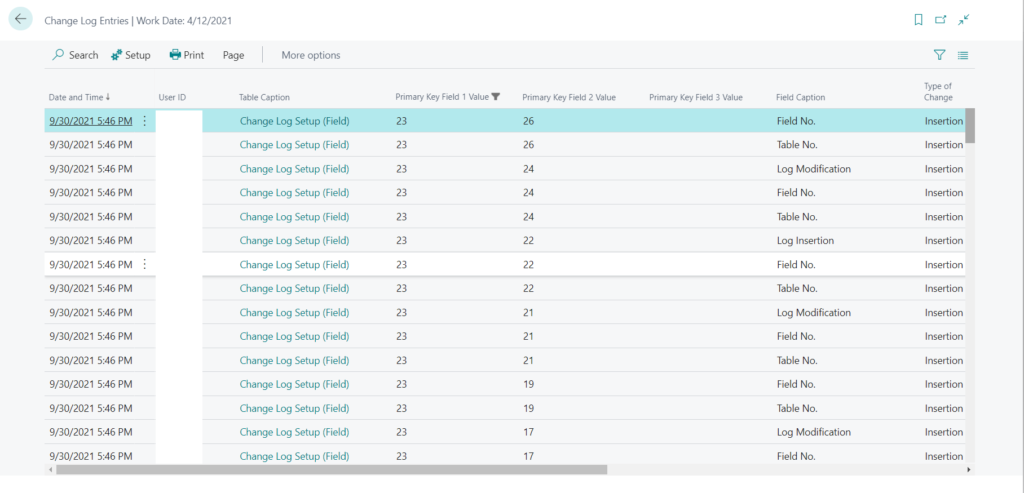
Business Central provides us with Change Log which helps us in keeping track of the changes made to a particular field in a particular table.
References:
Auditing changes – Business Central | Microsoft Docs
Configuration:
- Search for Change Log in Business Central.
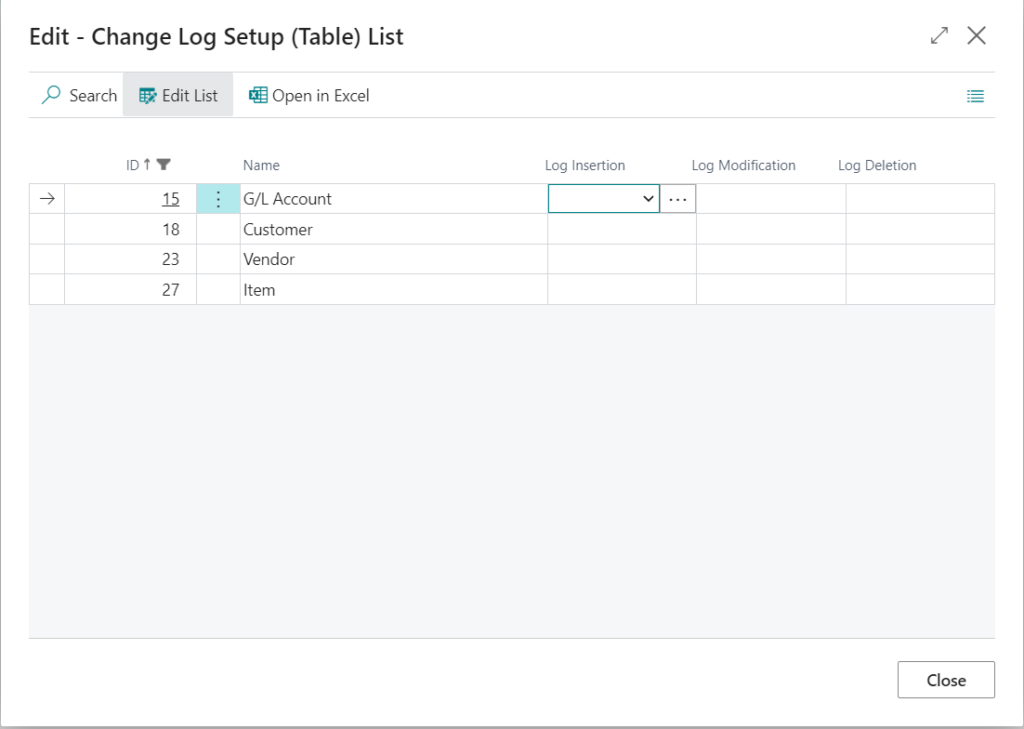
- Select the tables you want to enable the change log for.
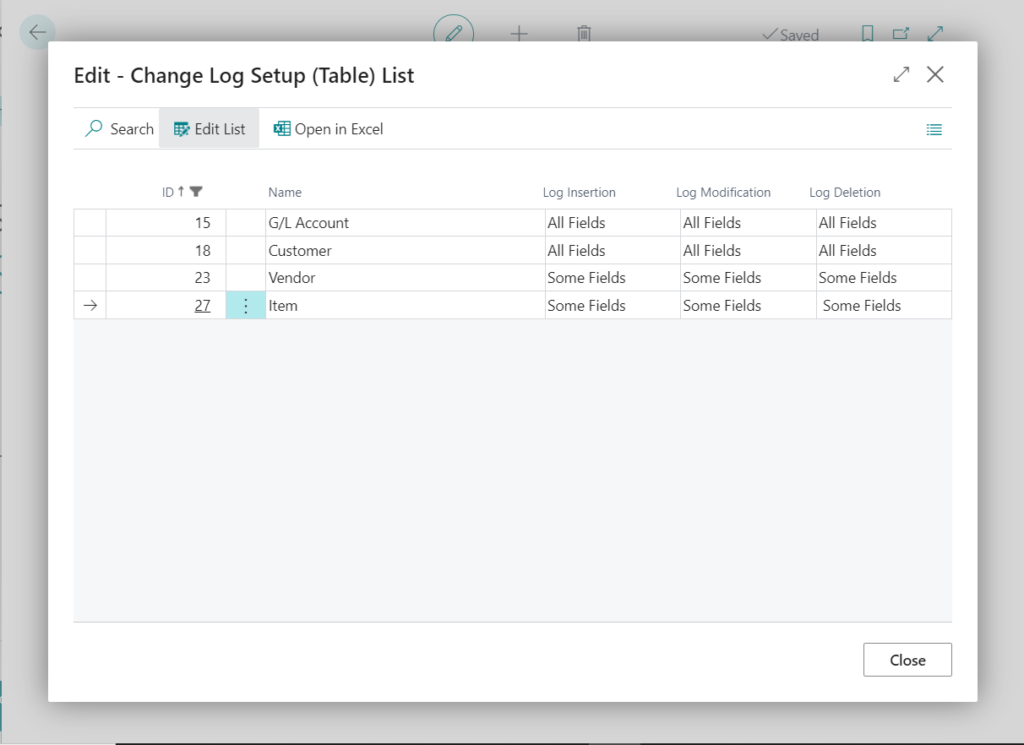
- You can set the change log for a particular set of fields or for all the fields in the table.
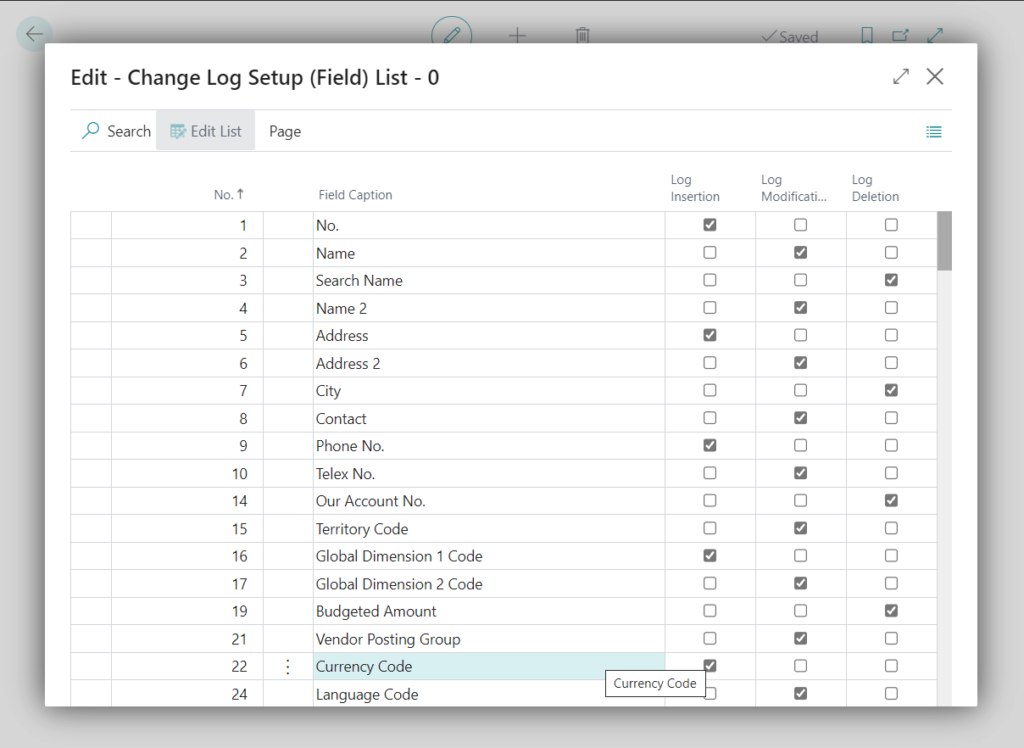
Click on the three dots next to the “Some Fields” and select the fields you want to audit.
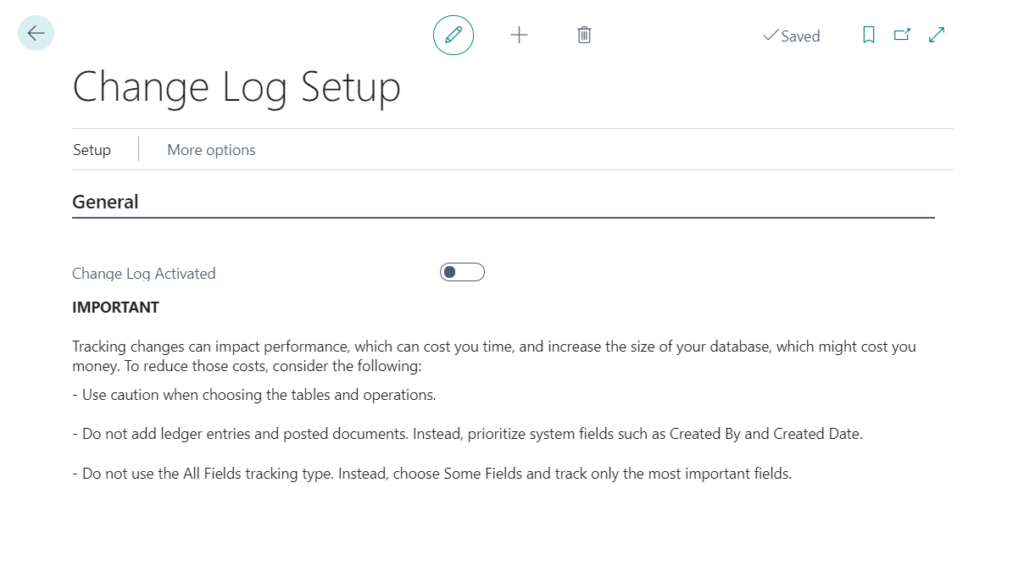
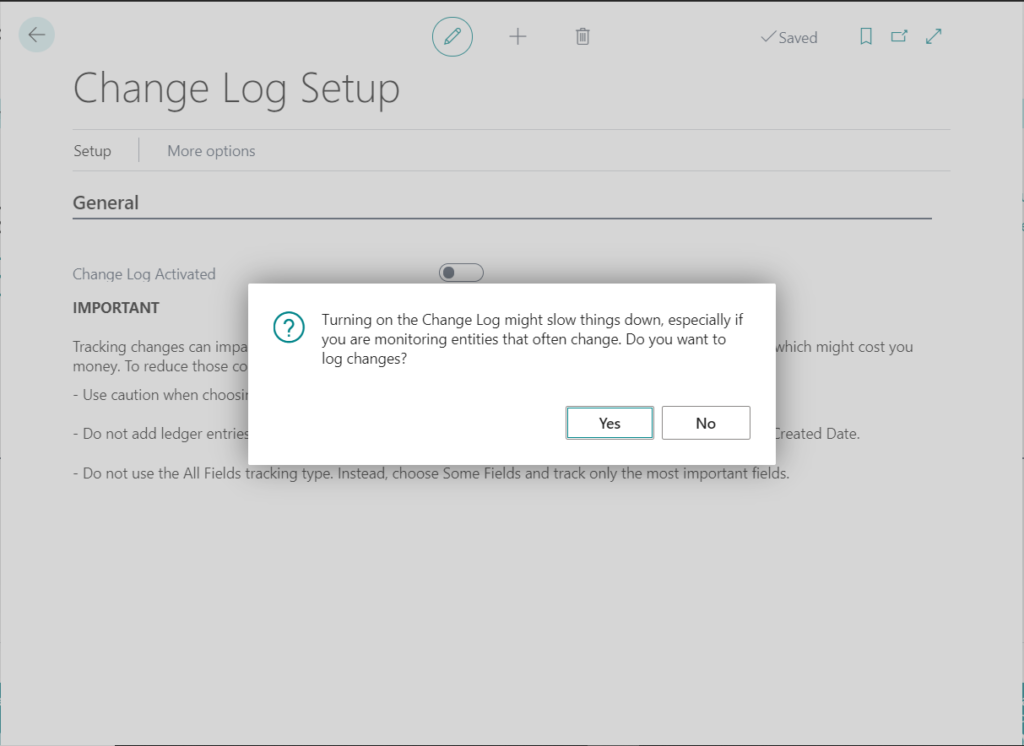
- Set Change Log Activated to true.
Conclusion:
Thus we saw how we can configure Change Log for auditing and tracking changes in Business Central.
Related posts:

Resolving SSL/TLS Secure Channel Trust Errors in Dynamics 365 Finance and Operations

How to change a Bill of material (BOM) item on a production order
![Shopify Meets Dynamics 365 Finance and Operations: A Guide to Integration [Part 2]](https://www.cloudfronts.in/wp-content/uploads/2024/12/DALL·E-2024-12-14-12.29.44-A-professional-illustration-depicting-the-integration-between-Shopify-and-Dynamics-365-Finance-and-Operations.-The-image-shows-Shopify-on-one-side-wit-150x150.webp)
Shopify Meets Dynamics 365 Finance and Operations: A Guide to Integration [Part 2]
