

Update records in Dynamics CRM using Azure Logic Apps
In this blog, we will see how we can update the records CRM with the help of a logic app workflow.
Step 1: Add the recurrence trigger in the logic app and set it to run in a one-day interval. you can set any interval. Without a trigger, you cannot create a logic app.
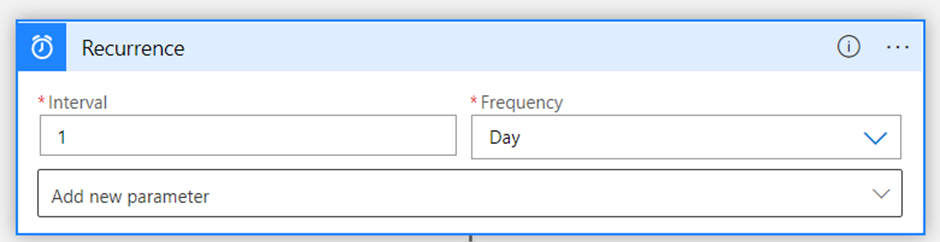
Step 2: Add new step after recurrence trigger
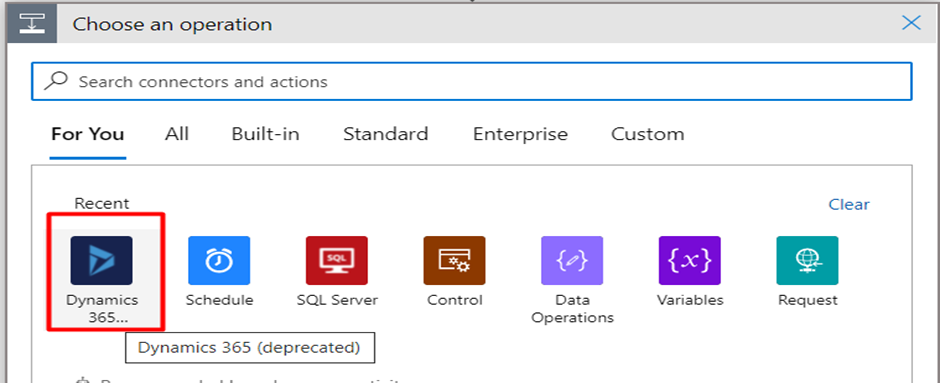
Step 3: Add the List records action from Dynamics 365 and connect to CRM with your credentials Select Account entity

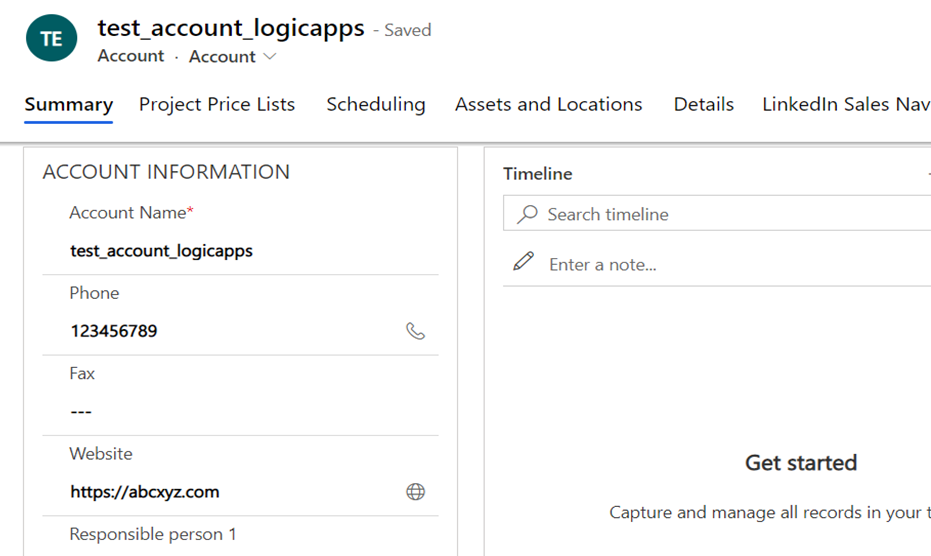
Step 4: For testing purposes, I have created a test account (account number = 1001)in the UAT environment as shown below.
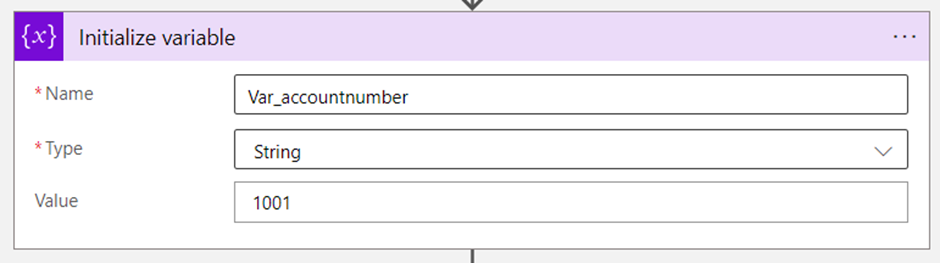
Step 5: Initialize the variable with account number is 1001. The account where you want to change/update the data
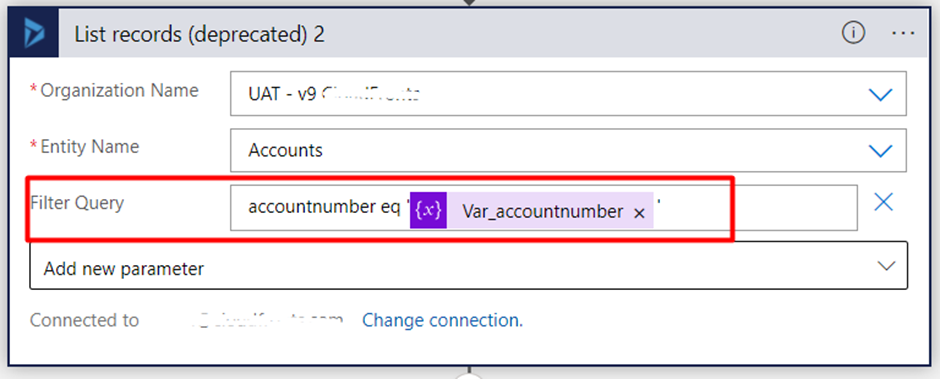
Step 6: Filter the list of accounts where the account number is equal to 1001 as mentioned above step.
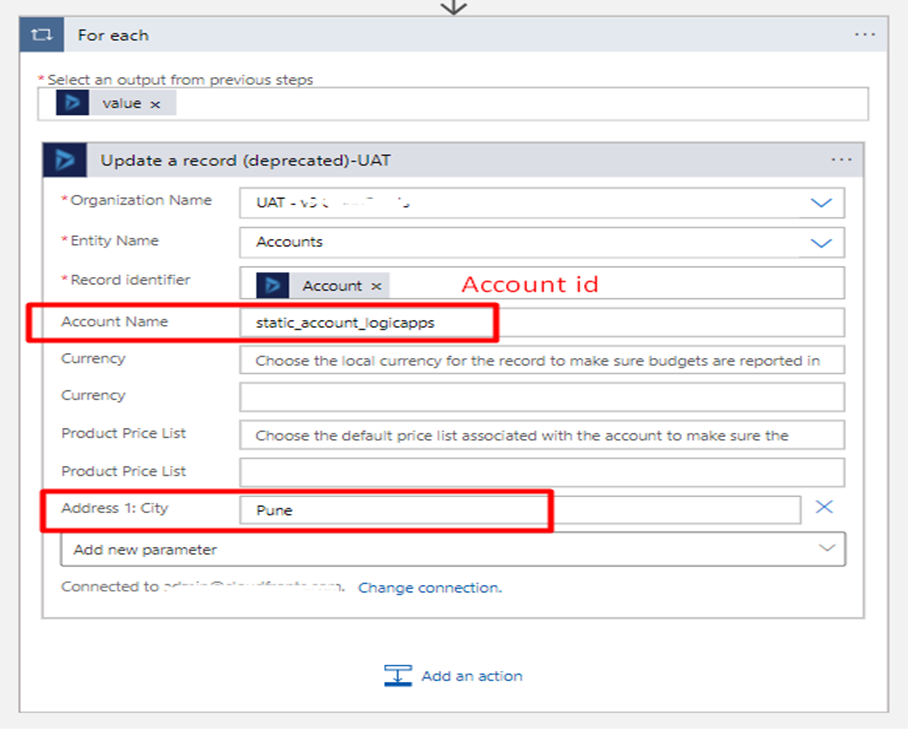
Step 7: After finding a record from the account list then we will update the record here I updated the account name and city
(Note: Account number should unique)
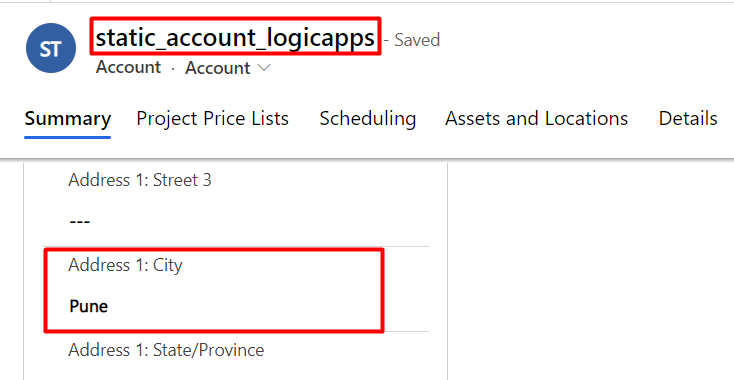
Result
Hope this blog helps you
Thank you!

Related posts:

Resolving SSL/TLS Secure Channel Trust Errors in Dynamics 365 Finance and Operations

How to change a Bill of material (BOM) item on a production order
![Shopify Meets Dynamics 365 Finance and Operations: A Guide to Integration [Part 2]](https://www.cloudfronts.in/wp-content/uploads/2024/12/DALL·E-2024-12-14-12.29.44-A-professional-illustration-depicting-the-integration-between-Shopify-and-Dynamics-365-Finance-and-Operations.-The-image-shows-Shopify-on-one-side-wit-150x150.webp)
Shopify Meets Dynamics 365 Finance and Operations: A Guide to Integration [Part 2]
