

Custom Card in Canvas Power Apps
In this blog will see custom cards in Power Apps
Use Case:
I wanted to separate fields on form by label and it was looking like below:
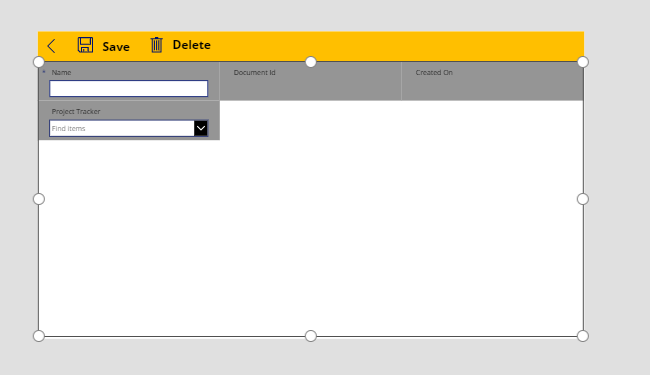
here what i am came up with add custom card on form and try adding label on the Card.
Add Custom Card
Select form -> Click on edit fields
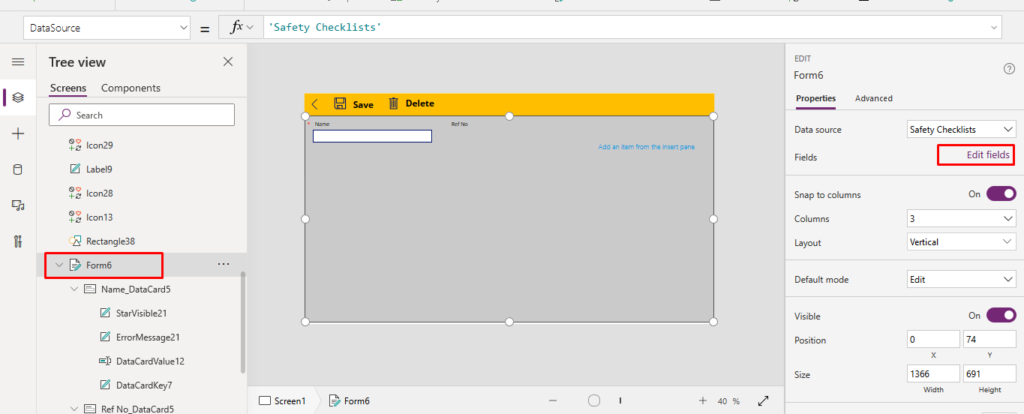
Click on Add a custom Card
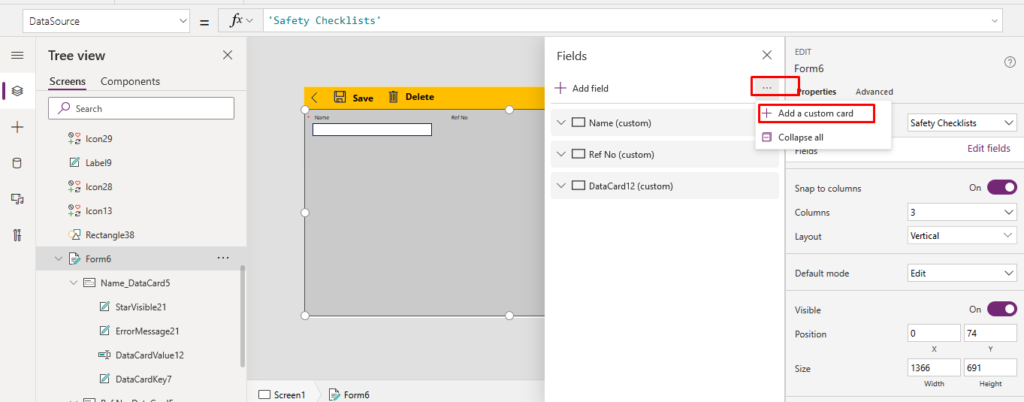
Custom card will look like this, now change the position of card and try to move it below Name field.
To change the position refer this blog:
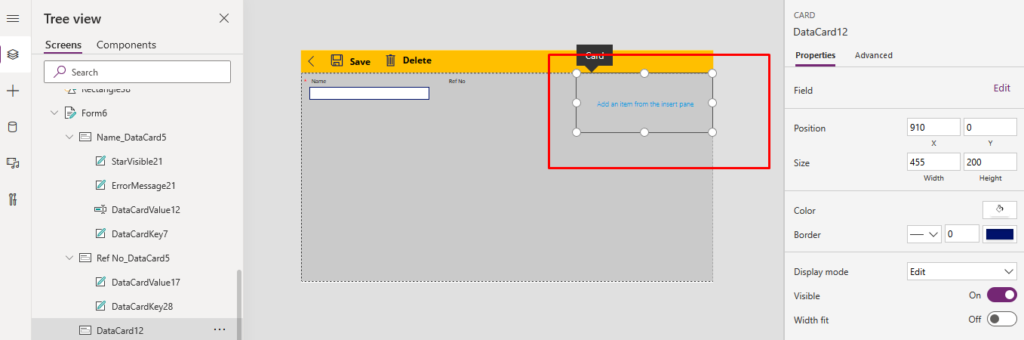
After Changing the Position of card:
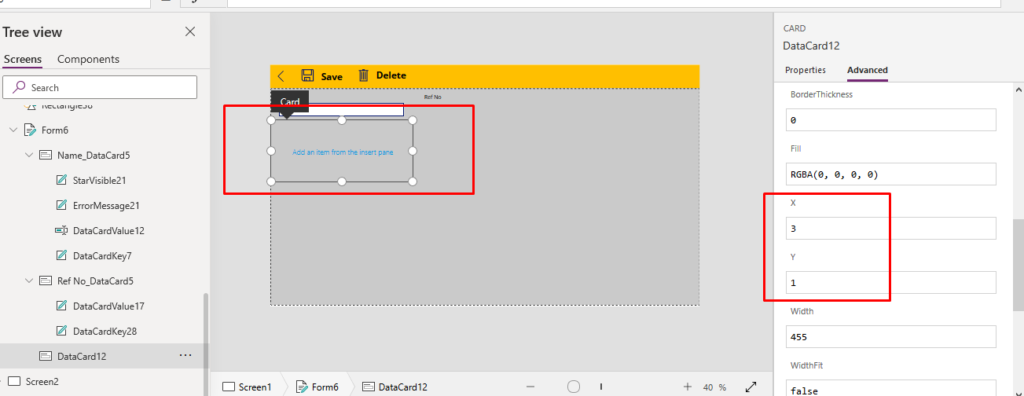
Now change the width of Card
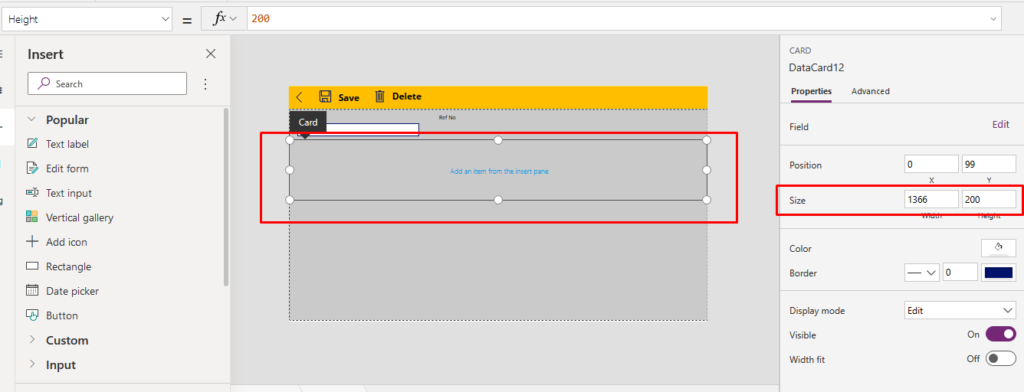
Add Label on Card and change color or style accordingly.
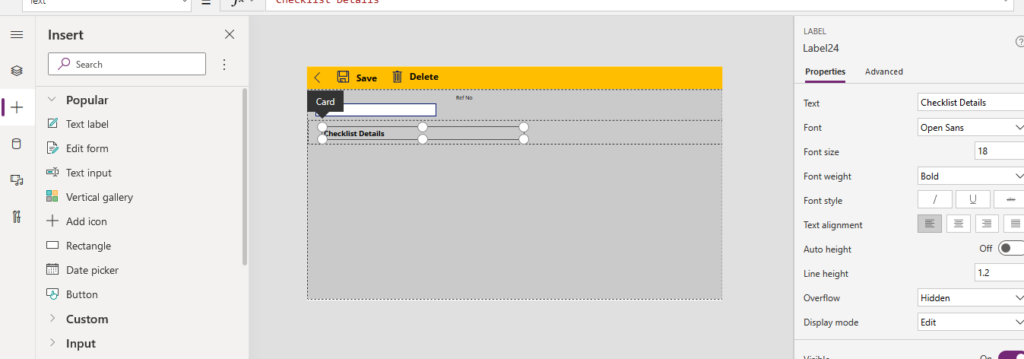
and now add fields on the form
Here is the final Output:
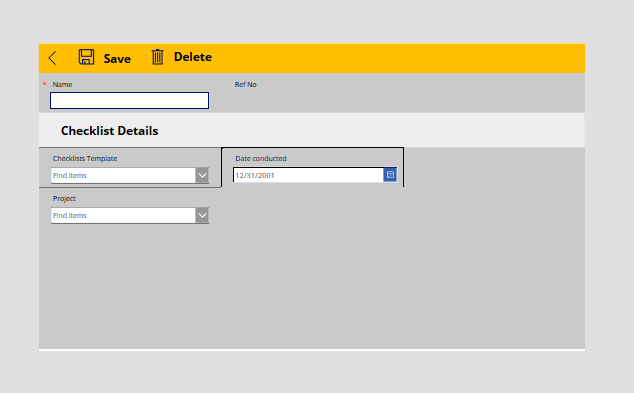
Conclusion: in this we way we can separate fields by adding labels on the form in Canvas Power Apps.
Related posts:

Resolving SSL/TLS Secure Channel Trust Errors in Dynamics 365 Finance and Operations

How to change a Bill of material (BOM) item on a production order
![Shopify Meets Dynamics 365 Finance and Operations: A Guide to Integration [Part 2]](https://www.cloudfronts.in/wp-content/uploads/2024/12/DALL·E-2024-12-14-12.29.44-A-professional-illustration-depicting-the-integration-between-Shopify-and-Dynamics-365-Finance-and-Operations.-The-image-shows-Shopify-on-one-side-wit-150x150.webp)
Shopify Meets Dynamics 365 Finance and Operations: A Guide to Integration [Part 2]
