

SQL Live Connection in Power BI
Introduction:
In this article, we will learn how to configure Live connection for SQL in Power BI.
Requirements:
- Power BI Licence
- SQL Server Database Engine.
- Power BI Gateway (Refer this link to configure Power BI Gateway)
Steps to Connect SQL Live in PowerBI:
- Open PowerBI Desktop
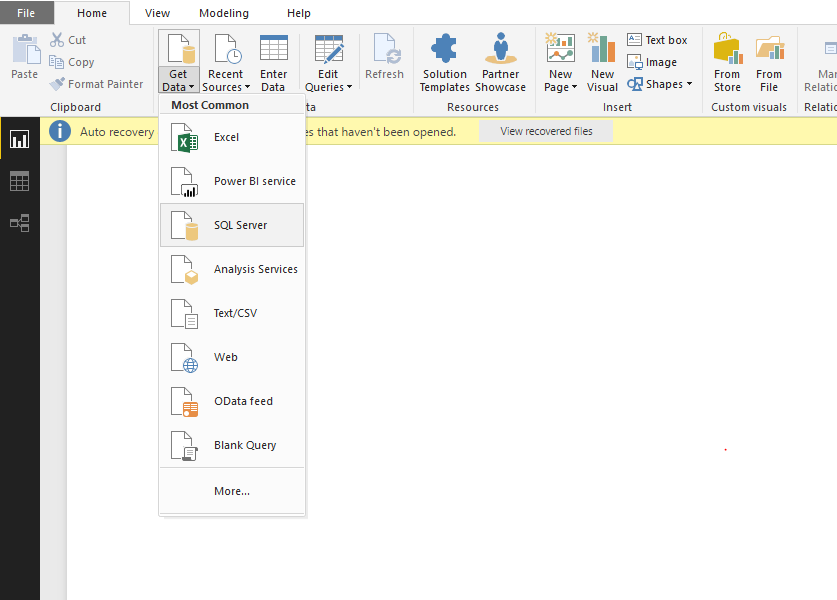
- Click Get Data and Select SQL Server.
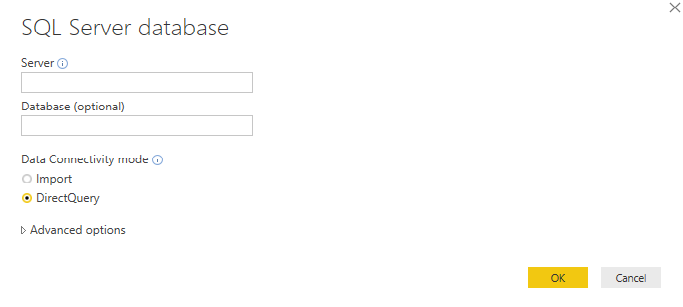
- In the SQL Connection details, select DirectQuery Mode for Live Connection.
- Once the Data is loaded, you can create Power BI Dashboard. DirectQuery enabled status is visible at the right bottom of the Power BI Desktop.
- Before publishing the Dashboard, login into Power BI Service.
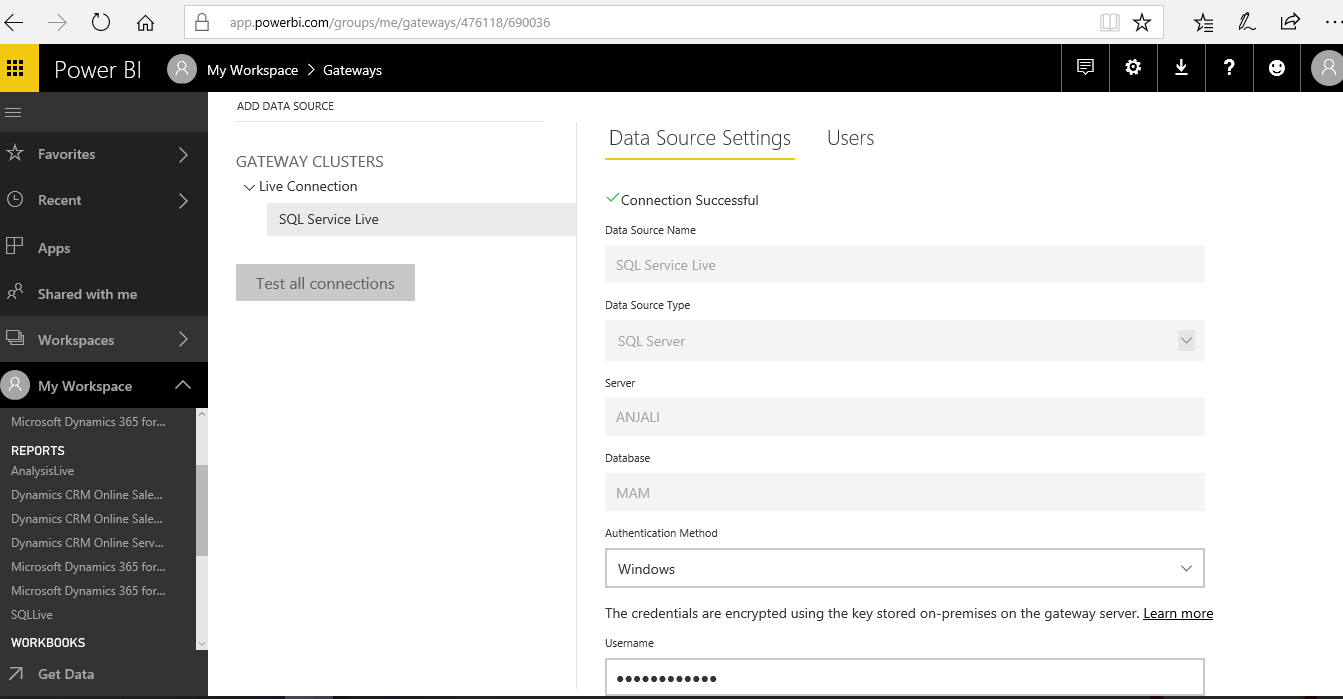
- Under Manage Gateway, we must add a data source for SQL Server.
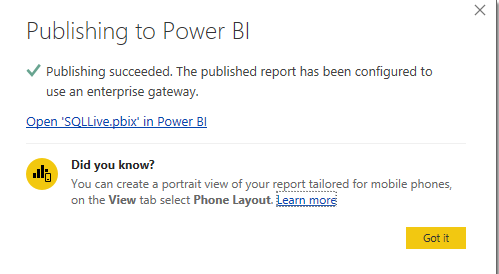
- Go back to Power BI Desktop and publish the Power BI dashboard.
- In the Power BI Service, under the Reports you will be able to see the published Live SQL dashboard.

Related posts:

Resolving SSL/TLS Secure Channel Trust Errors in Dynamics 365 Finance and Operations

How to change a Bill of material (BOM) item on a production order
![Shopify Meets Dynamics 365 Finance and Operations: A Guide to Integration [Part 2]](https://www.cloudfronts.in/wp-content/uploads/2024/12/DALL·E-2024-12-14-12.29.44-A-professional-illustration-depicting-the-integration-between-Shopify-and-Dynamics-365-Finance-and-Operations.-The-image-shows-Shopify-on-one-side-wit-150x150.webp)
Shopify Meets Dynamics 365 Finance and Operations: A Guide to Integration [Part 2]
