

Power BI Tiles Embedded in Dynamics 365 Dashboards
Introduction:
In this article, we are going to learn how to embed Power BI Tiles in your Dynamics 365 / CRM Dashboards.
Steps:
- Sign-in to Microsoft Dynamics 365 as a user with the system administrator security role
- Go to Settings > Administration > System Settings.

- On the Reporting tab in the Allow Power BI visualization embedding option, select Yes to enable or No to disable.
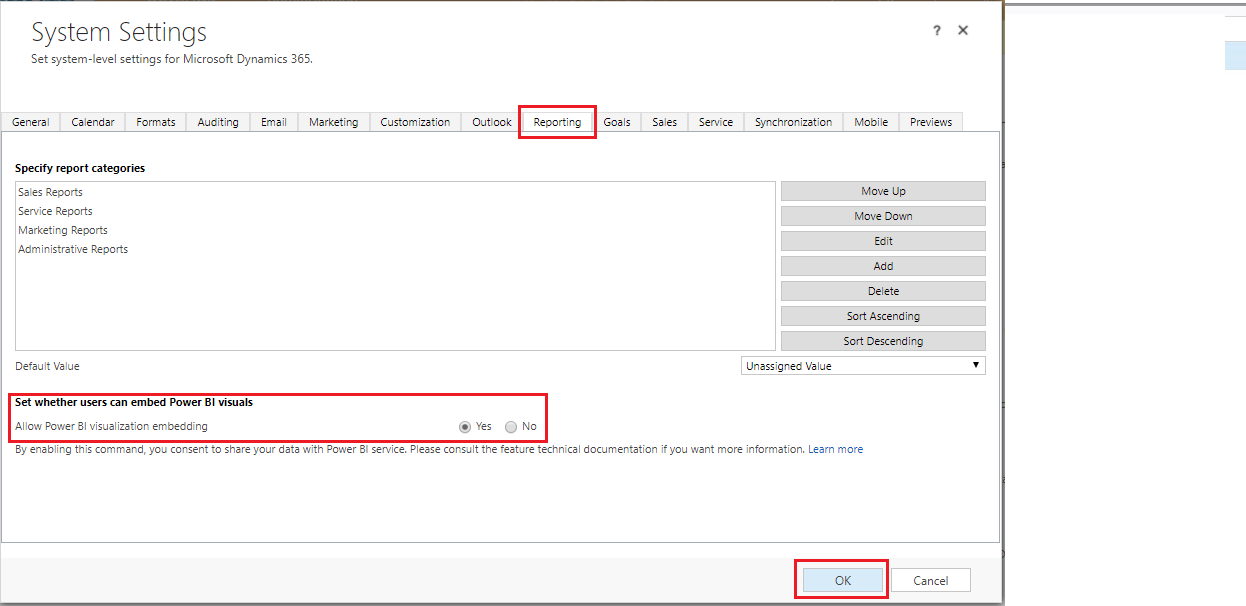
- Click OK.
- Create Dashboards in Power BI and publish it.

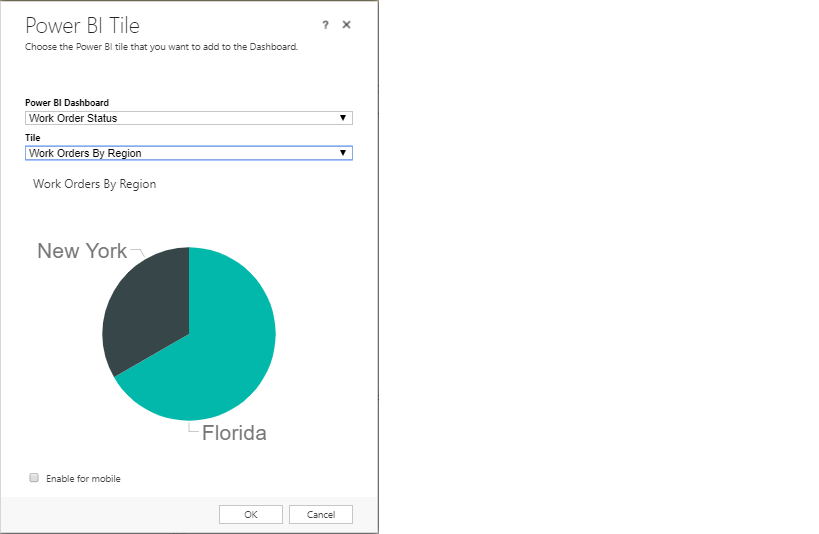
- Then Create or edit a Dashboard in CRM. And insert Power BI Tile in TAB.

- Select a Power BI dashboard and a tile.
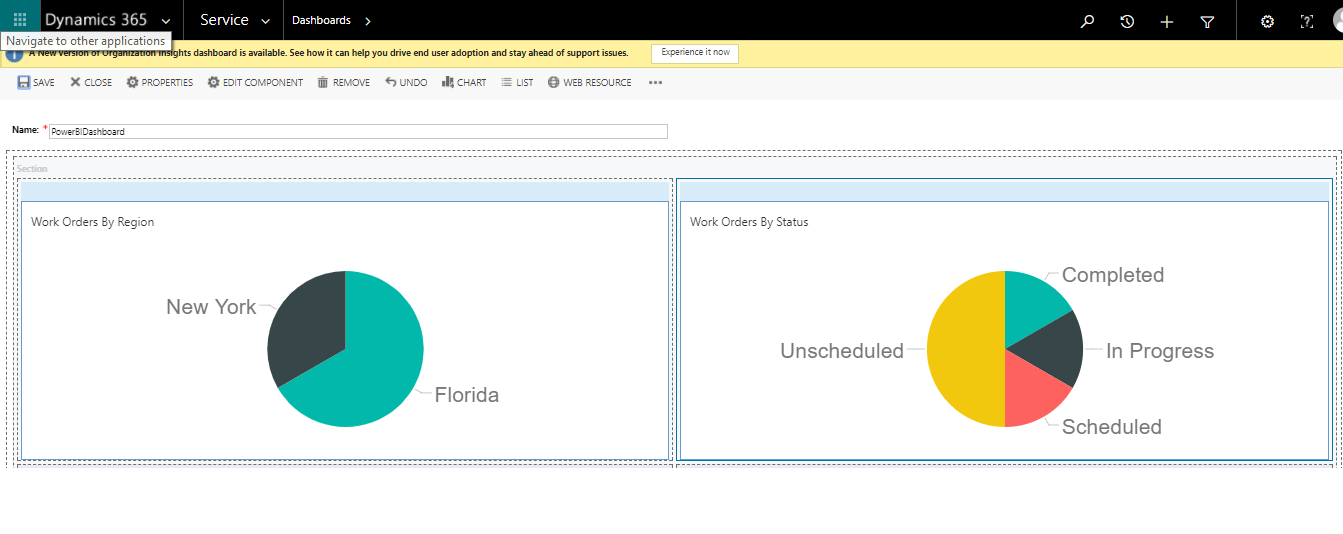
- Complete the dashboard, Save, and close.
You are all set!
Related posts:

Resolving SSL/TLS Secure Channel Trust Errors in Dynamics 365 Finance and Operations

How to change a Bill of material (BOM) item on a production order
![Shopify Meets Dynamics 365 Finance and Operations: A Guide to Integration [Part 2]](https://www.cloudfronts.in/wp-content/uploads/2024/12/DALL·E-2024-12-14-12.29.44-A-professional-illustration-depicting-the-integration-between-Shopify-and-Dynamics-365-Finance-and-Operations.-The-image-shows-Shopify-on-one-side-wit-150x150.webp)
Shopify Meets Dynamics 365 Finance and Operations: A Guide to Integration [Part 2]
