

PBIVIZ Single Line Toggle Format Option Tip
We can add various Visual Formatting Options while developing a Power BI Custom Visual. One of them is the Toggle feature which is useful for adding or removing particular abilities to your visual or perform any similar boolean operations. The json bit for the toggle option looks like this.

By default when you add a toggle option, the option is available under a dropdown. To access the toggle option you will always have to click on the dropdown arrow.
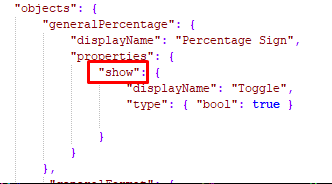
There is a neat little trick that can make you access the toggle button directly rather than clicking on the dropdown button every time. You only need to change the required toggle property name to “show”.
Note: The object name for the toggle option needs to be changed to “show” in the visual.ts file as well.
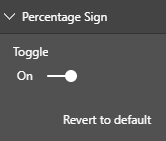
Your toggle option should look like this now!

Related posts:

Resolving SSL/TLS Secure Channel Trust Errors in Dynamics 365 Finance and Operations

How to change a Bill of material (BOM) item on a production order
![Shopify Meets Dynamics 365 Finance and Operations: A Guide to Integration [Part 2]](https://www.cloudfronts.in/wp-content/uploads/2024/12/DALL·E-2024-12-14-12.29.44-A-professional-illustration-depicting-the-integration-between-Shopify-and-Dynamics-365-Finance-and-Operations.-The-image-shows-Shopify-on-one-side-wit-150x150.webp)
Shopify Meets Dynamics 365 Finance and Operations: A Guide to Integration [Part 2]
