

How to Hide the filters panel in Microsoft Power BI report
In this blog we will learn how to hide the filter panel in Microsoft Power BI report. Once you publish the Power BI report in Power BI service, filter panel is useless for the end user. In order to hide the filter pane, you have to follow the below steps.
Step 1: Open your report in “Power BI Desktop”.
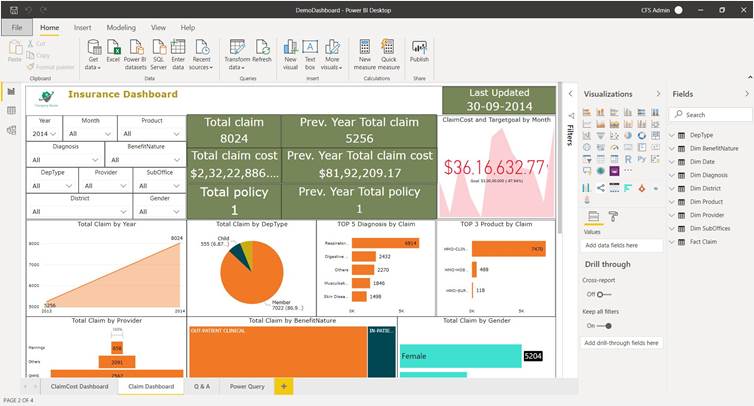
Step 2: Click on filter pane.
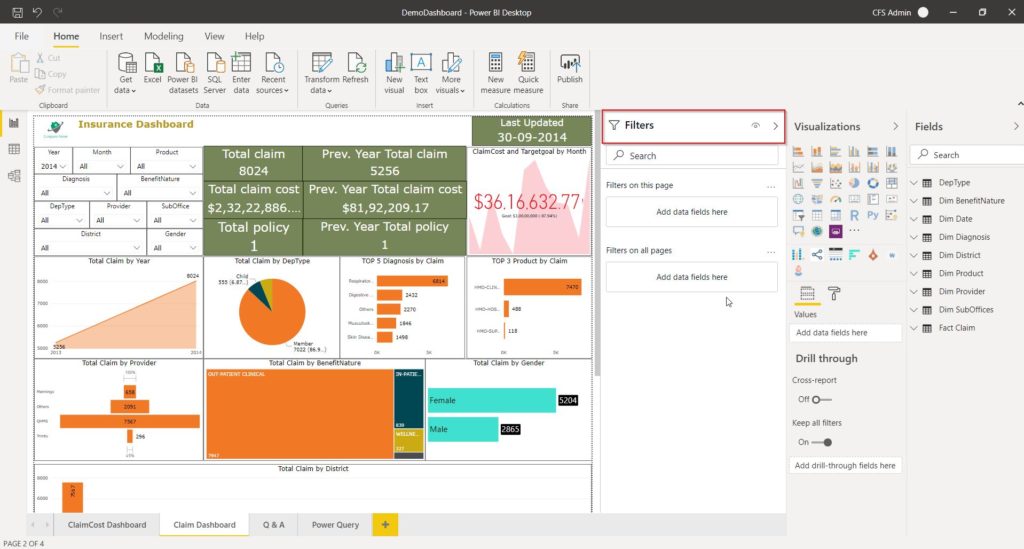
Step 3: There is a eyeball icon at the top of the filter pane that can be toggled.
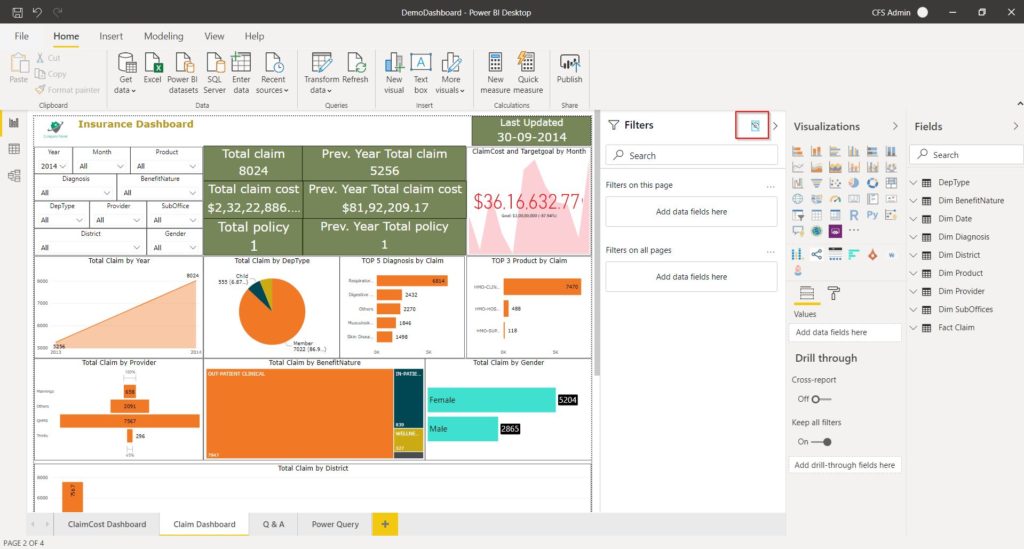
Save the report and publish to your workspace.
Before published the report looks like below.
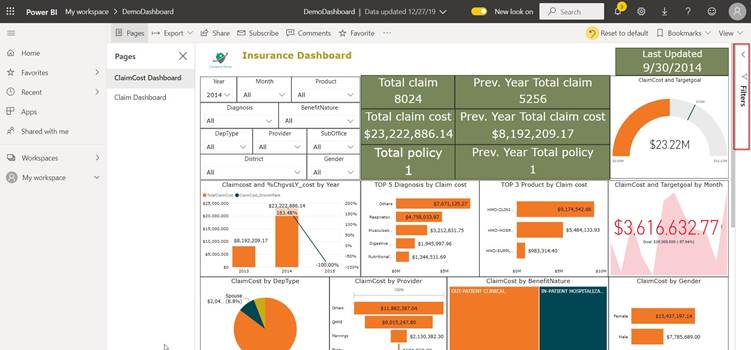
After the published the report, user can not see the filter pane.
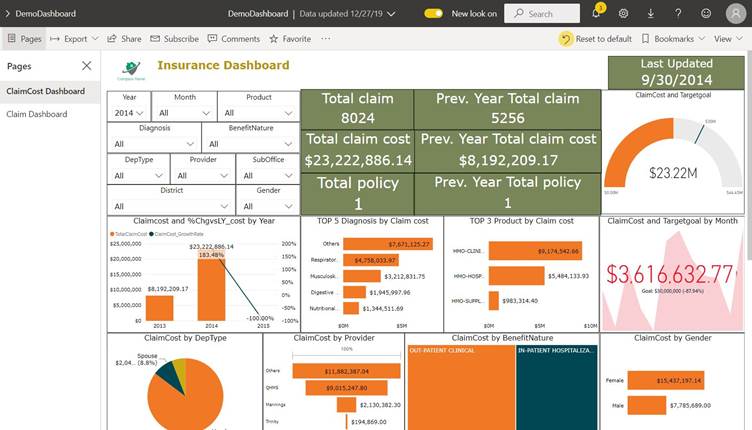
You can also do this in the Edit Report in the service.
Hope this helps!
Related posts:

Resolving SSL/TLS Secure Channel Trust Errors in Dynamics 365 Finance and Operations

How to change a Bill of material (BOM) item on a production order
![Shopify Meets Dynamics 365 Finance and Operations: A Guide to Integration [Part 2]](https://www.cloudfronts.in/wp-content/uploads/2024/12/DALL·E-2024-12-14-12.29.44-A-professional-illustration-depicting-the-integration-between-Shopify-and-Dynamics-365-Finance-and-Operations.-The-image-shows-Shopify-on-one-side-wit-150x150.webp)
Shopify Meets Dynamics 365 Finance and Operations: A Guide to Integration [Part 2]
