

Entity Relationship in Scribe Connector CDK
Introduction:
This blog explains how to define relationship between Entities in Scribe Connector CDK.
Problem Statement:
We often get requirement from Client to define relationships between entities in custom Scribe Connector
Solution:
Below is code snippet which explains how to define relationship between Customer and Contact.
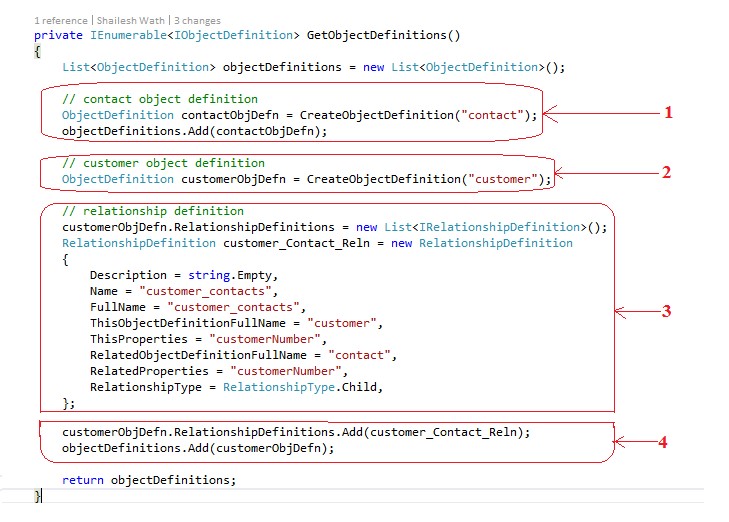
Step 1: Define child enity (Contact) Object definintion and add to objectDefinitions
Step 2: Define parent enity (Customer) Object definintion
Step 3: Define relationship between entites, points to remember as below:
- ThisObjectDefinitionFullName property set parent entity name
- RelatedObjectDefinitionFullName property set child entity name
- RelationshipType property set direction as “RelationshipType.Child”
- ThisProperties & RelatedProperties property should be same in both Parent and child entity.
Step 4: Add relationship to parent entity(Customer) and add parent entity(customer) to objectDefinitions.
Conclusion:
Hope above scenario of defining relationship between entities help in real scenario of development.
Related posts:

Resolving SSL/TLS Secure Channel Trust Errors in Dynamics 365 Finance and Operations

How to change a Bill of material (BOM) item on a production order
![Shopify Meets Dynamics 365 Finance and Operations: A Guide to Integration [Part 2]](https://www.cloudfronts.in/wp-content/uploads/2024/12/DALL·E-2024-12-14-12.29.44-A-professional-illustration-depicting-the-integration-between-Shopify-and-Dynamics-365-Finance-and-Operations.-The-image-shows-Shopify-on-one-side-wit-150x150.webp)
Shopify Meets Dynamics 365 Finance and Operations: A Guide to Integration [Part 2]
