

Designing SSRS mobile reports using SQL Server Mobile Report Publisher
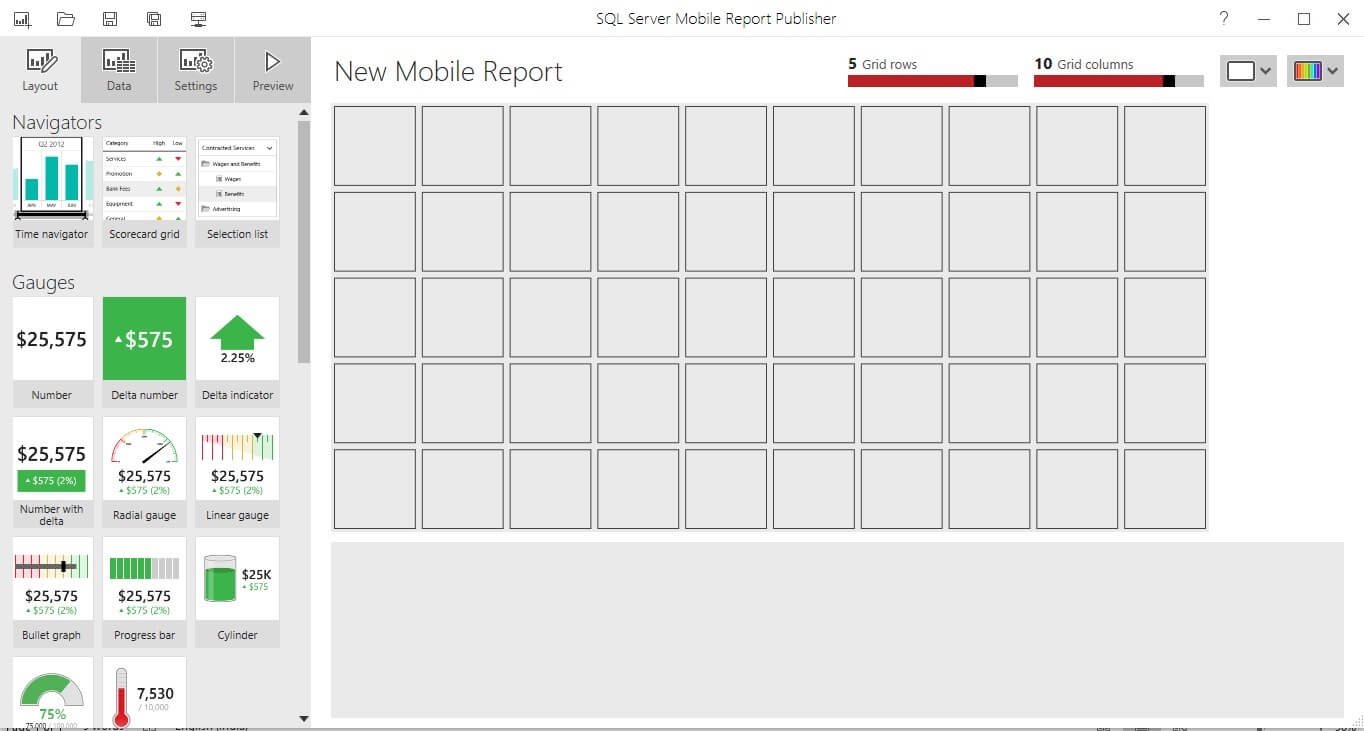
Once you open the SSRS Mobile Report Publisher, you’ll see a blank layout grid and available visualization types as navigators, gauges, charts, maps, and data grids:
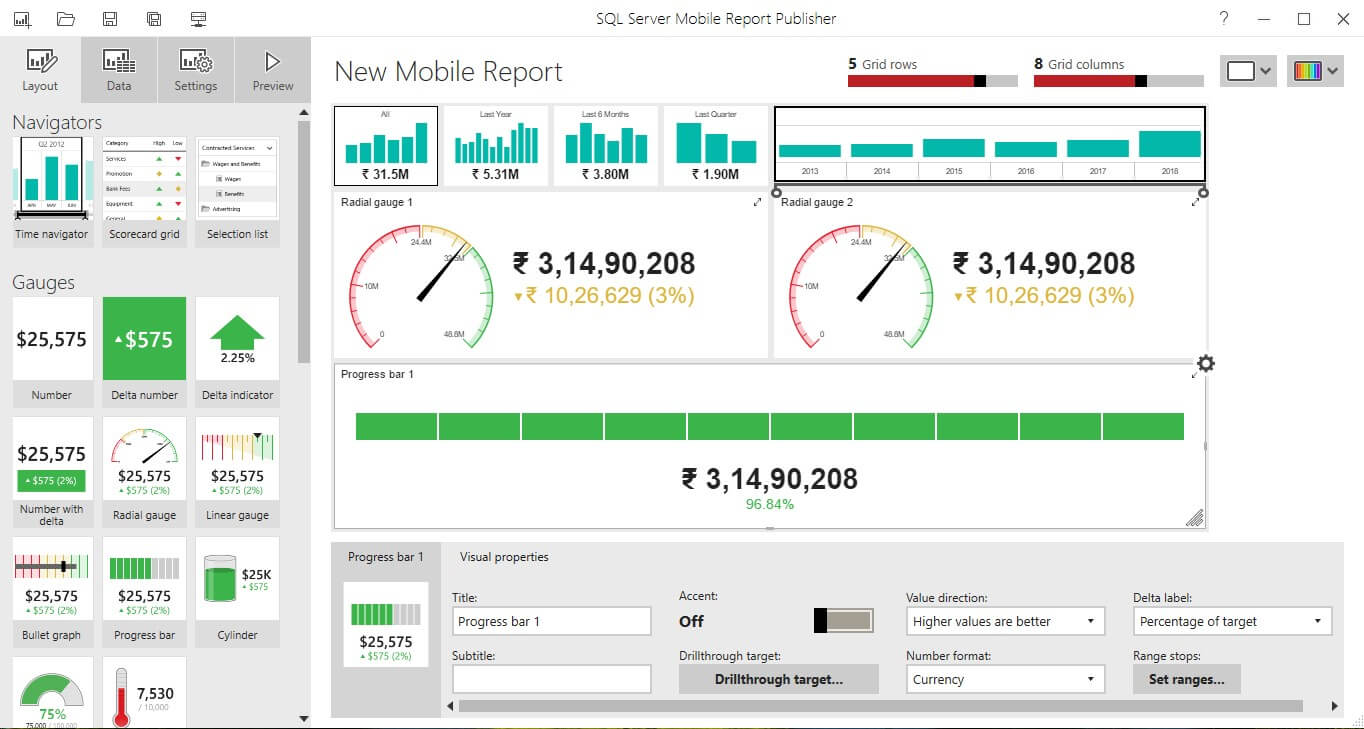
To start designing your report, simply drag-and-drop the visualizations onto the layout grid:
 By default, you’re designing the “Master” layout, but you can also design layouts for Tablet and Phone: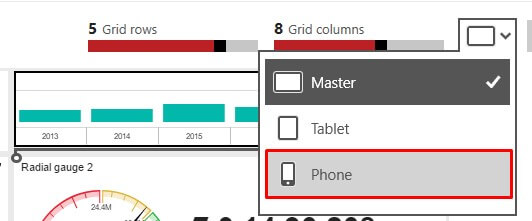
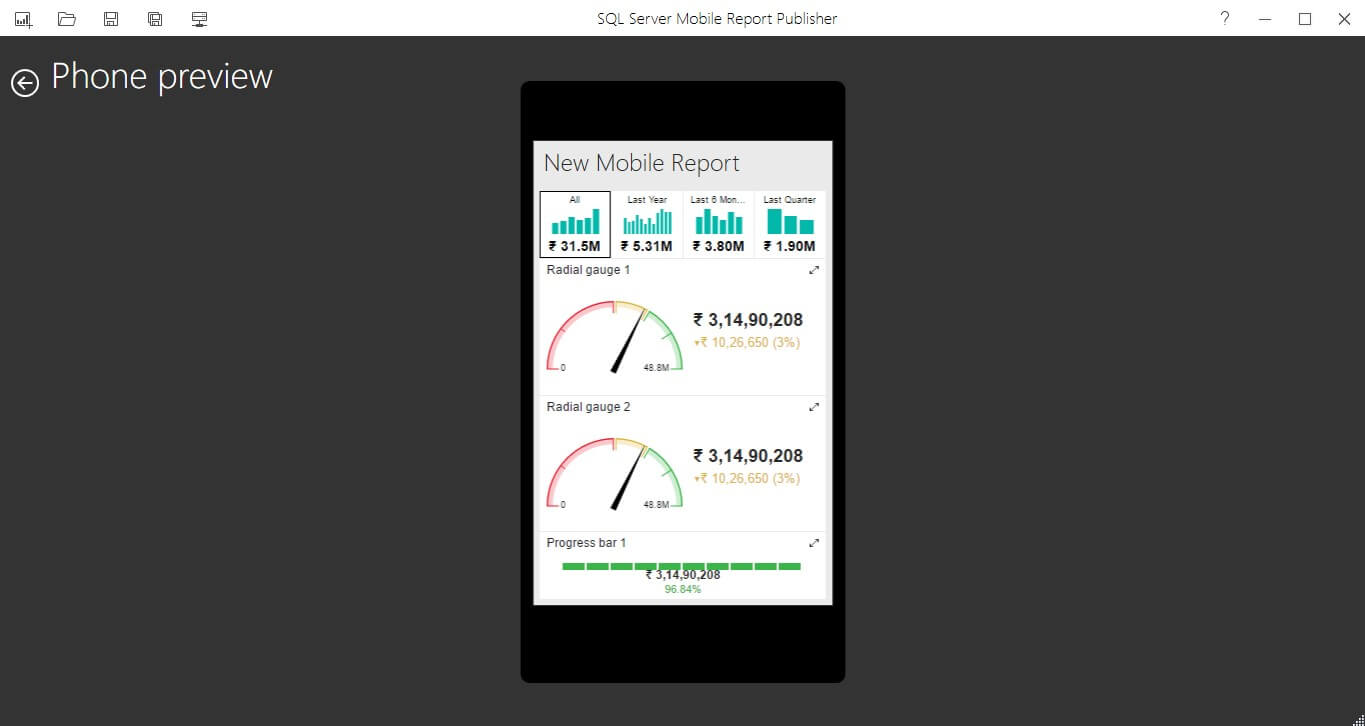
After switching to the Phone layout, you simply drag-and-drop the visualizations you have already created to optimize the layout for phones: You can also switch to Preview to see how your report looks in Master, Tablet, or Phone layout:
Phone Layout:
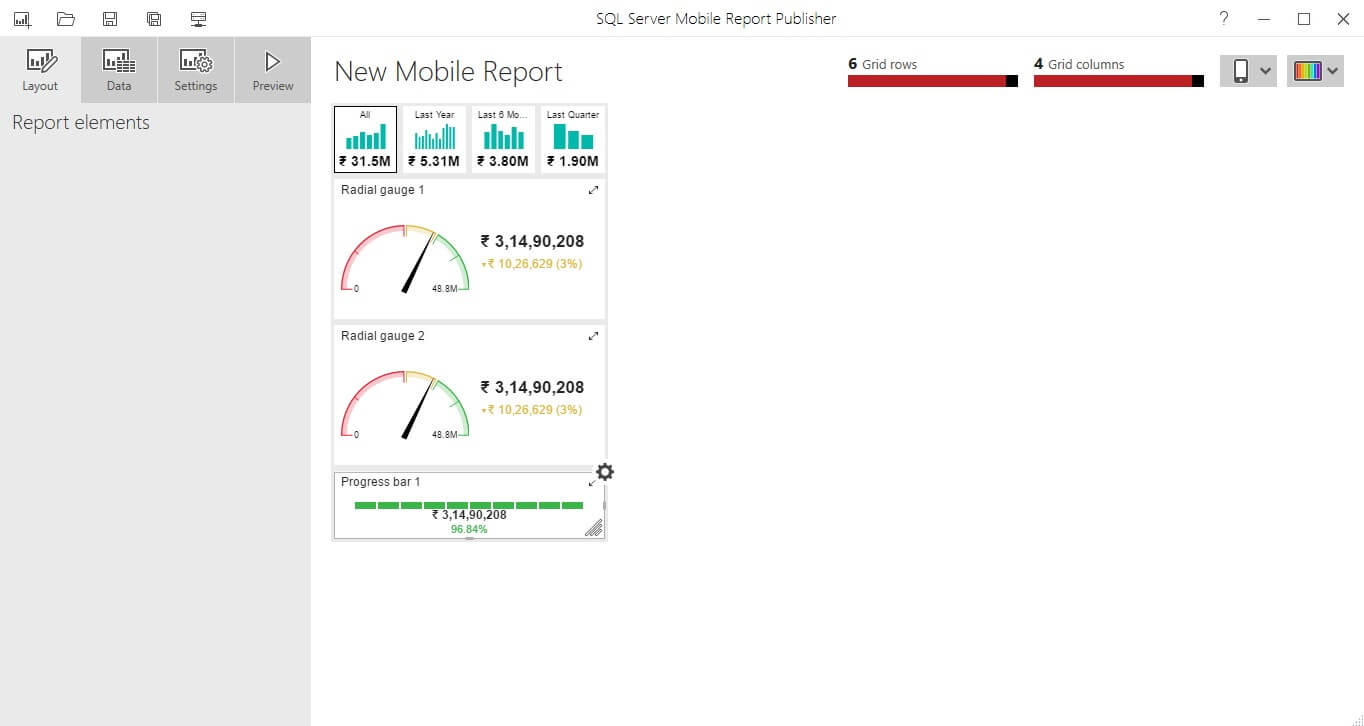
You can also switch to Preview to see how your report looks.
Related posts:

Resolving SSL/TLS Secure Channel Trust Errors in Dynamics 365 Finance and Operations

How to change a Bill of material (BOM) item on a production order
![Shopify Meets Dynamics 365 Finance and Operations: A Guide to Integration [Part 2]](https://www.cloudfronts.in/wp-content/uploads/2024/12/DALL·E-2024-12-14-12.29.44-A-professional-illustration-depicting-the-integration-between-Shopify-and-Dynamics-365-Finance-and-Operations.-The-image-shows-Shopify-on-one-side-wit-150x150.webp)
Shopify Meets Dynamics 365 Finance and Operations: A Guide to Integration [Part 2]
