

To Configure XML As Source In Scribe Insight
Introduction:
You can import XML as a data source, using Scribe Insight, to execute two primary actions:
- Integrate with locally available XML data.
- Receive data as XML from remote systems.
Steps:
- Open Scribe Workbench and click on ‘Configure Source’.
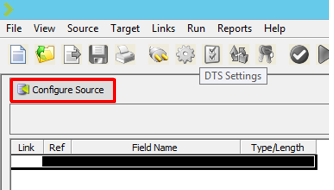
- Click on ‘New’ and select XML.

- The XML Component Connection Wizard will open. Click Next.

- Select ‘Use as a Source’. Click Next.
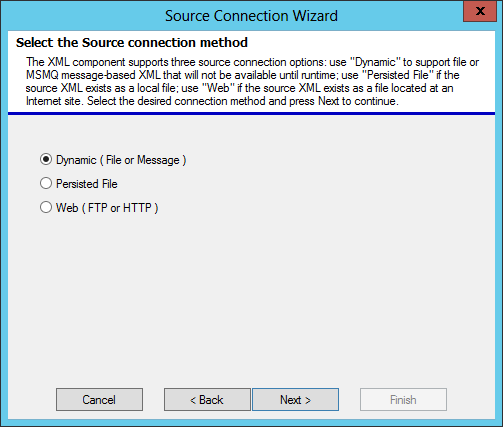
- Select ‘Dynamic’ and click Next.
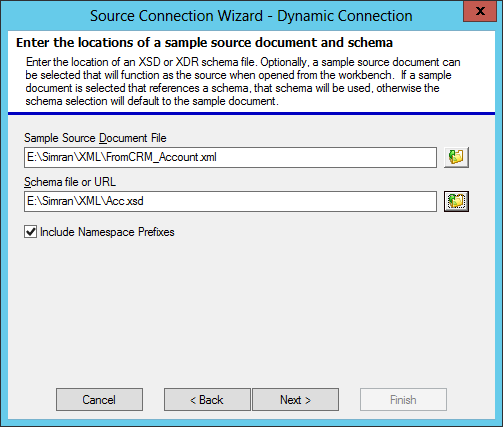
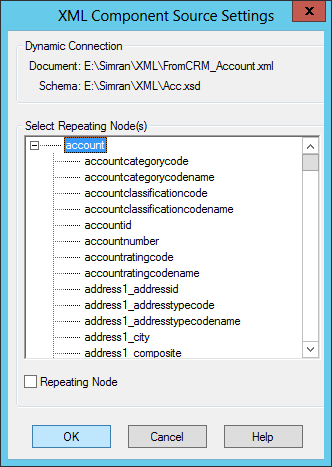
- In the ‘Sample Source Document File’ field, input the XML File (.xml) path and in the ‘Schema File or URL’ field, input the path of the Schema file (.xsd).
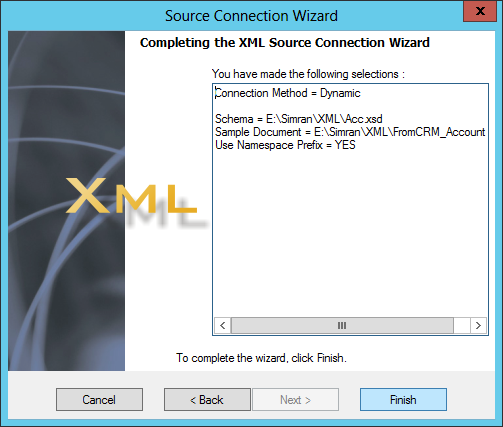
- Click Finish and give a name to the XML source. Click OK.
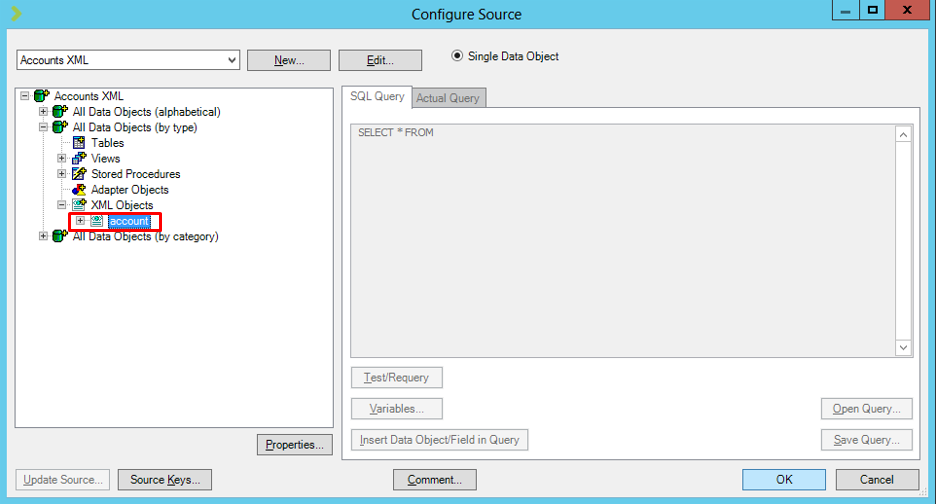
- Select ‘XML Objects’ and select the entity. Click OK.
- It will now be configured as the Source.
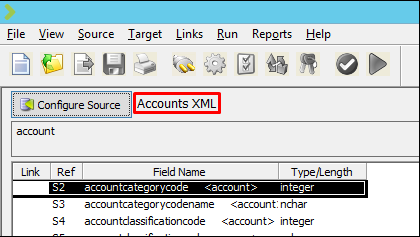


Now you may proceed with mapping the fields required for integration with XML as the Source.
Related posts:

Resolving SSL/TLS Secure Channel Trust Errors in Dynamics 365 Finance and Operations

How to change a Bill of material (BOM) item on a production order
![Shopify Meets Dynamics 365 Finance and Operations: A Guide to Integration [Part 2]](https://www.cloudfronts.in/wp-content/uploads/2024/12/DALL·E-2024-12-14-12.29.44-A-professional-illustration-depicting-the-integration-between-Shopify-and-Dynamics-365-Finance-and-Operations.-The-image-shows-Shopify-on-one-side-wit-150x150.webp)
Shopify Meets Dynamics 365 Finance and Operations: A Guide to Integration [Part 2]
