

Add effects to Power BI Buttons
Hello Friends, in this blog we will see how to add effects to Power BI buttons.
Steps:
- Open Power BI desktop and select blank button from ribbon.

- Now add a rectangular strip to your button to look more attractive with the following configuration.
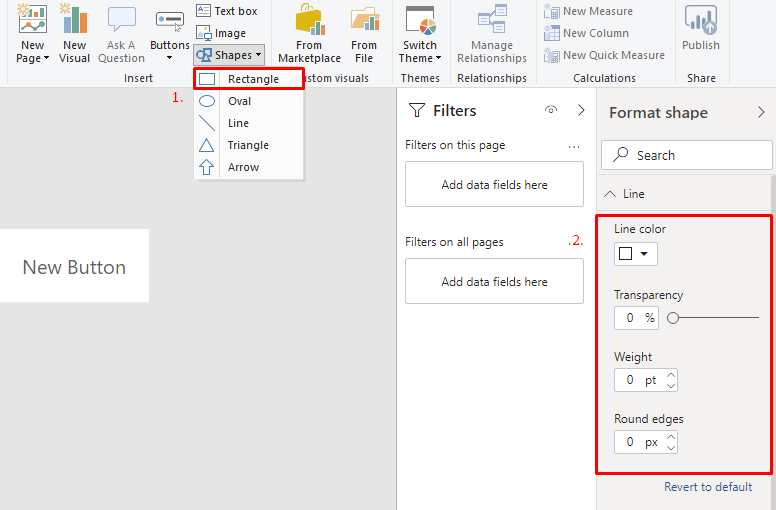
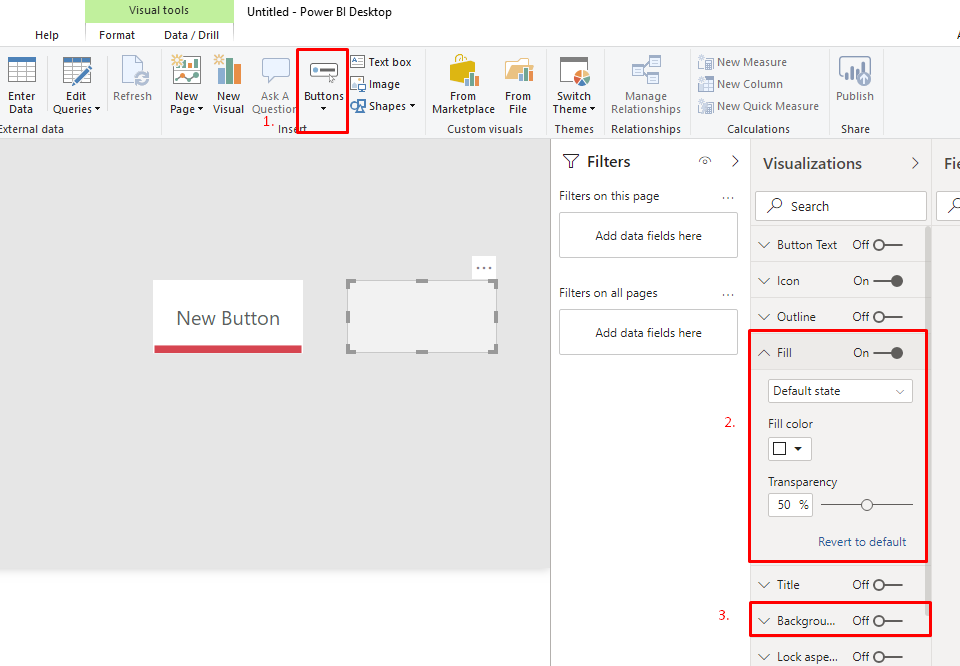
- Now add another button with transparency 50 % in default state just to create the feel of not focused state. Make sure to turn off background.
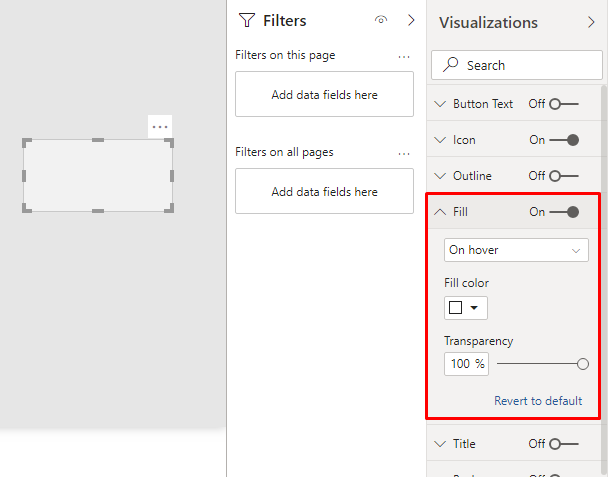
- Add hover state configuration for fill property of newly added button.
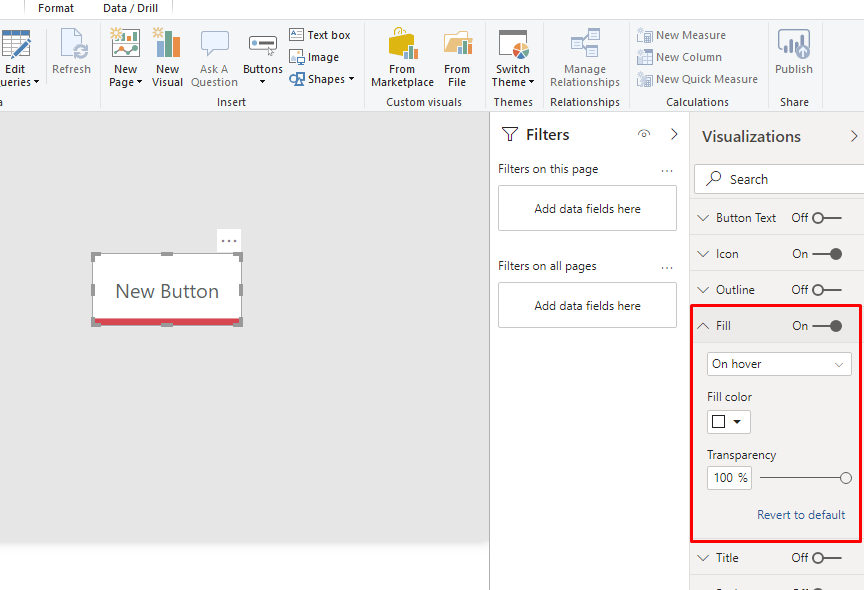
- Place the button on your old button. Final button will look like this. You can add click state for button
Hope this helps.
Related posts:

Resolving SSL/TLS Secure Channel Trust Errors in Dynamics 365 Finance and Operations

How to change a Bill of material (BOM) item on a production order
![Shopify Meets Dynamics 365 Finance and Operations: A Guide to Integration [Part 2]](https://www.cloudfronts.in/wp-content/uploads/2024/12/DALL·E-2024-12-14-12.29.44-A-professional-illustration-depicting-the-integration-between-Shopify-and-Dynamics-365-Finance-and-Operations.-The-image-shows-Shopify-on-one-side-wit-150x150.webp)
Shopify Meets Dynamics 365 Finance and Operations: A Guide to Integration [Part 2]
