

Notes attachments in Word Template
Introduction :
This blog explains how to add notes attachments in word template.
Implementation :
Let say we have word template on the account entity and we want to add attached notes in word template.
Step 1: a. Create record( if no record is there) for an account entity.
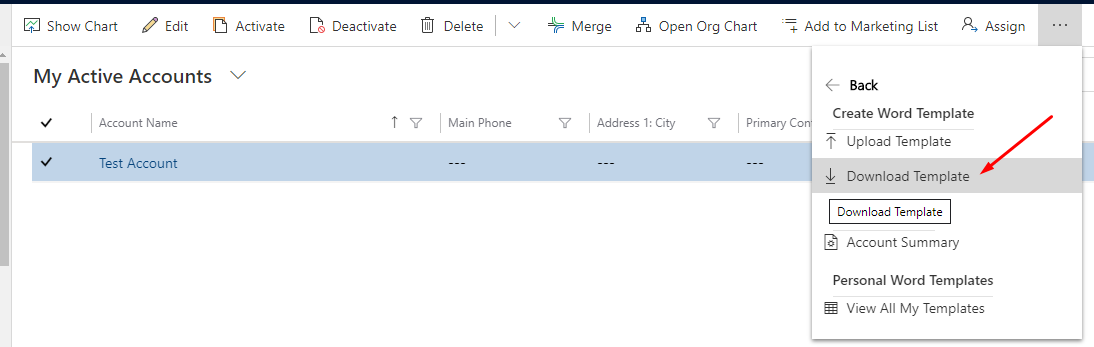
b. Select the record and download the word template.
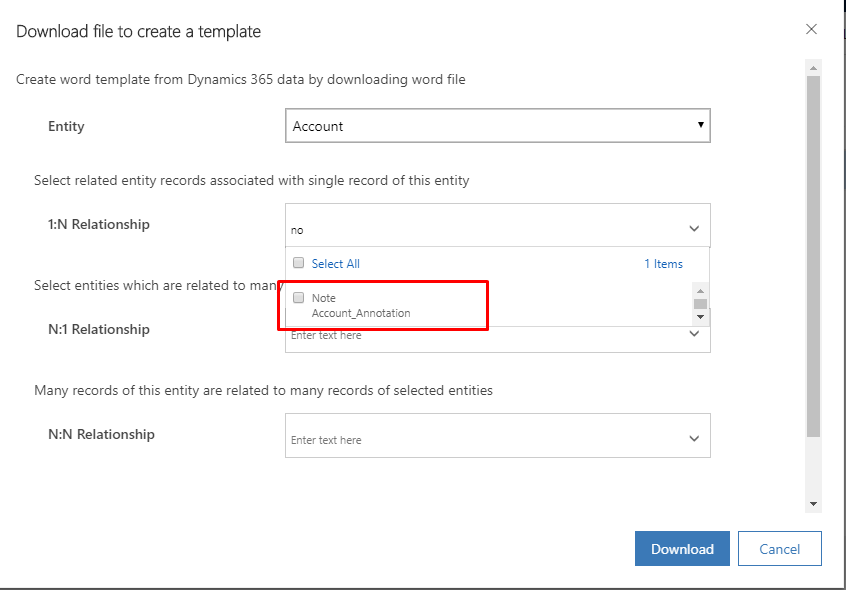
Step 2 : Select notes- annotation(1:N) relationship and Download.
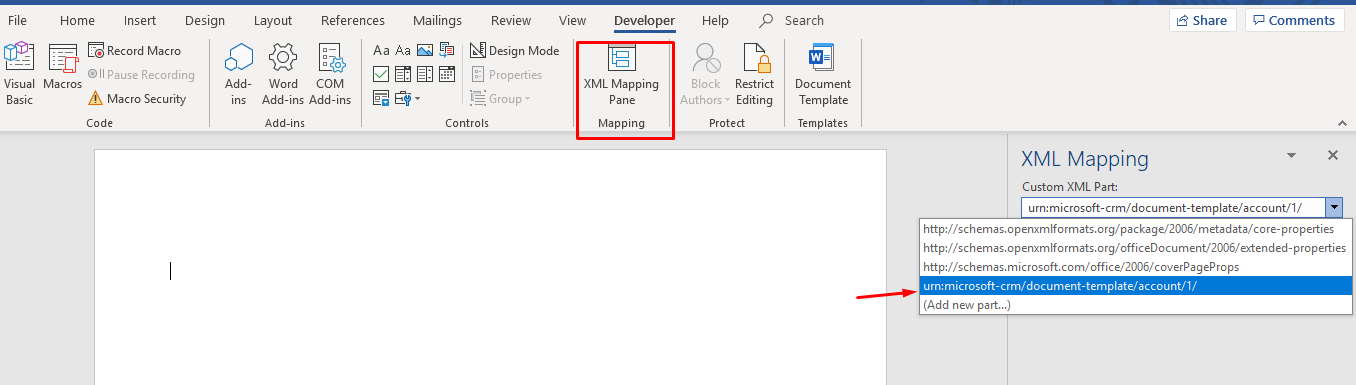
Step 3 : Open Word Template, Navigate to “Developer” ->Select “XML Mapping Pane” -> Select entity .
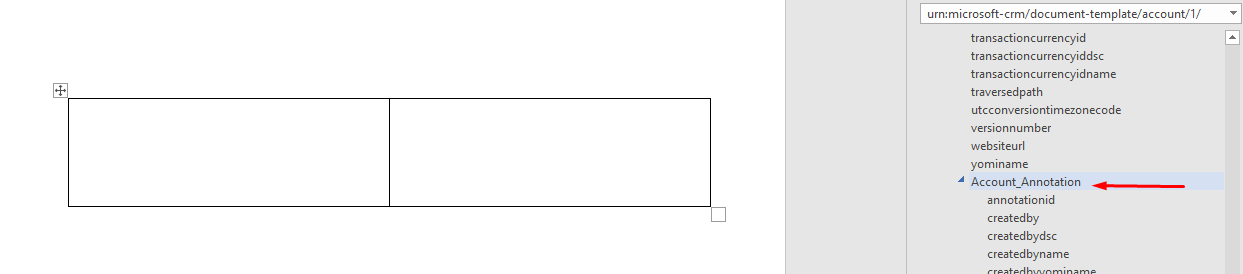
Step 4 : Then insert a table in the template , here inserting 2×1 table.
and then in the XML mapping, go to Account_Annotation relation.
Step 5: Map document body and note text
a. For text in word template, left-click on the note text and select plain text.
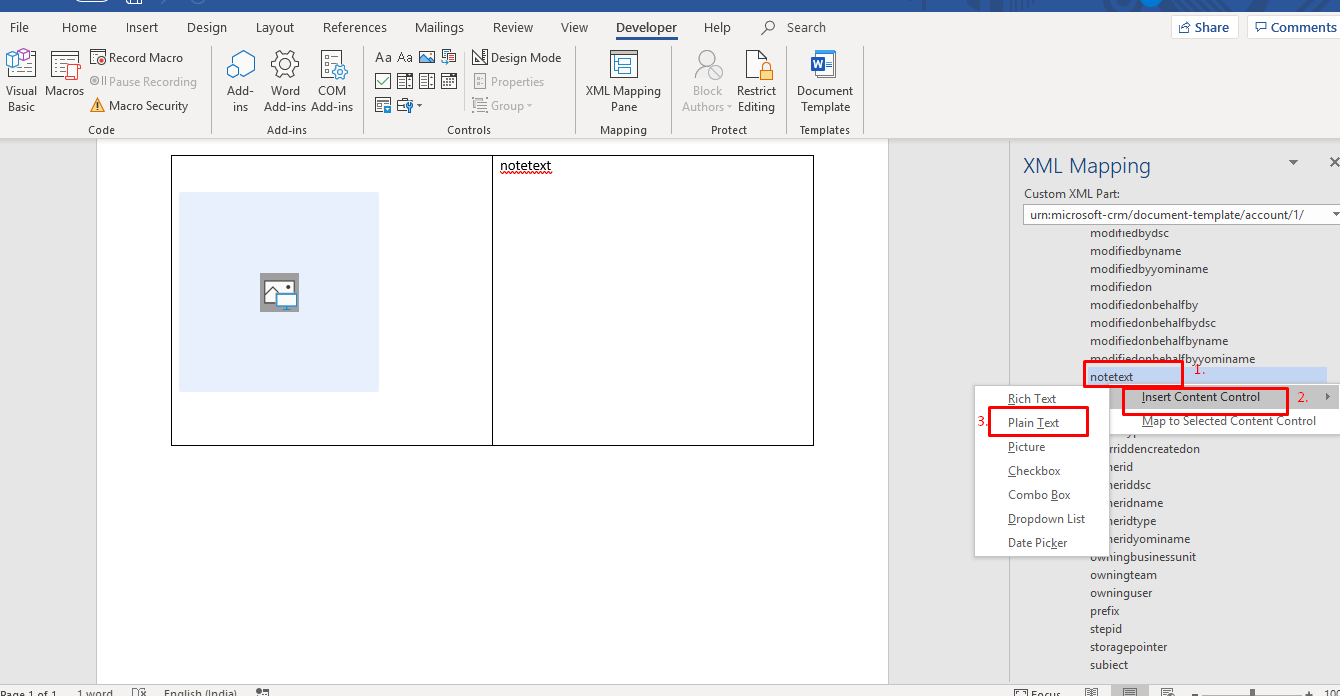
b.For the image in word template, left click on the document body and select Picture.
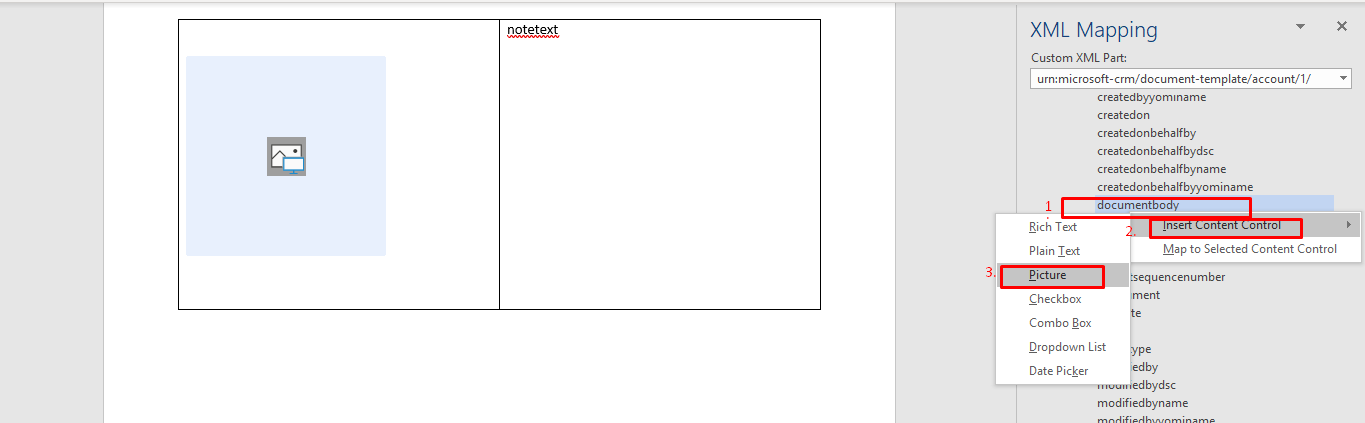
Step 6 : Save and Upload the Template.
To upload the Template –
a. Go to advanced settings -> navigate to “Template”.
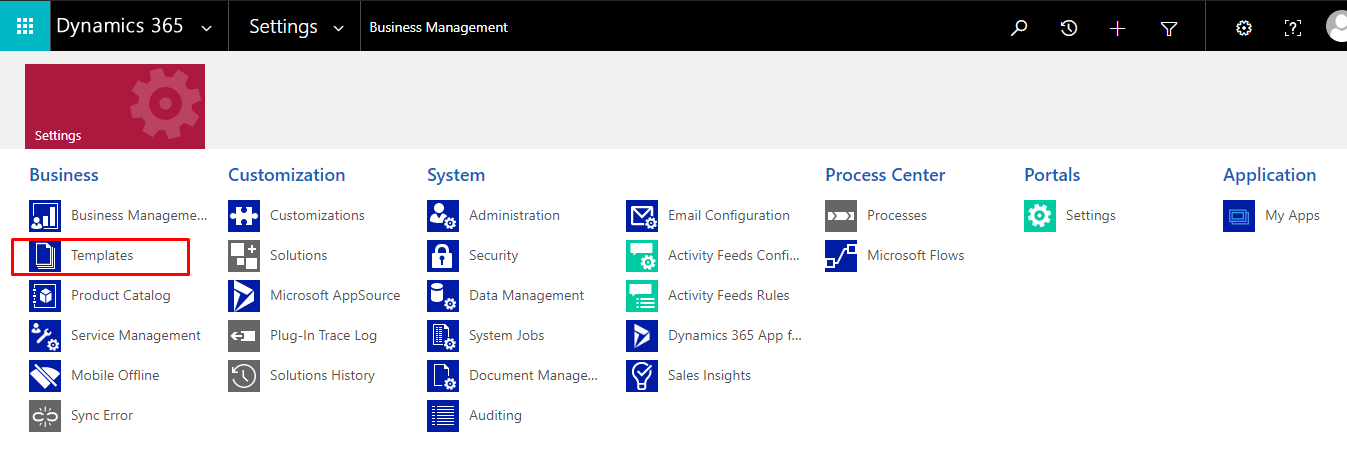
b. In Templates, Select Document Template.
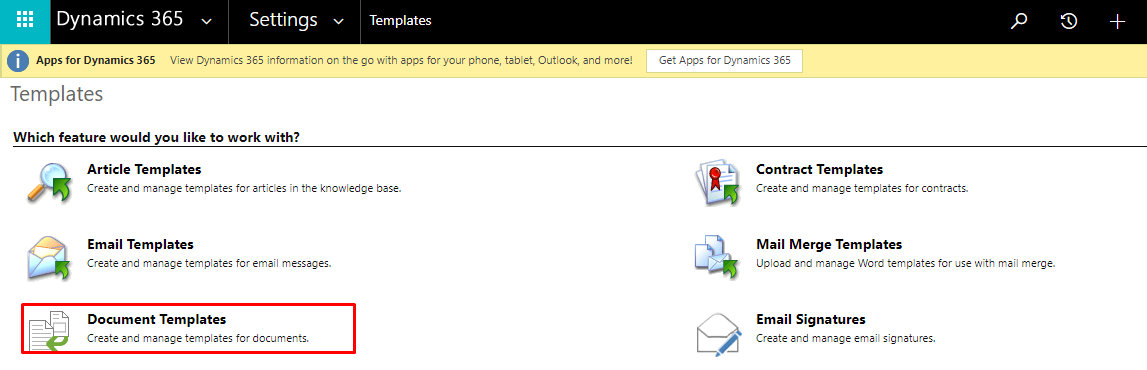
c. In Document Template, click on Upload Template and browse.
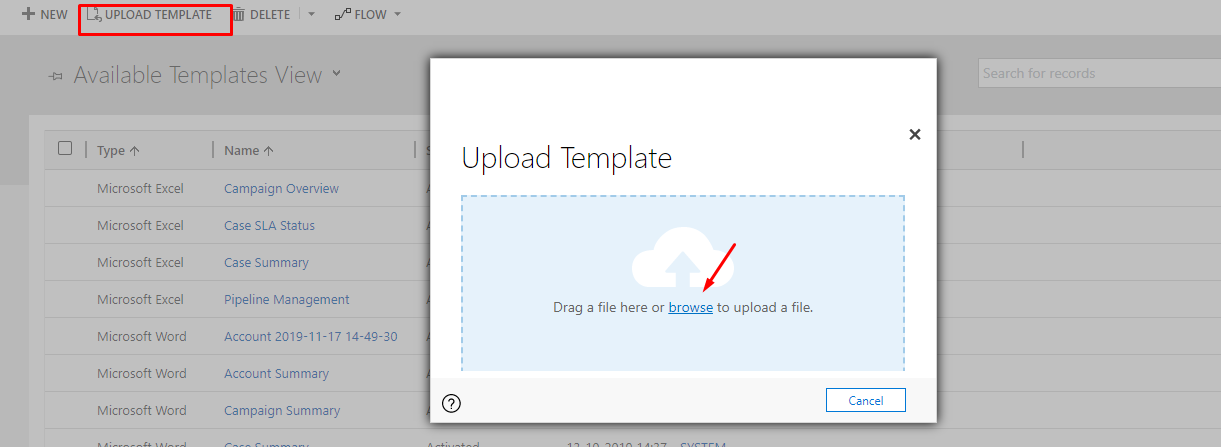
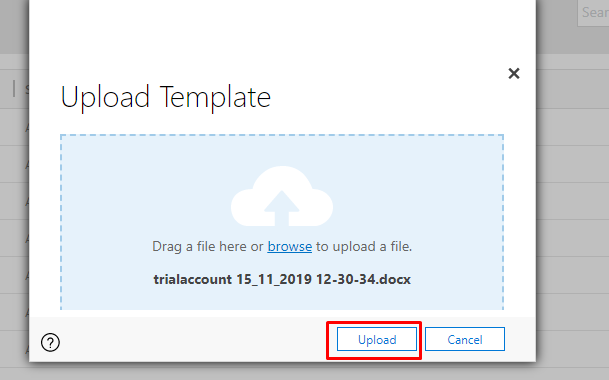
d. Upload.
Related posts:

Resolving SSL/TLS Secure Channel Trust Errors in Dynamics 365 Finance and Operations

How to change a Bill of material (BOM) item on a production order

How to Set Up a Local Development Environment for D365 Finance and Operations Without Azure Costs
![Shopify Meets Dynamics 365 Finance and Operations: A Guide to Integration [Part 2]](https://www.cloudfronts.in/wp-content/uploads/2024/12/DALL·E-2024-12-14-12.29.44-A-professional-illustration-depicting-the-integration-between-Shopify-and-Dynamics-365-Finance-and-Operations.-The-image-shows-Shopify-on-one-side-wit-150x150.webp)
