

Integrating Microsoft Teams with Dynamics 365
In this blog we will see how to integrate Microsoft Teams with Dynamics 365
Solution
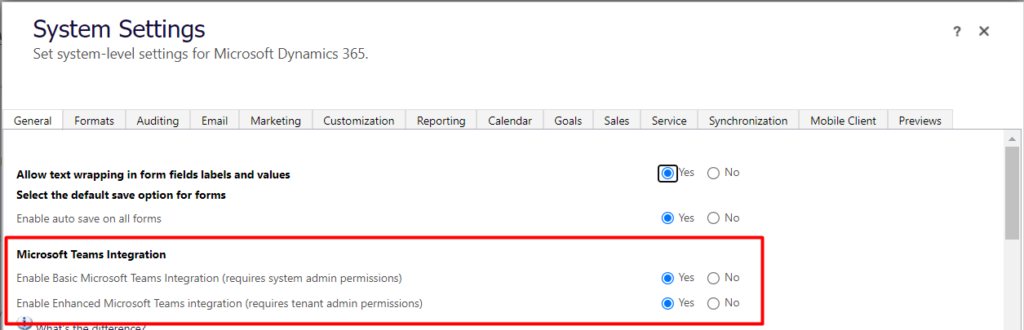
Step 1- To enable Microsoft Teams in D365, Go to Settings –> Administration –> System Settings –> General Tab and flip the below highlighted options to Yes.


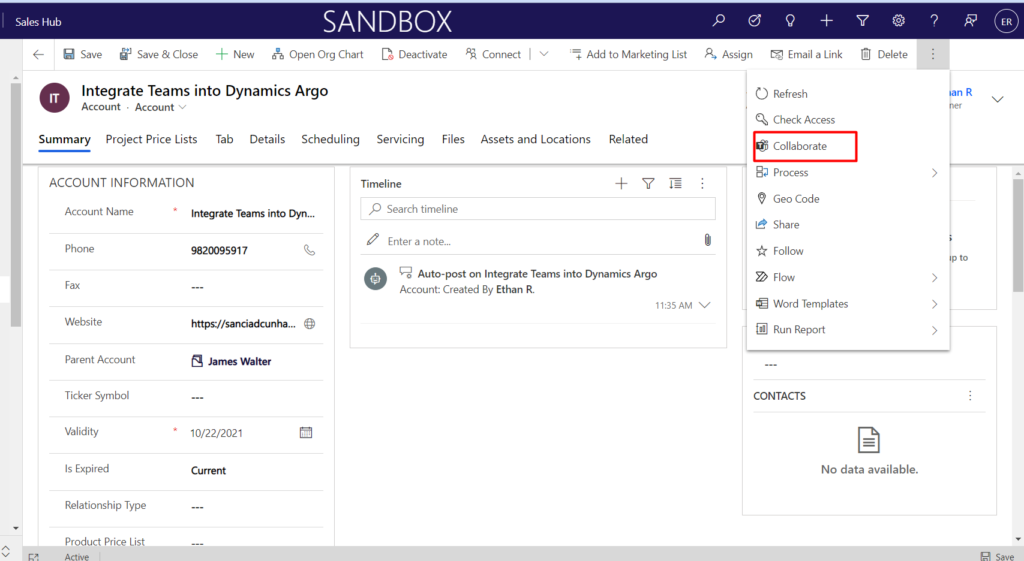
Step 2- Once done, we’ll be able to see Collaborate button on the ribbon

Step 3- Open a record and click on Collaborate
Step 4- On Collaborate with Microsoft Teams window, you will see one of the following: If there’s no channel: You can connect the current record or view to any team channel by selecting, Get started.
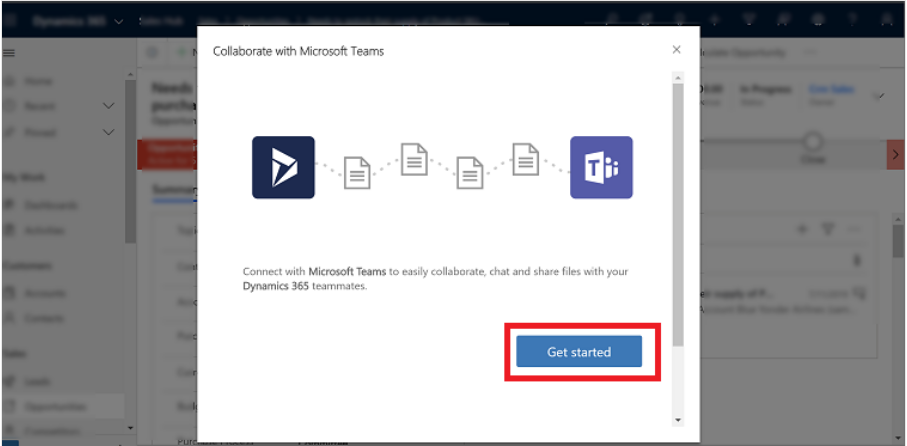
If there is channel that’s already connected: Select a channel from the list and then select, Start collaboration. This will open Microsoft Teams and navigate to the channel that you selected. Or, connect the current record or view to a new team channel by selecting, Create a new connection. Then click on start collaboration.

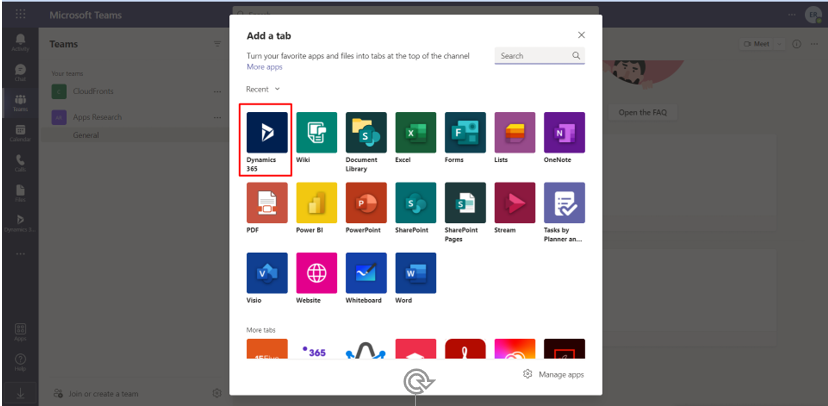
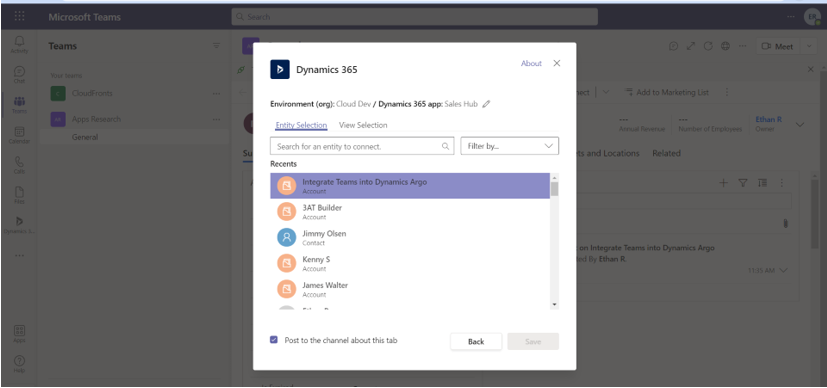
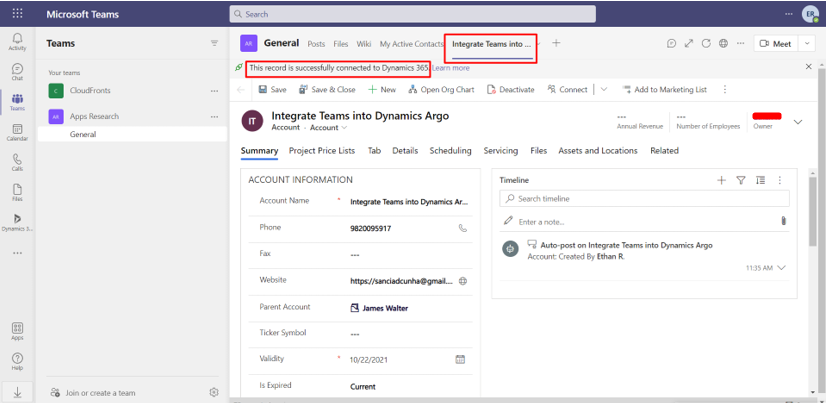
Step 5- Add Dynamics 365 from + button


Related posts:

Resolving SSL/TLS Secure Channel Trust Errors in Dynamics 365 Finance and Operations

How to change a Bill of material (BOM) item on a production order

How to Set Up a Local Development Environment for D365 Finance and Operations Without Azure Costs
![Shopify Meets Dynamics 365 Finance and Operations: A Guide to Integration [Part 2]](https://www.cloudfronts.in/wp-content/uploads/2024/12/DALL·E-2024-12-14-12.29.44-A-professional-illustration-depicting-the-integration-between-Shopify-and-Dynamics-365-Finance-and-Operations.-The-image-shows-Shopify-on-one-side-wit-150x150.webp)
