

Set up Dynamics 365 connection in Microsoft Social Engagement
Introduction:
This blog explains how to Set up Dynamics 365 connection in Microsoft Social Engagement.
Steps to be followed:
- Go to settings
- Under connections tab go to Microsoft Dynamics 365.
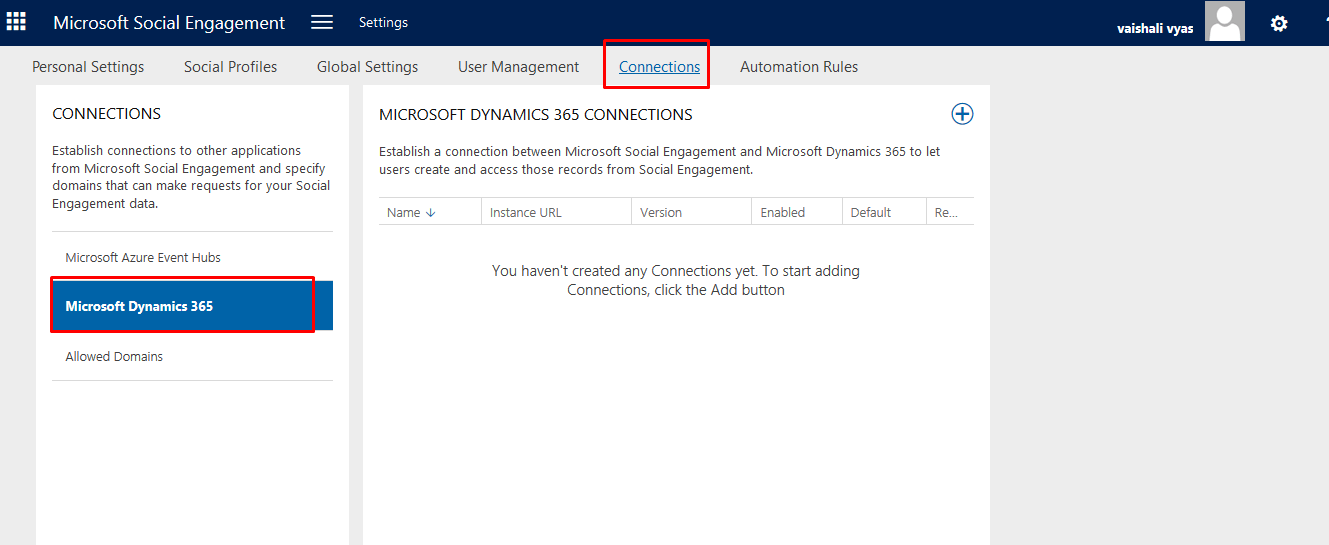
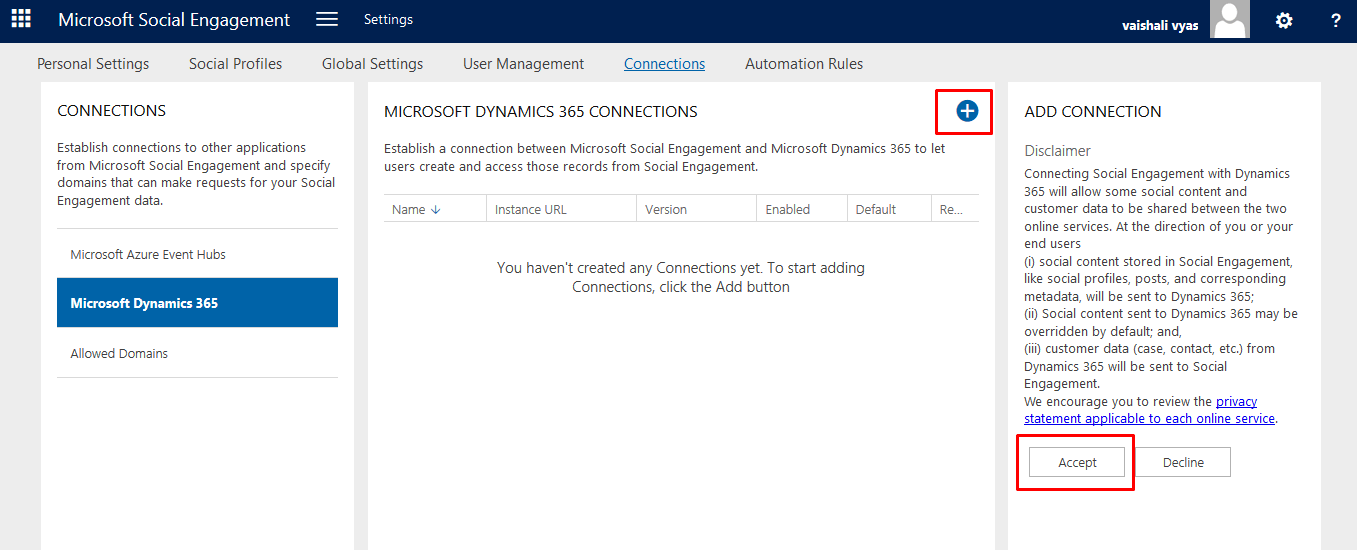
- Click in + to create connection and then click on Accept.
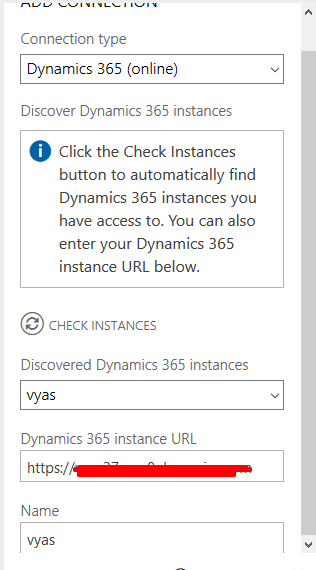
- Select the connection type.
- You can click on CHECK INSTANCES it will load the instances.
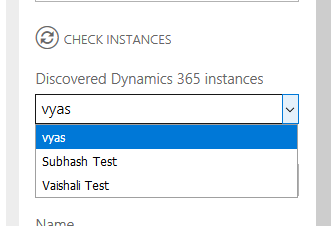
- Or you can enter the URL of the instance in Dynamics 365 instance URL box.
- Finally give name to your connection.
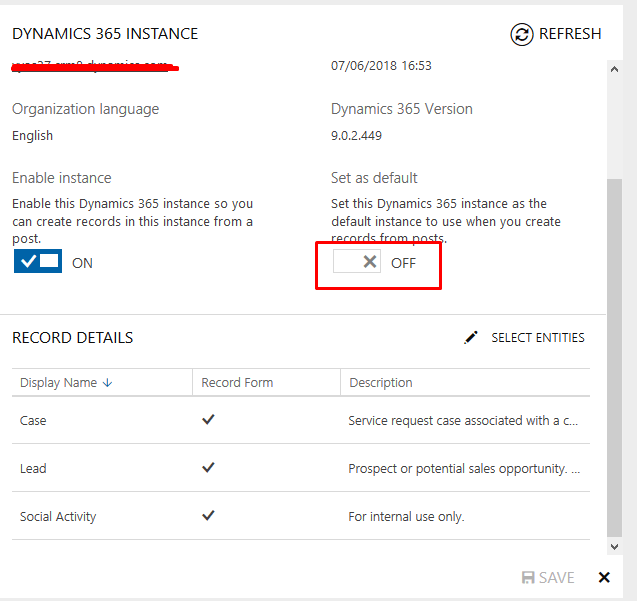
- If you want to make this as your default connection. click ON the set as default option.
- Save.Note: You can only connect to those instances who are in same office 365 tenant.
Related posts:

Resolving SSL/TLS Secure Channel Trust Errors in Dynamics 365 Finance and Operations

How to change a Bill of material (BOM) item on a production order
![Shopify Meets Dynamics 365 Finance and Operations: A Guide to Integration [Part 2]](https://www.cloudfronts.in/wp-content/uploads/2024/12/DALL·E-2024-12-14-12.29.44-A-professional-illustration-depicting-the-integration-between-Shopify-and-Dynamics-365-Finance-and-Operations.-The-image-shows-Shopify-on-one-side-wit-150x150.webp)
Shopify Meets Dynamics 365 Finance and Operations: A Guide to Integration [Part 2]
