

Enable Flow button on D365 Ribbon
This is a pretty simple tweak to either show or hide the Flow button on the entity Forms’ Ribbon.

Flow Button Not Visible

System Settings
Navigate to Settings > Administration. Go to System Settings

In System Settings, under Customization tab, look for Enable Microsoft Flow option.
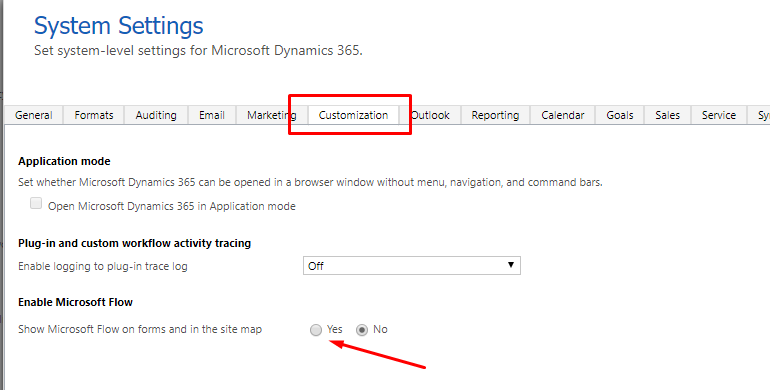
You’ll be asked for permission

Now, this is turned on

Flow Button Visible
Now, once you have enabled this setting, you’ll be able to see the Flow button on the View and Form ribbons across Dynamics 365 CE

That was quick!!
Related posts:

Resolving SSL/TLS Secure Channel Trust Errors in Dynamics 365 Finance and Operations

How to change a Bill of material (BOM) item on a production order
![Shopify Meets Dynamics 365 Finance and Operations: A Guide to Integration [Part 2]](https://www.cloudfronts.in/wp-content/uploads/2024/12/DALL·E-2024-12-14-12.29.44-A-professional-illustration-depicting-the-integration-between-Shopify-and-Dynamics-365-Finance-and-Operations.-The-image-shows-Shopify-on-one-side-wit-150x150.webp)
Shopify Meets Dynamics 365 Finance and Operations: A Guide to Integration [Part 2]
