

Barcode Control in Dynamics 365
Overview:
Here’s a quick helpful control to enter barcodes in D365 fields. Here is how it goes –
Adding Barcode Control:
Here’s how you can add the Barcode Control.
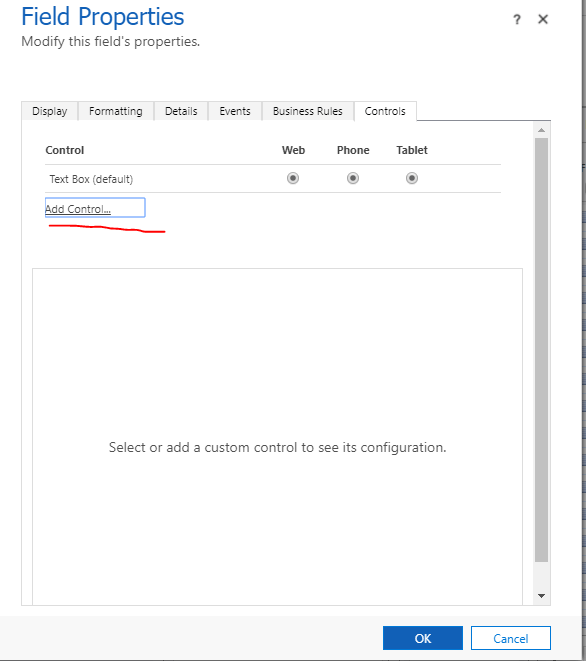
- Select Add Control in the Field Property section.
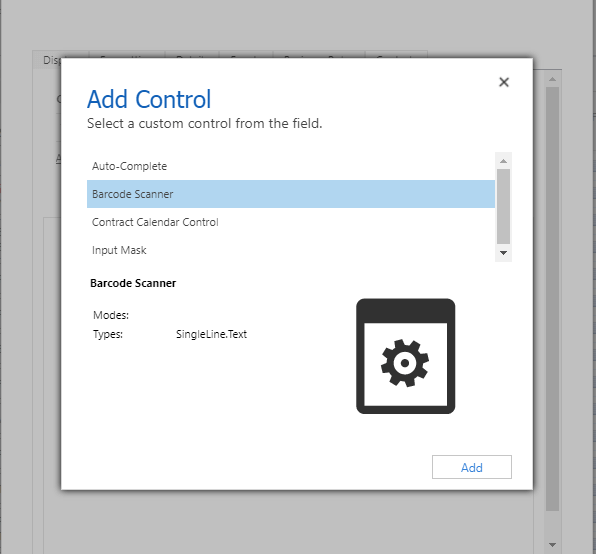
- Select Barcode Scanner and click on Add.
- Select the appropriate configuration of devices for the control and click OK
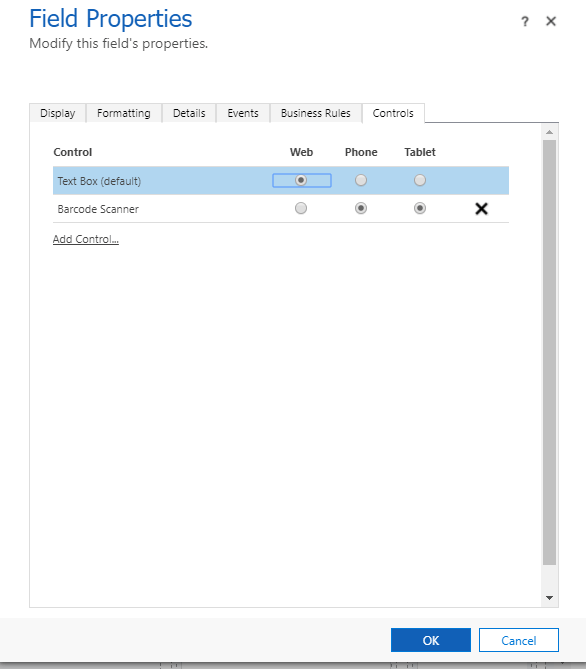
- Finally, save and publish your customization.
Seeing it Work:
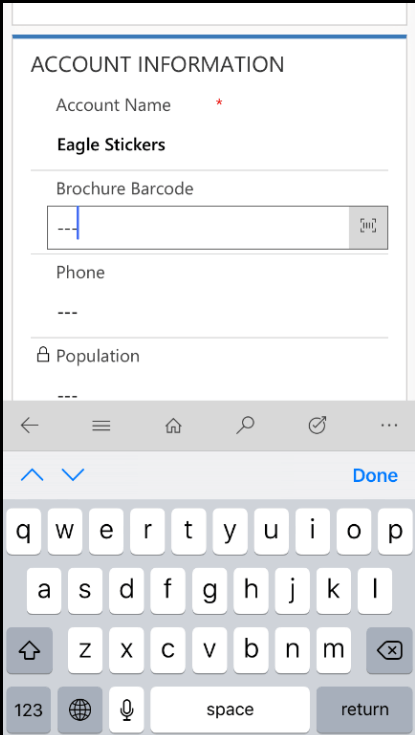
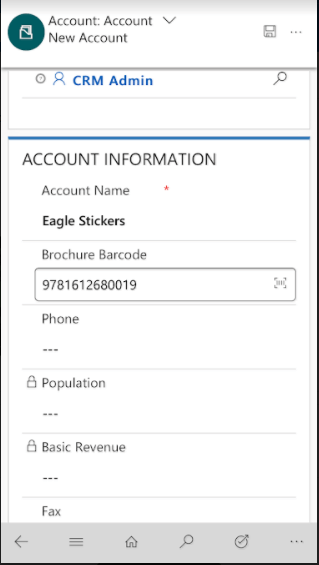
Now, since I have published a field called Brochure Barcode. I can use the same on the mobile device to capture barcodes without having to type them manually
- I can see the icon on the right end of the text box of type Barcode.
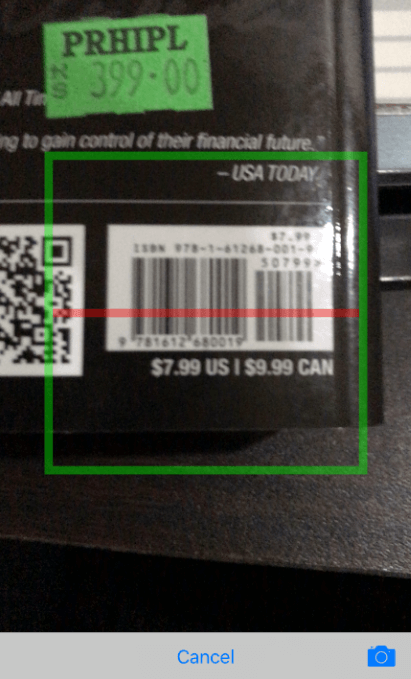
- On clicking the barcode icon, my phone’s camera opens. Show it in front of the barcode.
- And it automatically detects and enters the same in the textbox.
 That’s it. Hope this helps!
Related posts:

Resolving SSL/TLS Secure Channel Trust Errors in Dynamics 365 Finance and Operations

How to change a Bill of material (BOM) item on a production order
![Shopify Meets Dynamics 365 Finance and Operations: A Guide to Integration [Part 2]](https://www.cloudfronts.in/wp-content/uploads/2024/12/DALL·E-2024-12-14-12.29.44-A-professional-illustration-depicting-the-integration-between-Shopify-and-Dynamics-365-Finance-and-Operations.-The-image-shows-Shopify-on-one-side-wit-150x150.webp)
Shopify Meets Dynamics 365 Finance and Operations: A Guide to Integration [Part 2]
