

How to add direct links into Dynamics 365 Site Map
This blog consists of steps to add an external link to navigation bar in the application using new sitemap editor in Dynamics 365.
Steps to be followed are given below:
- Create an HTML Web Resource in CRM consisting of below code.
<html> <body> <script> //open link in new window window.open("https://www.google.com"); </script> </body> </html> - Open the sitemap editor and add a new subarea and the created web resource into your sitemap

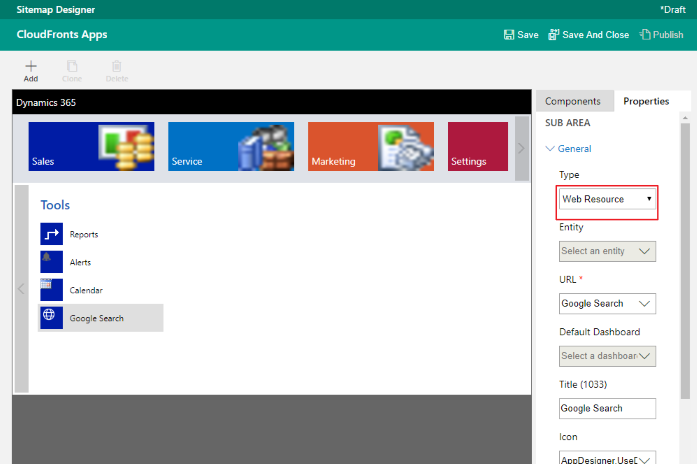
- Publish your configurations and click on Google Search in the Navigation to check the results:
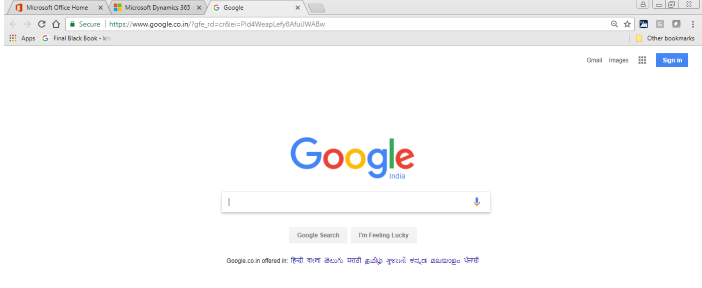
Behaviour: On click on the link, the link opens in the new tab.
Related posts:

Resolving SSL/TLS Secure Channel Trust Errors in Dynamics 365 Finance and Operations

How to change a Bill of material (BOM) item on a production order
![Shopify Meets Dynamics 365 Finance and Operations: A Guide to Integration [Part 2]](https://www.cloudfronts.in/wp-content/uploads/2024/12/DALL·E-2024-12-14-12.29.44-A-professional-illustration-depicting-the-integration-between-Shopify-and-Dynamics-365-Finance-and-Operations.-The-image-shows-Shopify-on-one-side-wit-150x150.webp)
Shopify Meets Dynamics 365 Finance and Operations: A Guide to Integration [Part 2]
