

Setup simultaneous Remote login for multiple users
Introduction:
In this blog article, we will see how we can increase simultaneous remote logins for multiple users to a remote connection. This will create different sessions for each login. It is important that we don’t increase simultaneous connection more then required as performance can decrease due to more resource demand for each login.
Steps:
- Run -> gpedit.msc -> enter
- Administrative Templates -> windows Component -> Remote Desktop Services -> remote desktop session host -> connections
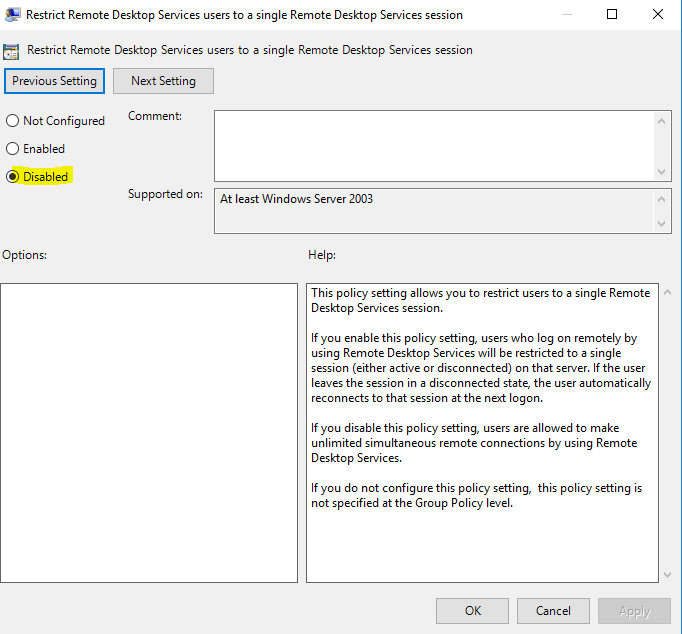
- Go to Restrict Remote Desktop Services users to a single Remote Desktop Services Session
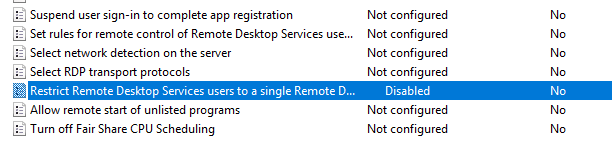
- Select Disabled. Click OK
- Go to Limit number of connections.

- Select Enabled. Change ‘RD Maximum connections allowed’ to the desired connection allowed.
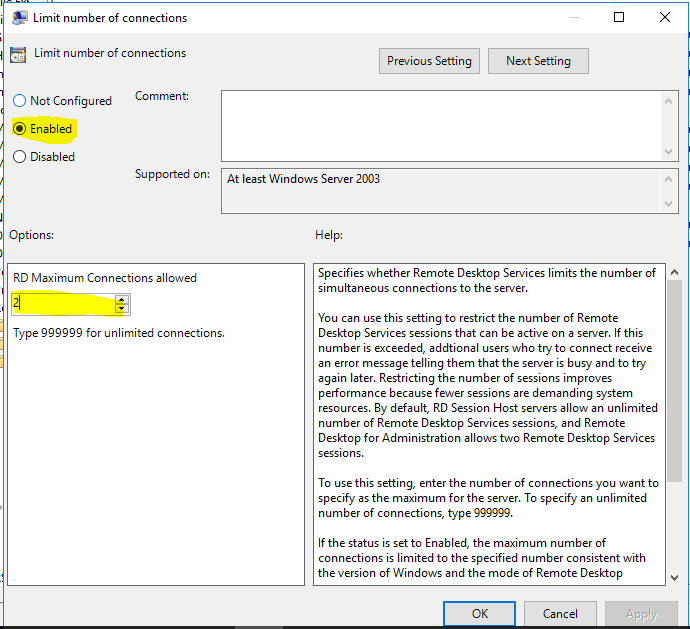
This will enable 2 simultaneous logins for Remote connection. In case Remote Desktop session host is not installed maximum connections allowed for remote login is 2.
Related posts:

Resolving SSL/TLS Secure Channel Trust Errors in Dynamics 365 Finance and Operations

How to change a Bill of material (BOM) item on a production order

How to Set Up a Local Development Environment for D365 Finance and Operations Without Azure Costs
![Shopify Meets Dynamics 365 Finance and Operations: A Guide to Integration [Part 2]](https://www.cloudfronts.in/wp-content/uploads/2024/12/DALL·E-2024-12-14-12.29.44-A-professional-illustration-depicting-the-integration-between-Shopify-and-Dynamics-365-Finance-and-Operations.-The-image-shows-Shopify-on-one-side-wit-150x150.webp)
