

Quantity Adjustment – On Hand Inventory : D365 Finance & Operations
Introduction:
Quantity adjust functionality is useful to adjust the Quantity of Inventory from ‘On hand inventory’ form.
Steps:
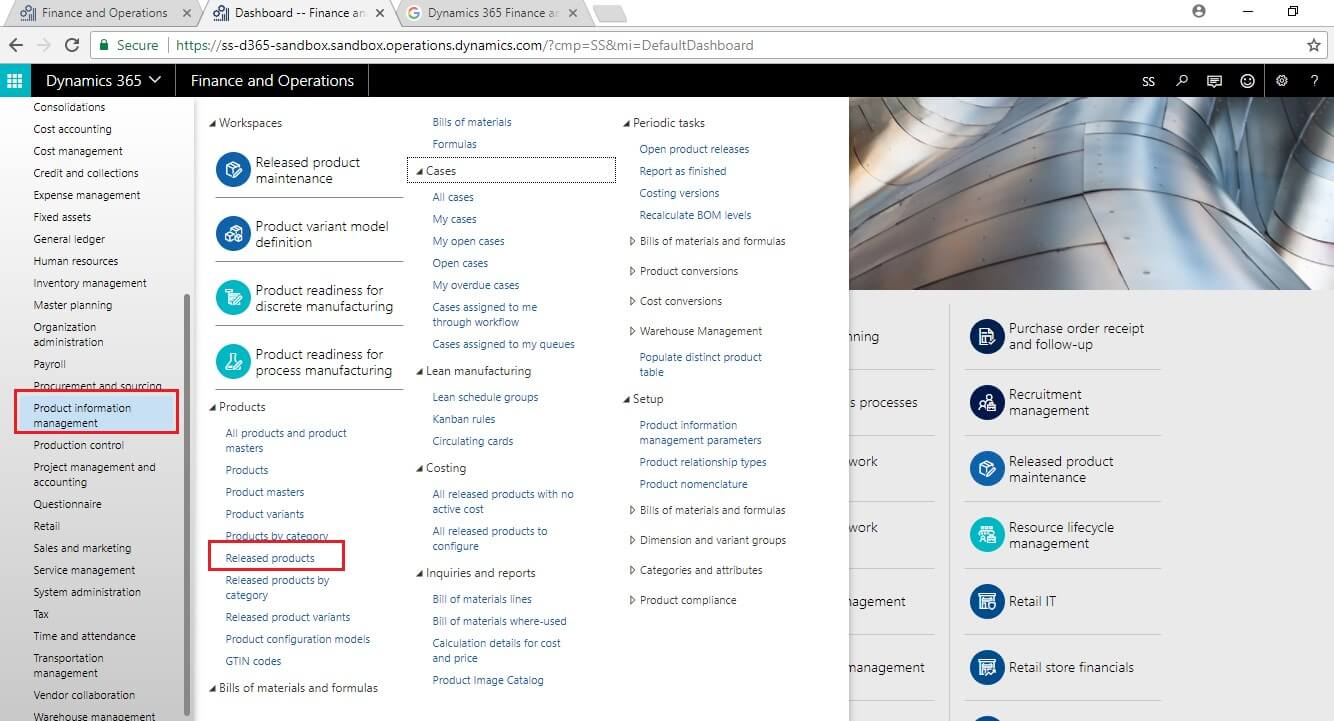
- Navigate to Product Information management > Products > Released Product
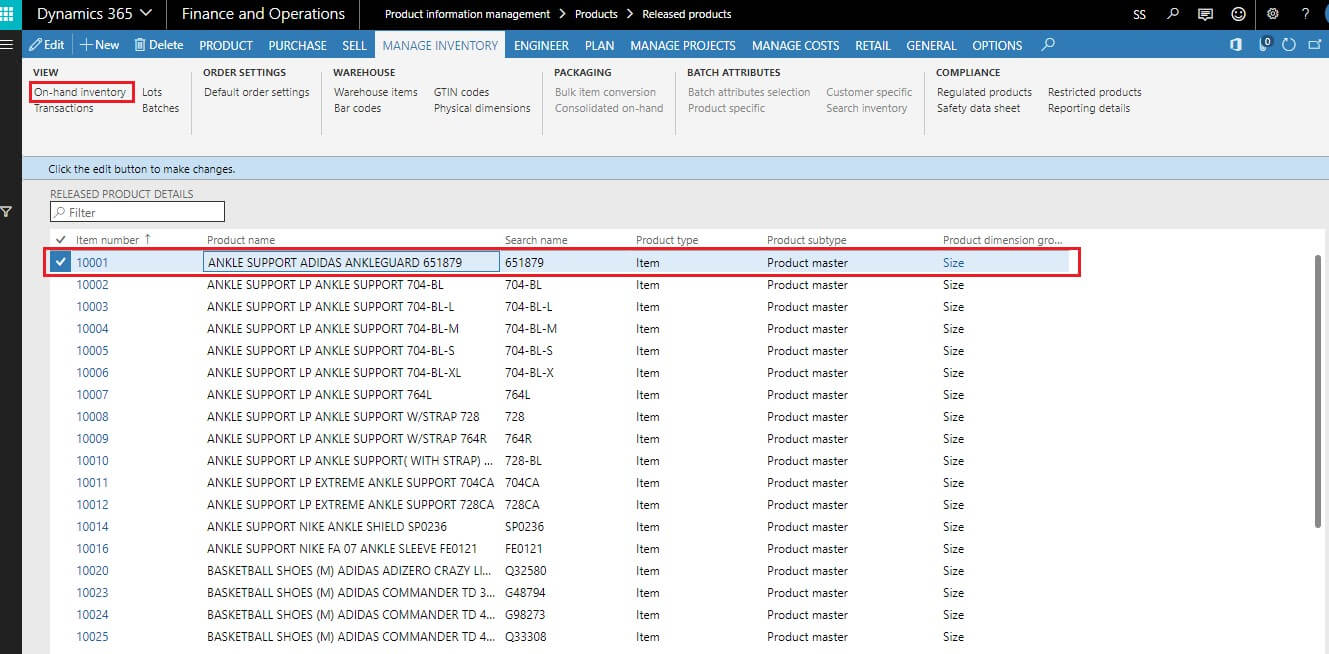
- In released Product form, select the product for which you want to adjust the Quantity.
- On Manage Inventory action tab, click on ‘On Hand inventory’ button.
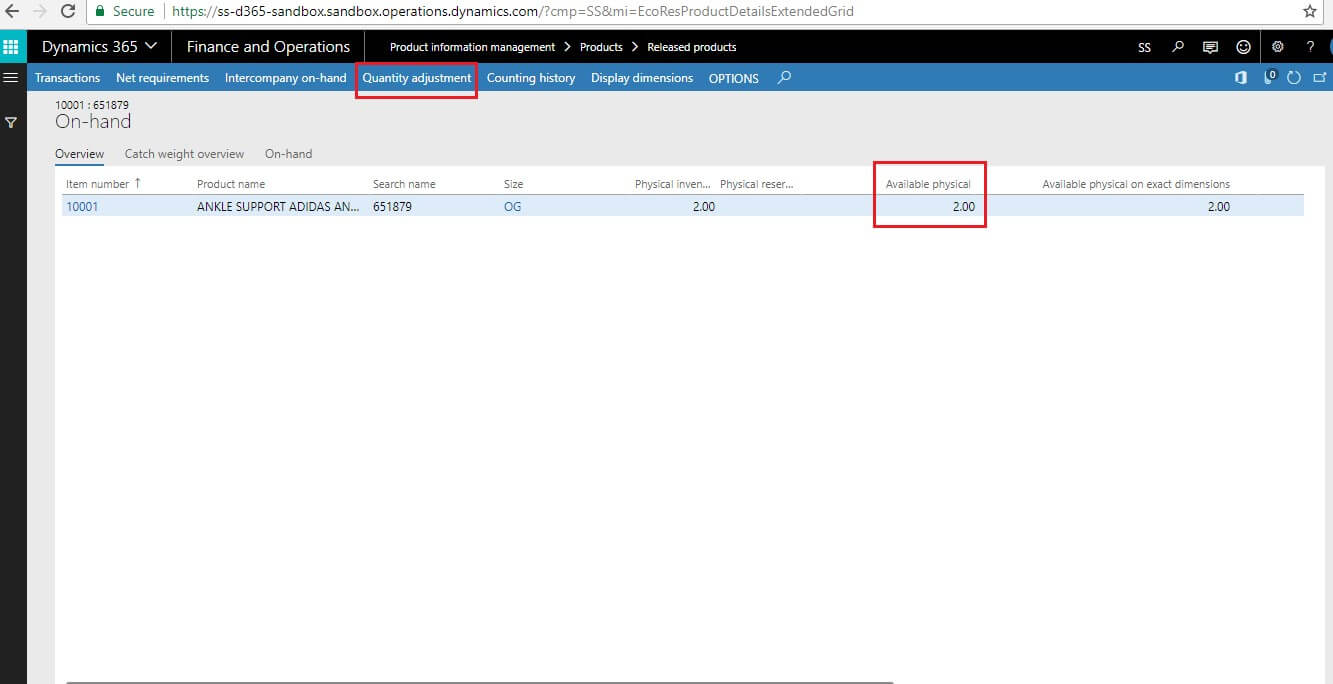
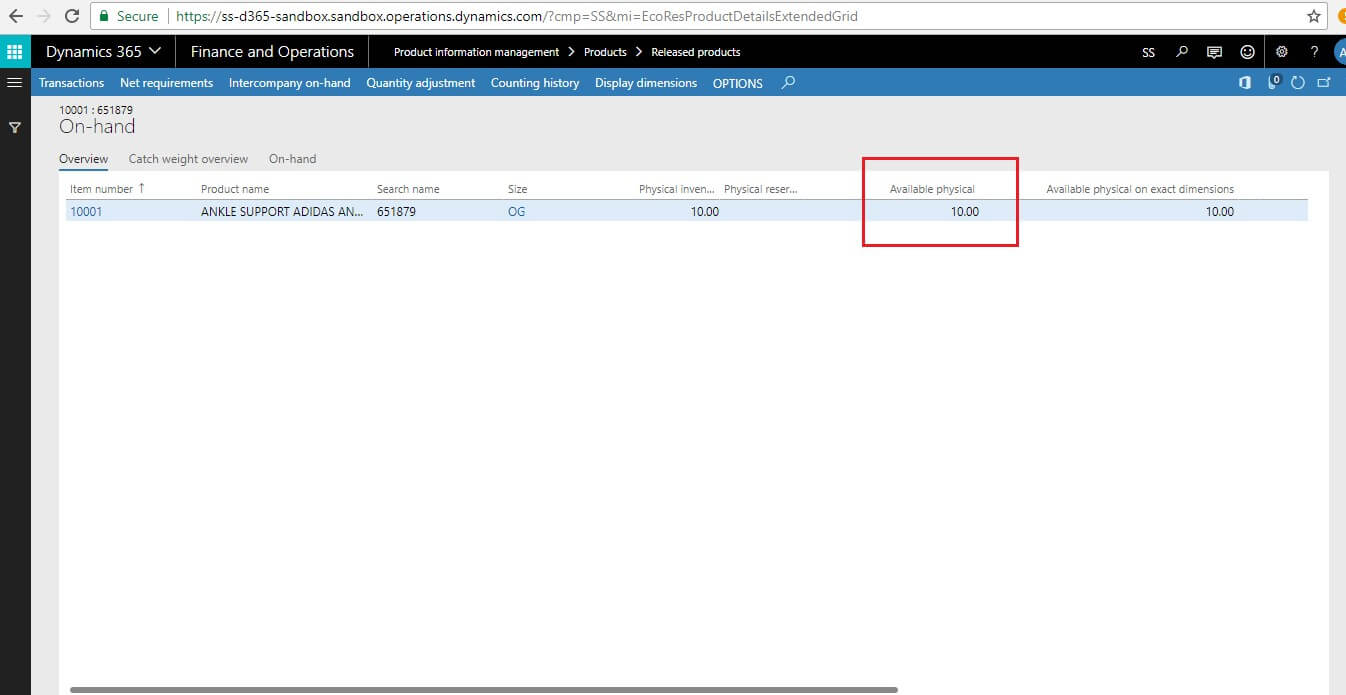
- On ‘On Hand inventory’ you can check available quantity.
- Click on Quantity adjustment button to adjust the quantity.
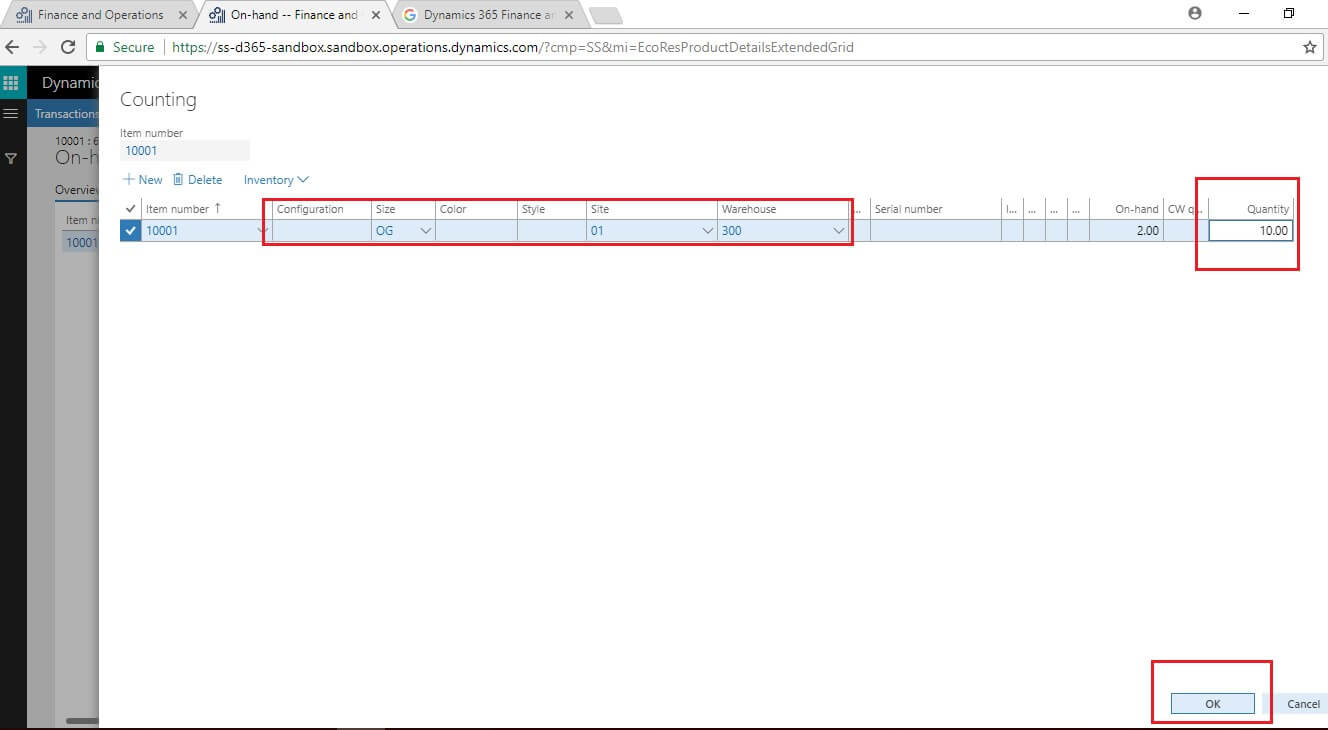
- On Counting form, select Inventory dimensions, tracking dimensions which are required.
- In Quantity field, specify the quantity. you can decrease the quantity by specifying it into negative and increase the quantity by specifying it into positive.
- Once quantity has been specified click on OK button.
- Now you can check adjusted quantity on ‘On Hand Inventory’ form.
Conclusion:
By using Quantity adjustment functionality, you can directly adjust inventory quantity on ‘On Hand Quantity’ form without using counting journal, Inventory adjustment journals.
Related posts:

Resolving SSL/TLS Secure Channel Trust Errors in Dynamics 365 Finance and Operations

How to change a Bill of material (BOM) item on a production order

How to Set Up a Local Development Environment for D365 Finance and Operations Without Azure Costs
![Shopify Meets Dynamics 365 Finance and Operations: A Guide to Integration [Part 2]](https://www.cloudfronts.in/wp-content/uploads/2024/12/DALL·E-2024-12-14-12.29.44-A-professional-illustration-depicting-the-integration-between-Shopify-and-Dynamics-365-Finance-and-Operations.-The-image-shows-Shopify-on-one-side-wit-150x150.webp)
