

Pin Embedded Power BI Reports to Workspace in Dynamics 365 for Finance and Operations
Introduction:
In this blog article, we shall see how to pin the power BI reports to Workspace.
How to pin?
- Power BI reports can be added to any workspace that contains a Links section.
- Once the Power BI reports have been deployed successfully you can pin them to your Dynamics 365 Finance and Operations Workspace.
- Steps:
- Open a workspace in Dynamics 365 For Finance and Operations
- In the workspace, click the Options tab
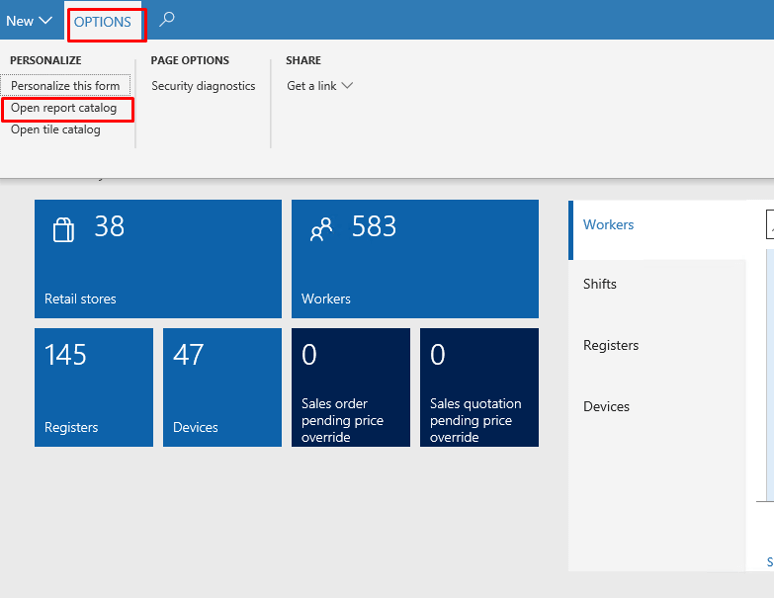
- Click Open Report Catelog
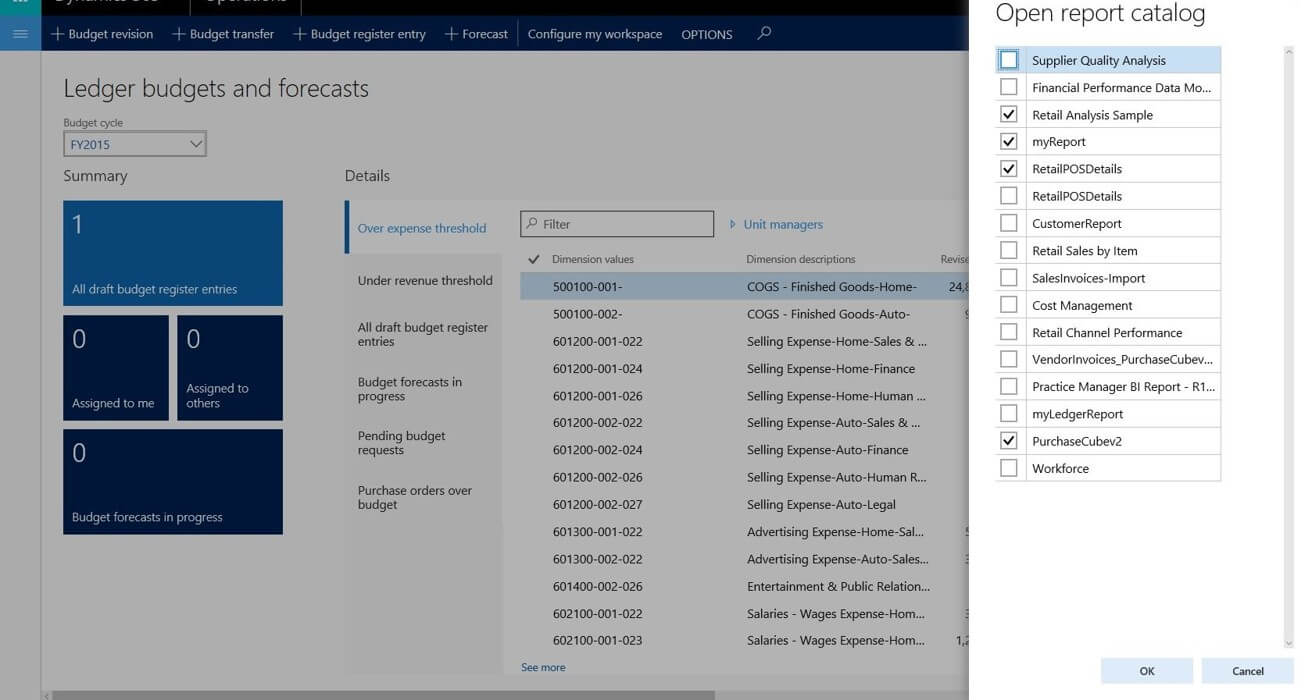
- The list of reports comes from the reports that you have in your Power BI account
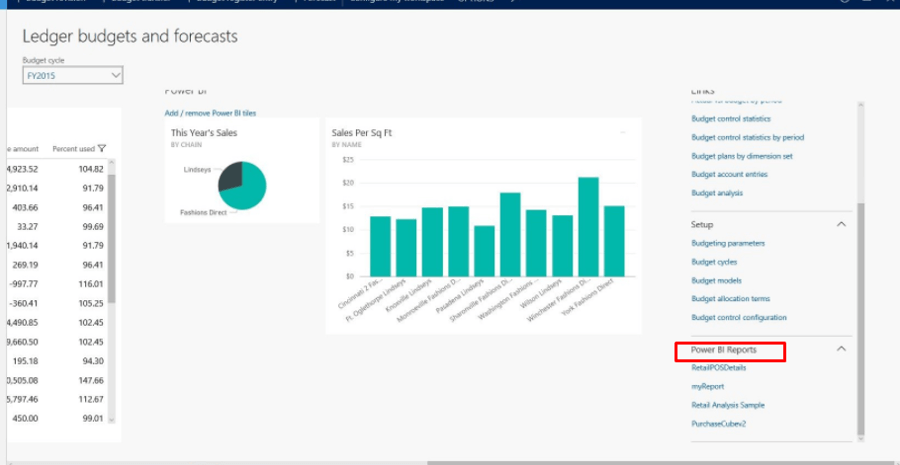
- Click on Ok and those reports will be on your workspace
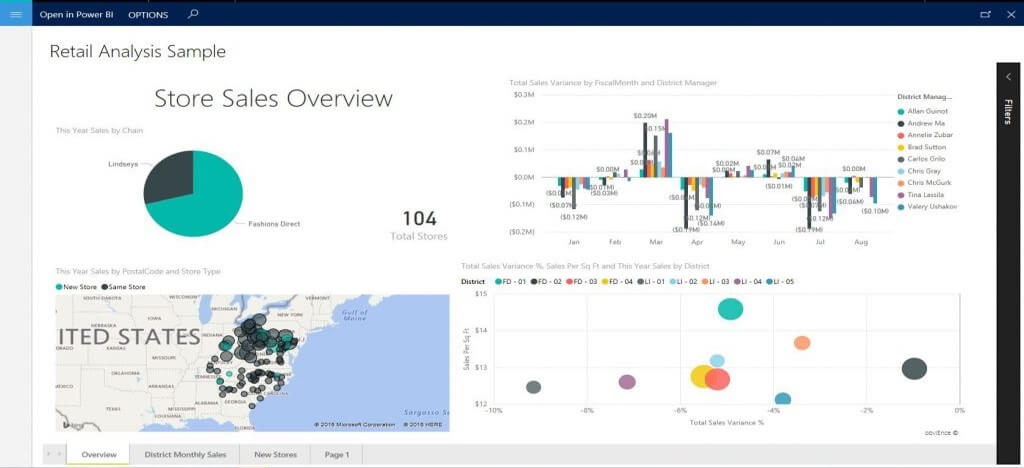
Similarly any customized or out of the box reports can be pinned to your workspace.
Related posts:

Resolving SSL/TLS Secure Channel Trust Errors in Dynamics 365 Finance and Operations

How to change a Bill of material (BOM) item on a production order

How to Set Up a Local Development Environment for D365 Finance and Operations Without Azure Costs
![Shopify Meets Dynamics 365 Finance and Operations: A Guide to Integration [Part 2]](https://www.cloudfronts.in/wp-content/uploads/2024/12/DALL·E-2024-12-14-12.29.44-A-professional-illustration-depicting-the-integration-between-Shopify-and-Dynamics-365-Finance-and-Operations.-The-image-shows-Shopify-on-one-side-wit-150x150.webp)
