

Item cross reference Dynamics 365 Business Central
Introduction:
Item Cross reference is useful to quickly identify the items that were ordered by a customer or that you are purchasing from a vendor on the basis of item numbers other than your company. You can use Item Cross reference on Purchase Order, Sales Order, Purchase Quote and Sales Quote
Steps:
Following are steps to setup Item cross reference.
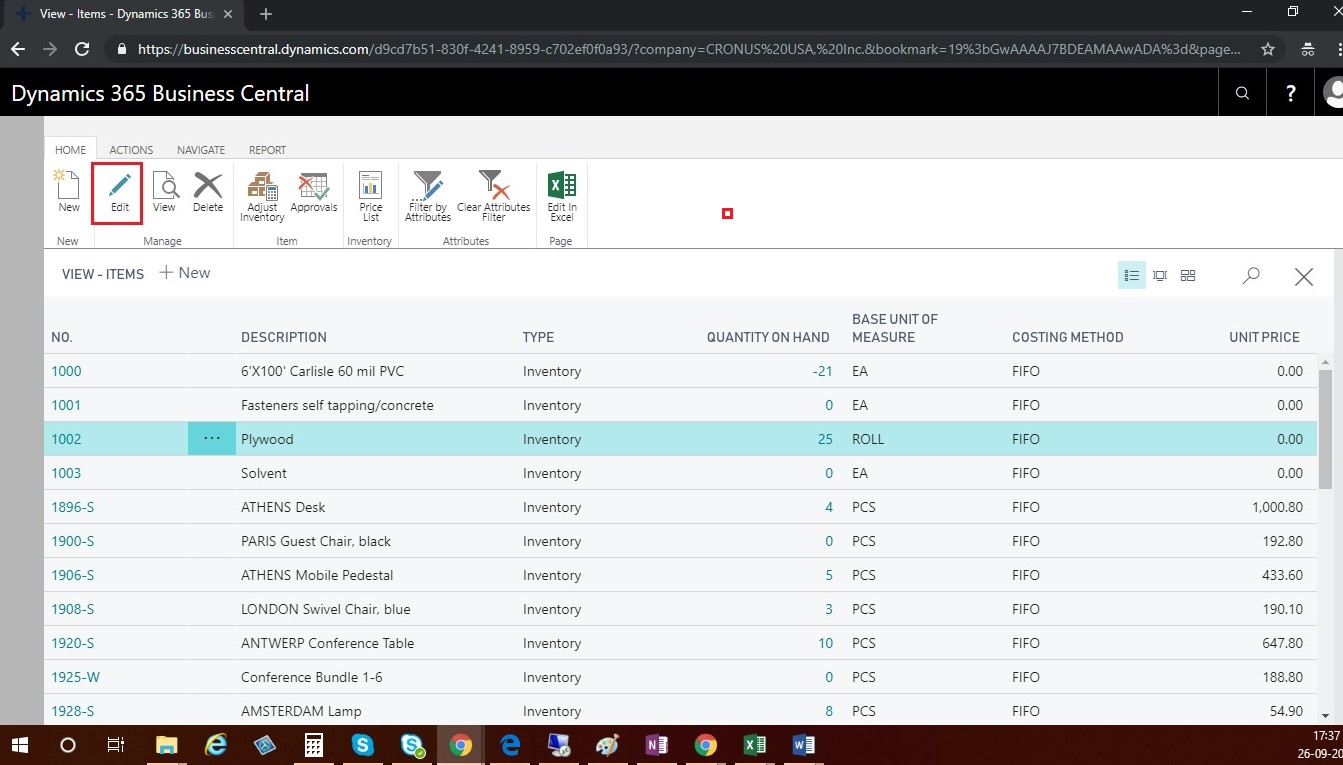
- Open the Item list
- Click on edit button to Open Item Card.
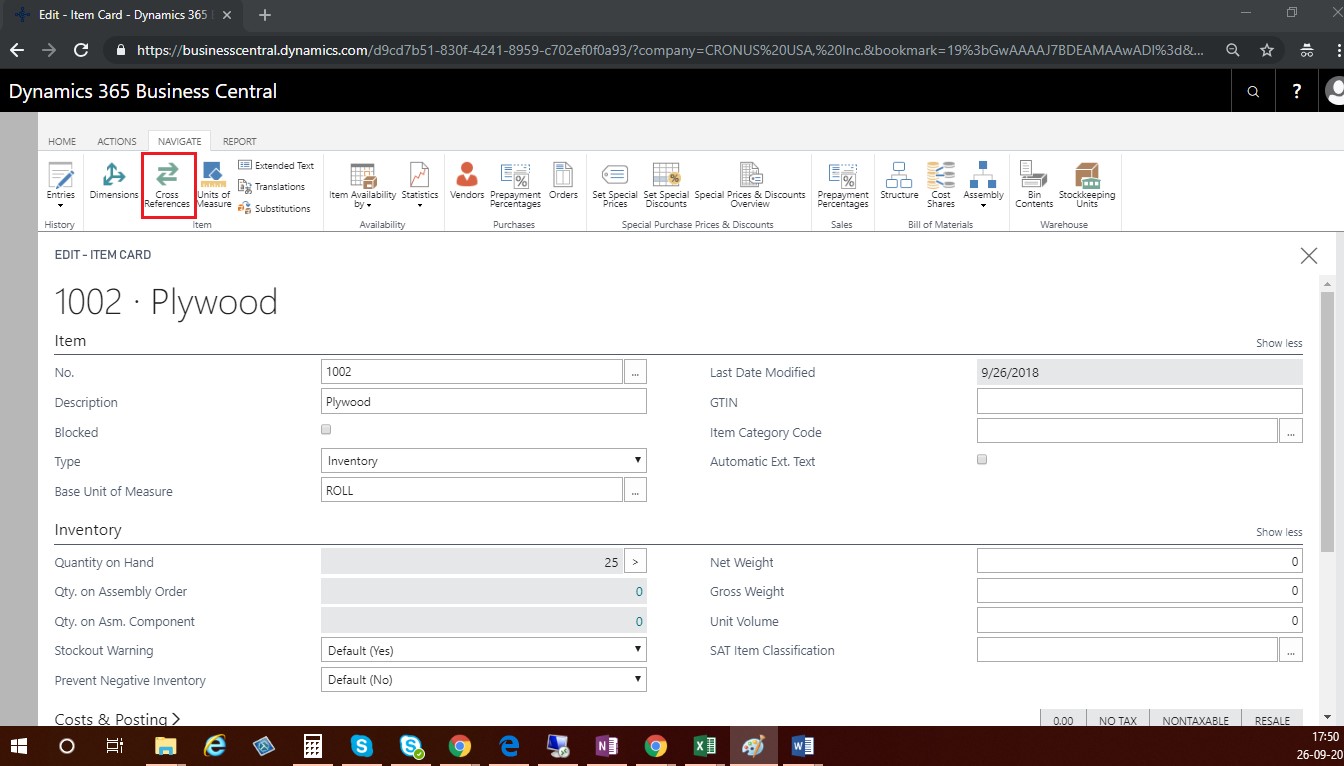
- In Navigate tab click on Cross References button.
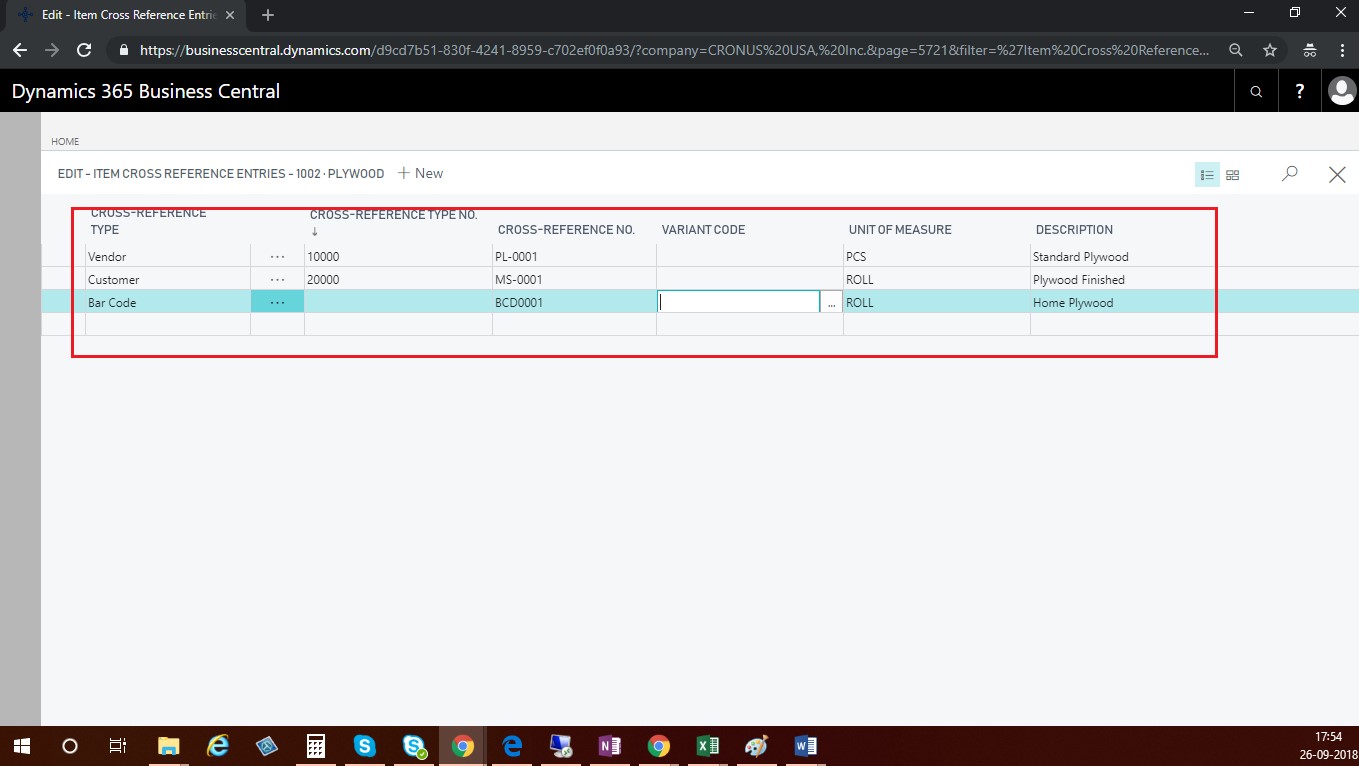
- Select Vendor, Customer or Bar Code in the Cross-Reference field.
- In the Cross-Reference Type No. field, select Vendor No, Customer No. or Bar Code
- Enter Vendor, Customer Item No. or Bar code no in the Cross-Reference No. field.
- Enter Unit of Measure
- Enter description for the Item. This description will be automatically copied in Purchase or Sales order line when you enter cross reference in Sales or Purchase order line
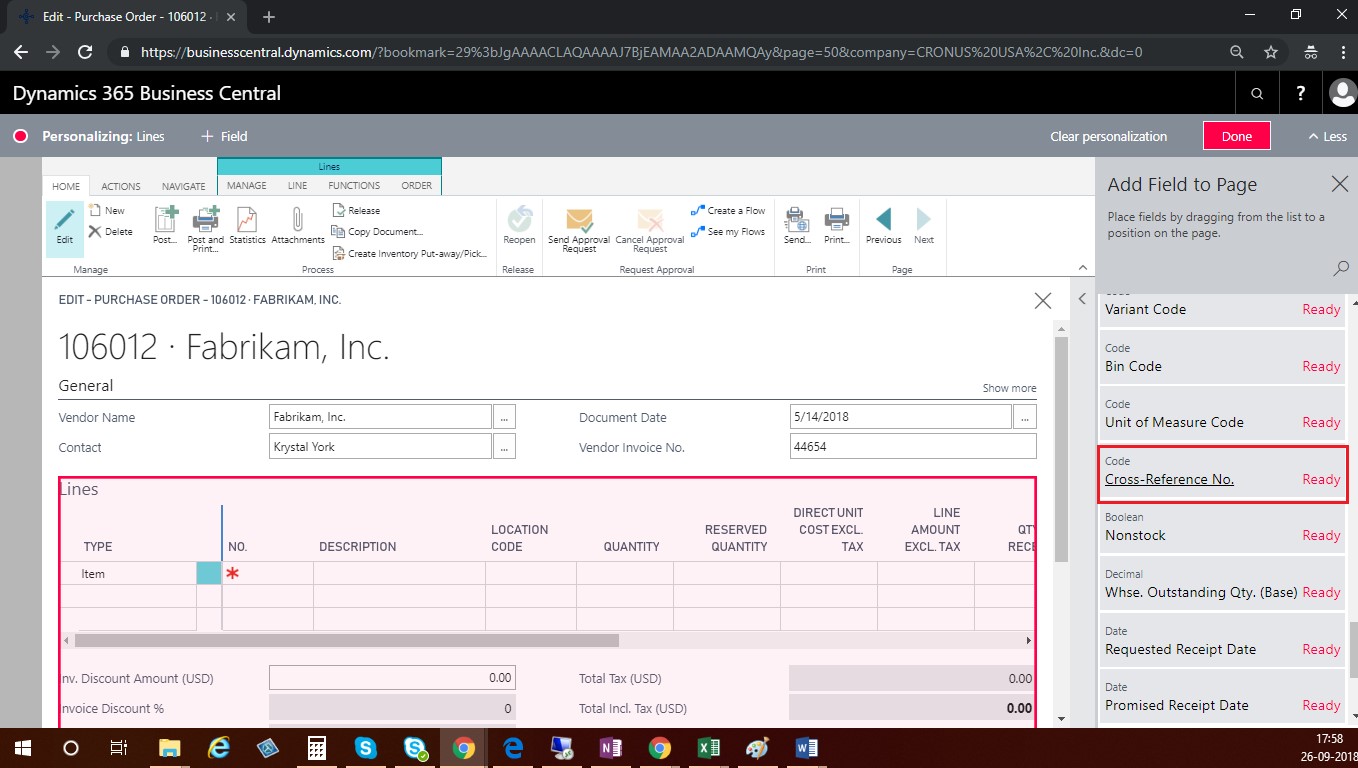
- Create a new Purchase Order/ Sales order.
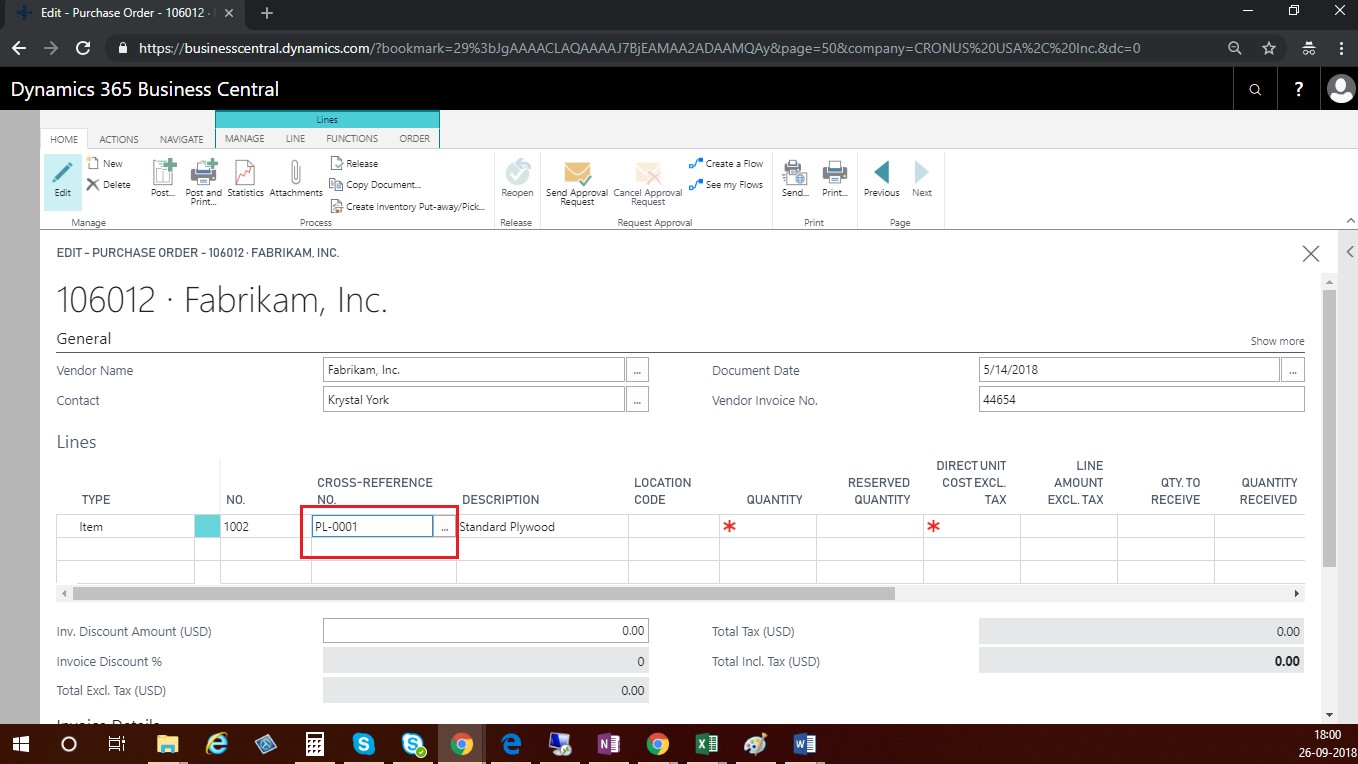
- By default, the Cross-Reference No. field is not shown in the Order Line. Use Personalization and add it.
- In Cross-Reference No. field to select a cross reference no. System will automatically fill the Item No. and other information in the order line.
Related posts:

Resolving SSL/TLS Secure Channel Trust Errors in Dynamics 365 Finance and Operations

How to change a Bill of material (BOM) item on a production order

How to Set Up a Local Development Environment for D365 Finance and Operations Without Azure Costs
![Shopify Meets Dynamics 365 Finance and Operations: A Guide to Integration [Part 2]](https://www.cloudfronts.in/wp-content/uploads/2024/12/DALL·E-2024-12-14-12.29.44-A-professional-illustration-depicting-the-integration-between-Shopify-and-Dynamics-365-Finance-and-Operations.-The-image-shows-Shopify-on-one-side-wit-150x150.webp)
