

How to change a Product Number in Dynamics 365 F&O
In this blog, we will learn how to change a Product’s Product Number.
For this blog, I have created a New Product, Hand Gloves with Product Number P-000015 and released it into the system.
The Path for Changing the Product Number is: Product Information Management>Products>Products.
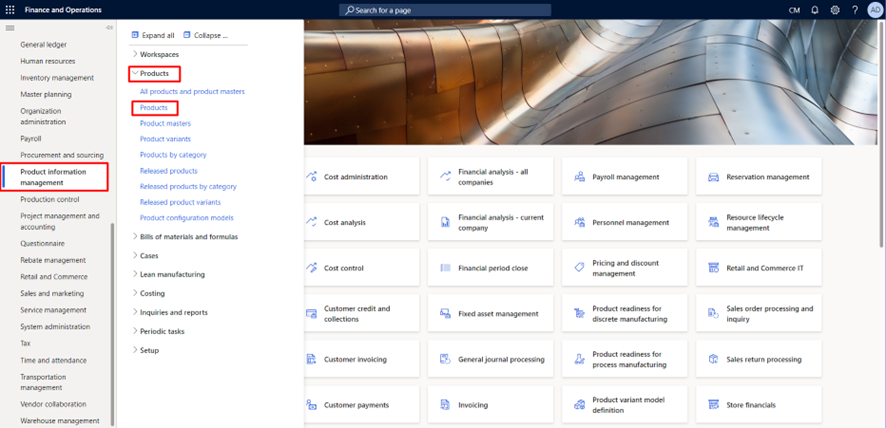
Step 1: Click on Change Number under the Maintain tab.

Here, my Product number is P-000015 which I will change to P-000020.
Step 2: Enter the New Product Number and Click on OK.

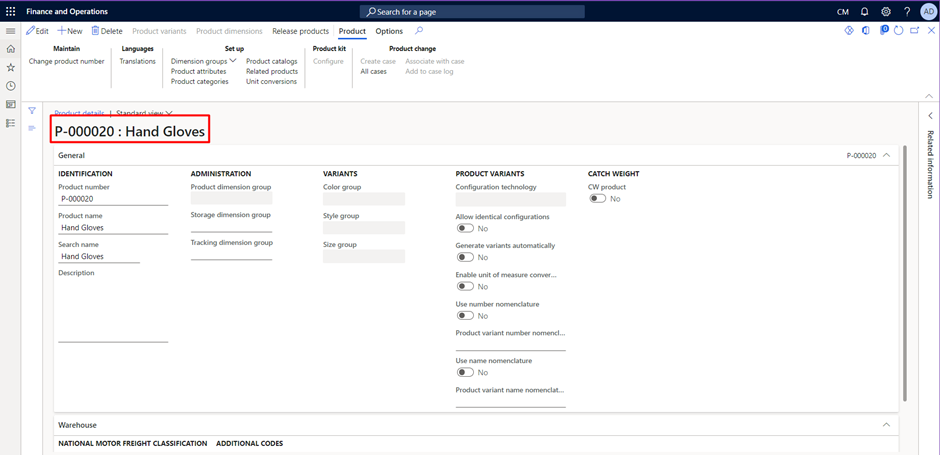
The above screenshot shows that the Product Number has now changed from P-000015 to P-000020.
Note: It is recommended to rename only if no transaction exists for the product. If the Product already has an existing transaction, it is better to create a new Product.
Related posts:

Resolving SSL/TLS Secure Channel Trust Errors in Dynamics 365 Finance and Operations

How to change a Bill of material (BOM) item on a production order

How to Set Up a Local Development Environment for D365 Finance and Operations Without Azure Costs
![Shopify Meets Dynamics 365 Finance and Operations: A Guide to Integration [Part 2]](https://www.cloudfronts.in/wp-content/uploads/2024/12/DALL·E-2024-12-14-12.29.44-A-professional-illustration-depicting-the-integration-between-Shopify-and-Dynamics-365-Finance-and-Operations.-The-image-shows-Shopify-on-one-side-wit-150x150.webp)
