

Creating Custom Fields
Introduction:
This blog articles explains the ability to add custom fields is available in platform update 13 and later.
Creating Custom Fields:
Process for creating a custom field and placing that field on a form:
- Navigate to the form where the new field is needed.
- Click on Options and then Personalize this form
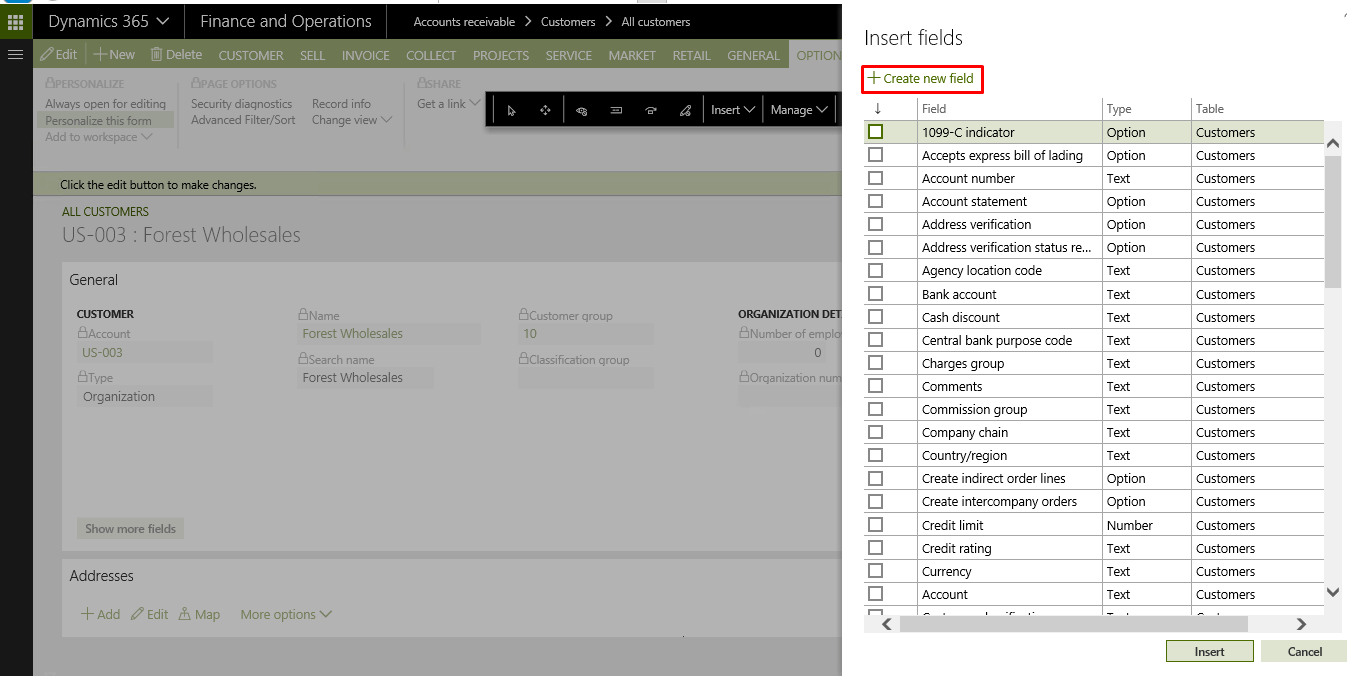
- Click Insert and then Field
- Select the region of the form where you want to expose the new field. After selection, the Insert fields dialog box will display a list of existing fields that can be inserted into the selected region of the form.

- Click the Create new field button above the list to initiate the process of creating a custom field. This will open the Create new field dialog box.
- Enter all the relevant details for the new field
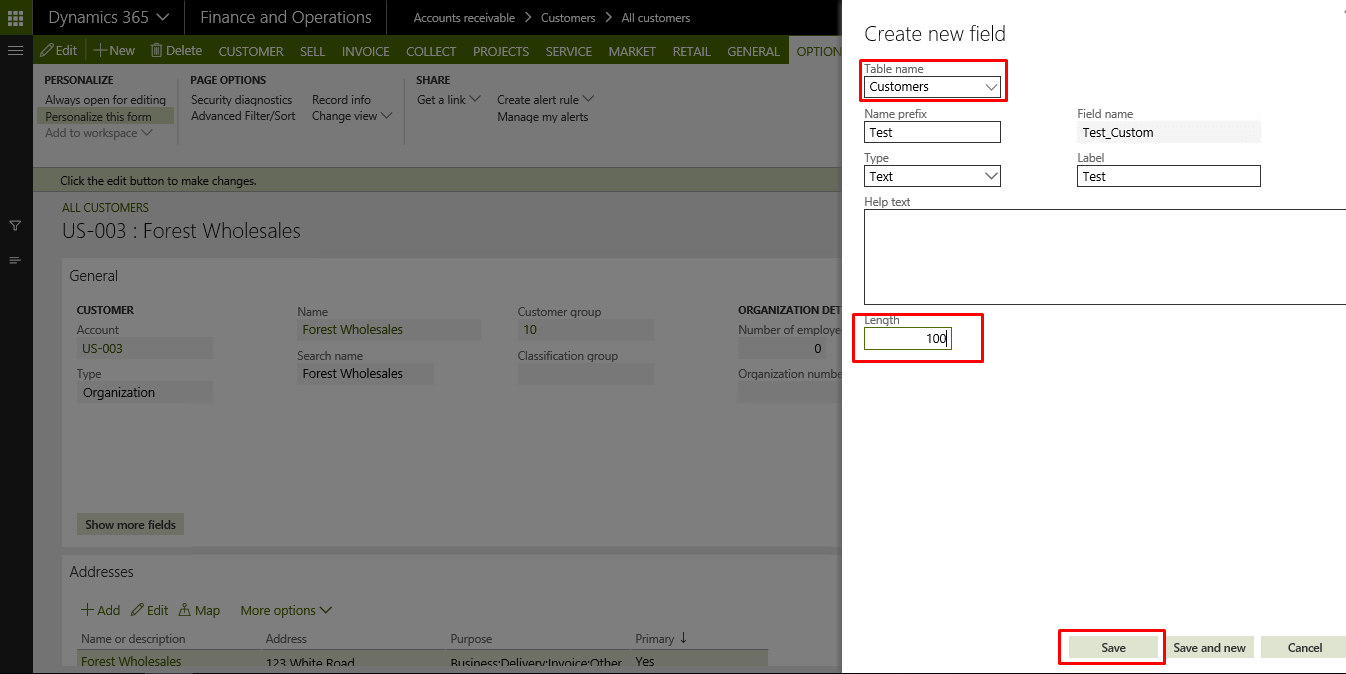
- Click save and insert the new field
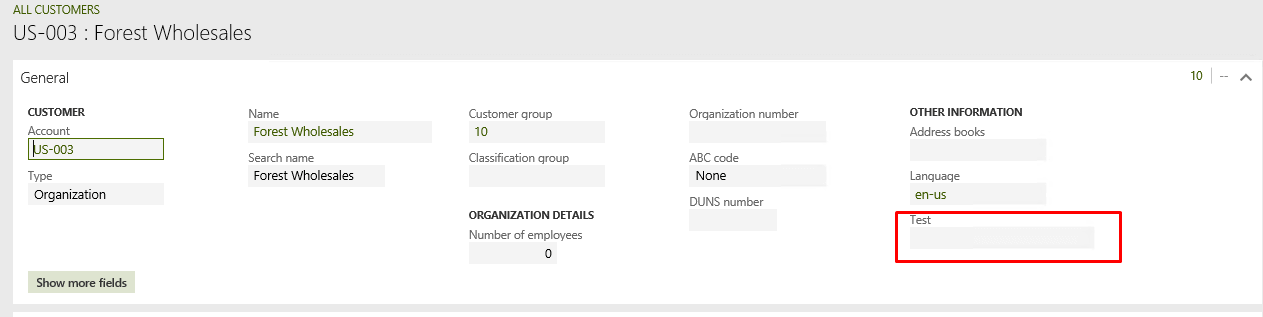
- Note that there is currently a limit of 20 custom fields per table.
Related posts:

Resolving SSL/TLS Secure Channel Trust Errors in Dynamics 365 Finance and Operations

How to change a Bill of material (BOM) item on a production order

How to Set Up a Local Development Environment for D365 Finance and Operations Without Azure Costs
![Shopify Meets Dynamics 365 Finance and Operations: A Guide to Integration [Part 2]](https://www.cloudfronts.in/wp-content/uploads/2024/12/DALL·E-2024-12-14-12.29.44-A-professional-illustration-depicting-the-integration-between-Shopify-and-Dynamics-365-Finance-and-Operations.-The-image-shows-Shopify-on-one-side-wit-150x150.webp)
