

Customize the business card scanner control
To edit the mappings of Business card scanner control, refer below steps.
- Select the Settings icon, and then select Advanced Settings.
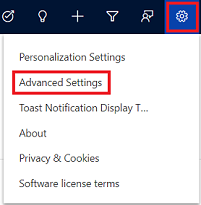
- The Business Management page opens.
- On the navigation bar, select Settings, and then under Customization, select Customization.
- Select Customize the System.
- Under Components in the solution explorer, expand Entities, and then expand the Contact or Lead
- Select Forms.

- Open the form of type Quick Create.
- Locate and select the Business Card field on the form, and select Change Properties in the Edit
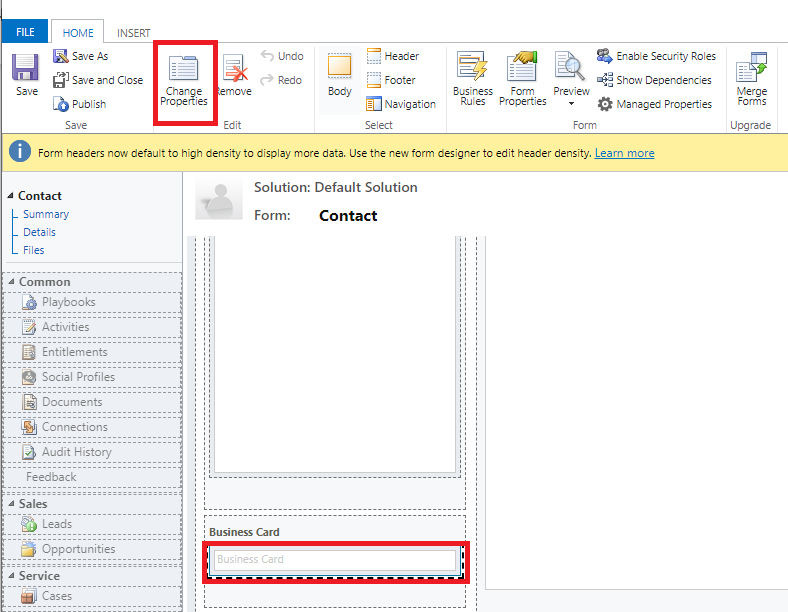
- In the Field Properties dialog box, select AI Builder Business Card control on the Control
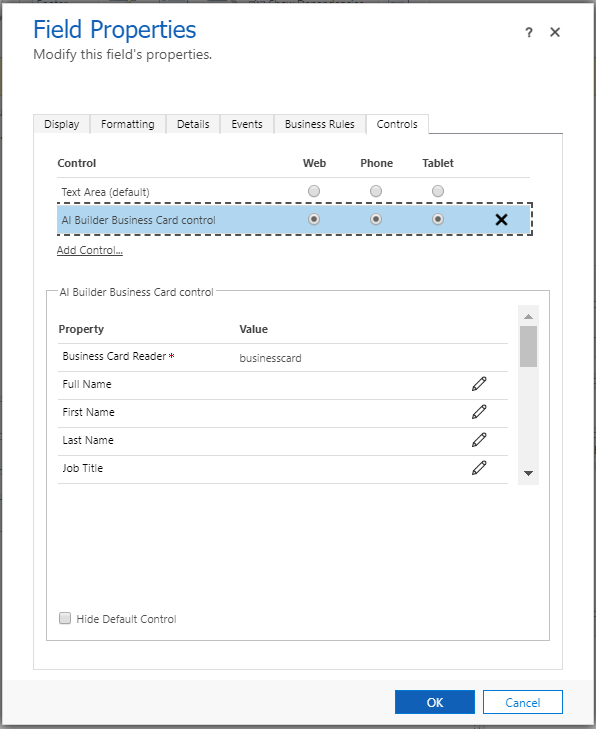
- Select the property that you want to change the mapping for, and select the Edit icon to change the value the field maps to.
- When done, select OK.
Related posts:

Resolving SSL/TLS Secure Channel Trust Errors in Dynamics 365 Finance and Operations

How to change a Bill of material (BOM) item on a production order

How to Set Up a Local Development Environment for D365 Finance and Operations Without Azure Costs
![Shopify Meets Dynamics 365 Finance and Operations: A Guide to Integration [Part 2]](https://www.cloudfronts.in/wp-content/uploads/2024/12/DALL·E-2024-12-14-12.29.44-A-professional-illustration-depicting-the-integration-between-Shopify-and-Dynamics-365-Finance-and-Operations.-The-image-shows-Shopify-on-one-side-wit-150x150.webp)
