

Transfer Order in Dynamics NAV
Introduction:
Transfer order are mainly used for Transfer of inventory from one location to another location.
Below are the steps to create transfer Order
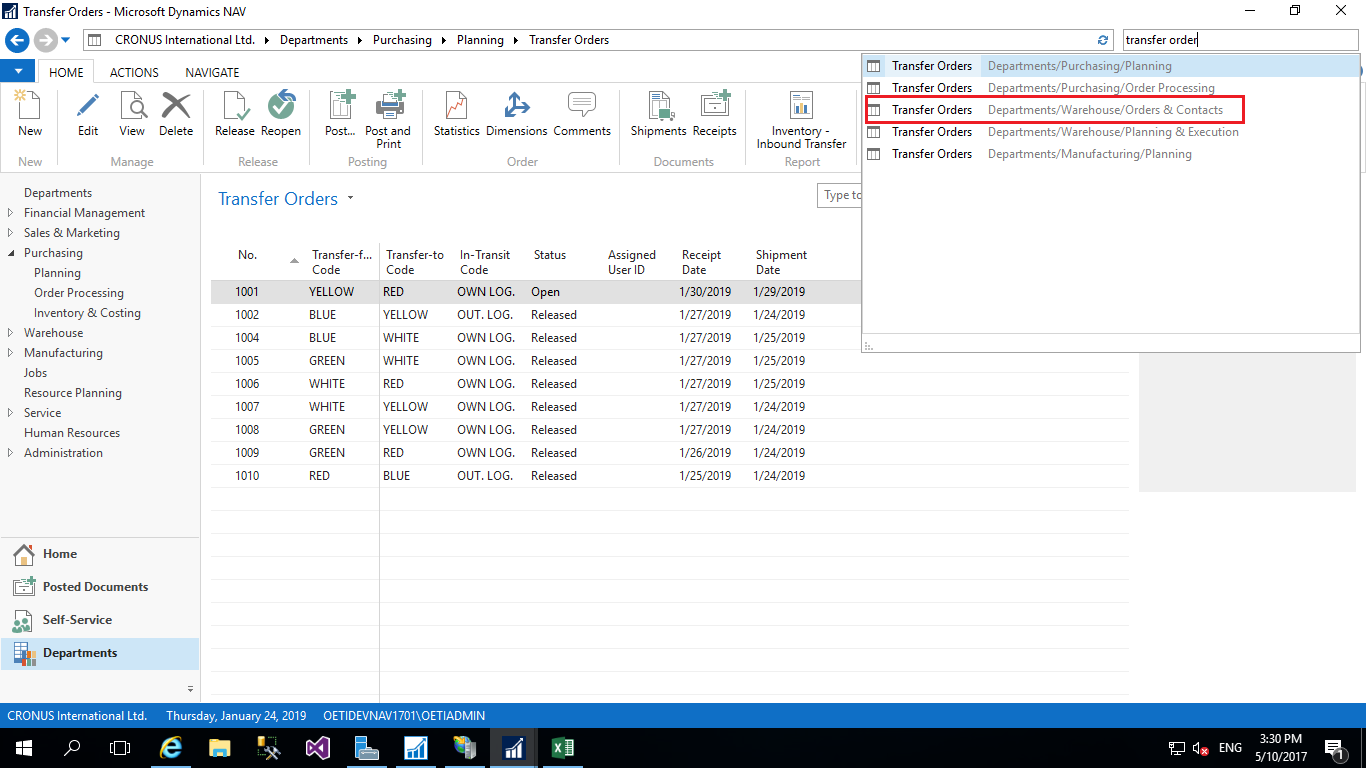
- In the Search box, enter Transfer Orders, and select the link
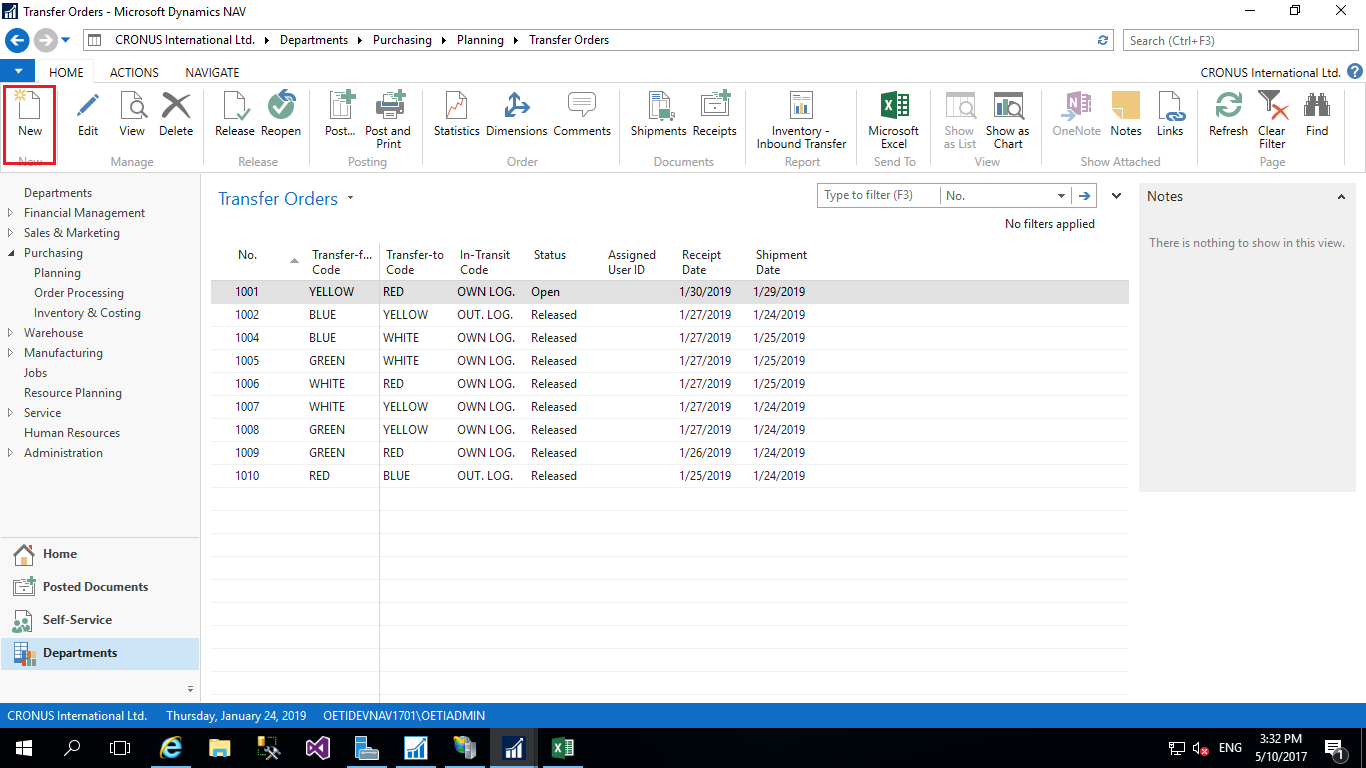
- Click on New button to create new transfer order.
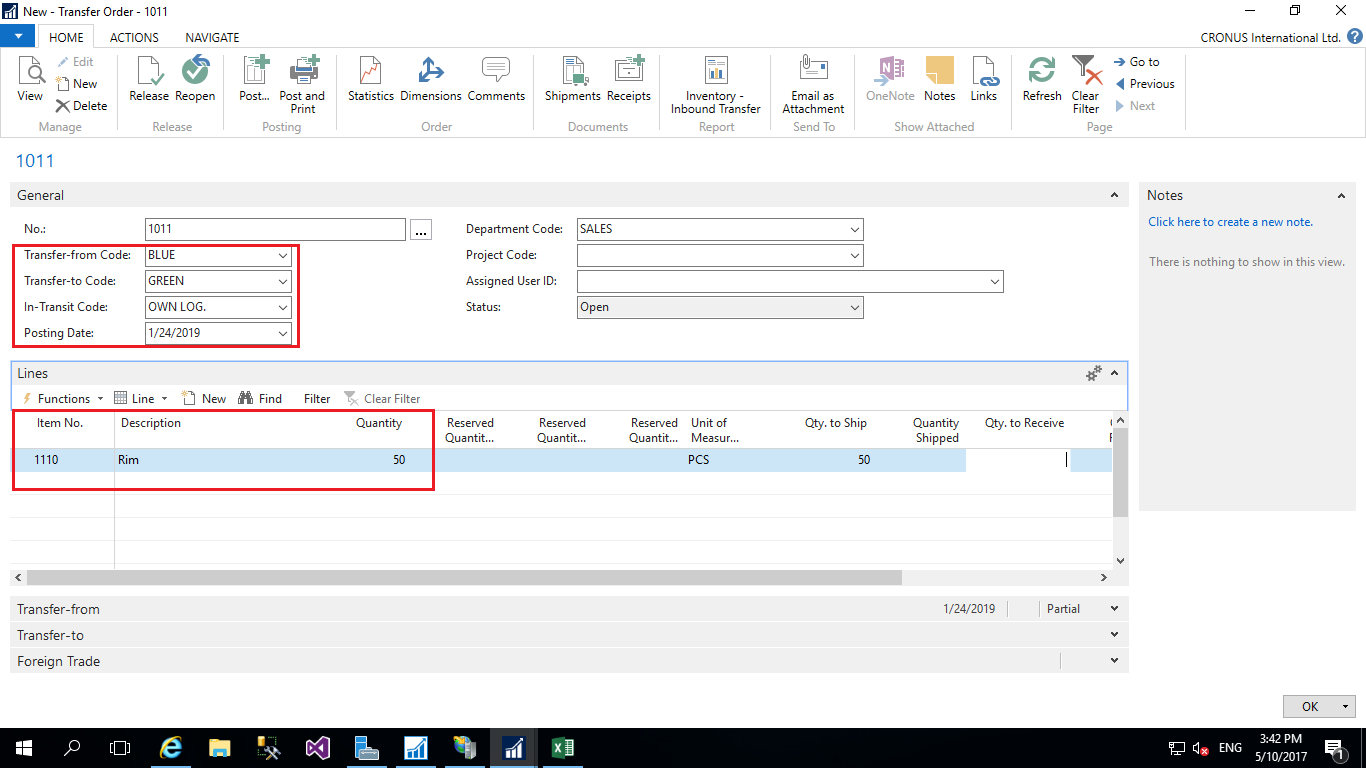
- Select the Location in Transfer from Code field from where you want to ship the Inventory
- Select the Location in Transfer to Code field from where you want receive the Inventory.
- Select the Location in In-Transit Code field which is used for mainly material is shipped from one location but not received in another location.
- Select the Item, quantity on Transfer order lines.
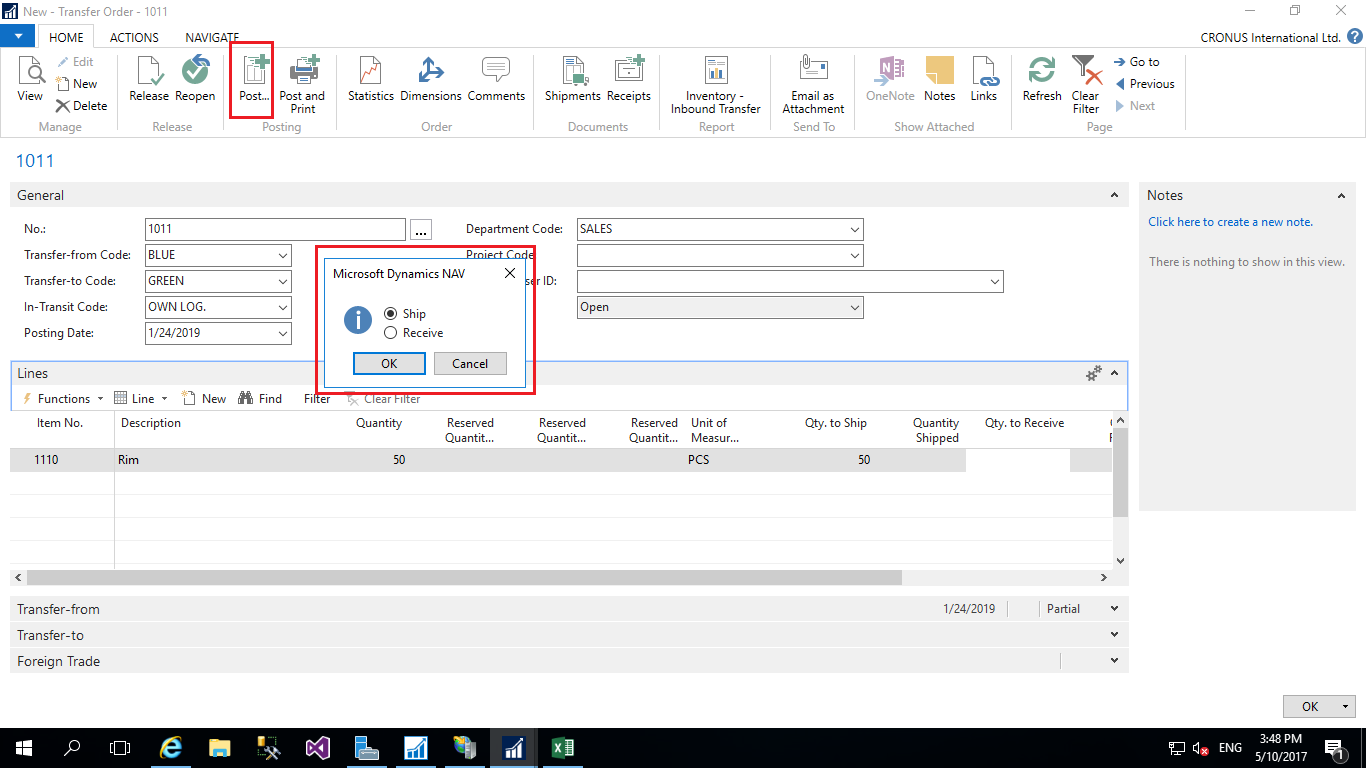
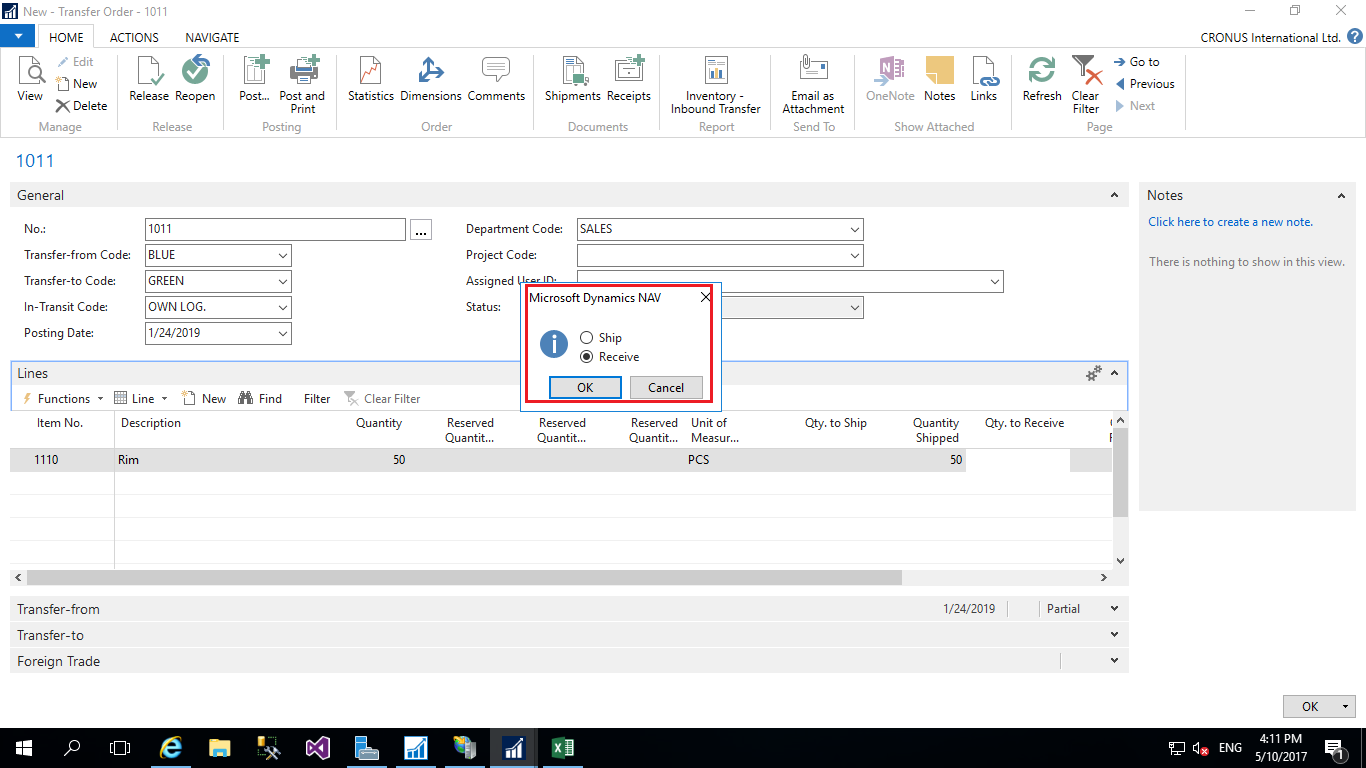
- On Action tab, click on post button to ship the Inventory from one location. Select ship in message Box and click on OK.
- You can checked Quantity which are shipped in Quantity Shipped field.
- Then again click on Post button to receive the inventory in another location. Select Recive in message box and click on OK.
- You can checked Quantity which are received in Quantity Received field.
Conclusion:
Transfer orders involve posting items as shipped from one location and posting them as received at the other location.
Related posts:

Resolving SSL/TLS Secure Channel Trust Errors in Dynamics 365 Finance and Operations

How to change a Bill of material (BOM) item on a production order
![Shopify Meets Dynamics 365 Finance and Operations: A Guide to Integration [Part 2]](https://www.cloudfronts.in/wp-content/uploads/2024/12/DALL·E-2024-12-14-12.29.44-A-professional-illustration-depicting-the-integration-between-Shopify-and-Dynamics-365-Finance-and-Operations.-The-image-shows-Shopify-on-one-side-wit-150x150.webp)
Shopify Meets Dynamics 365 Finance and Operations: A Guide to Integration [Part 2]
