

Setup multiple No. Series for a single field in NAV
Introduction:
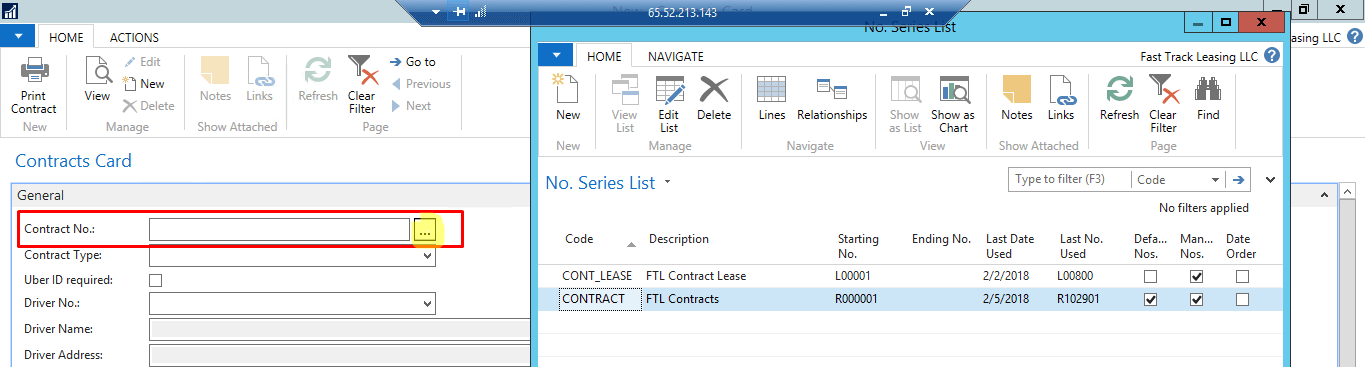
This blog shows how multiple number series are to be set up for a single field in NAV. The number series has to be setup dynamically on Assist-Edit of the page.
Pre-requisite:
NAV 2017
Demonstration:
1. Create a No. Series : Create a number series in the No.Series and then create a relationship.
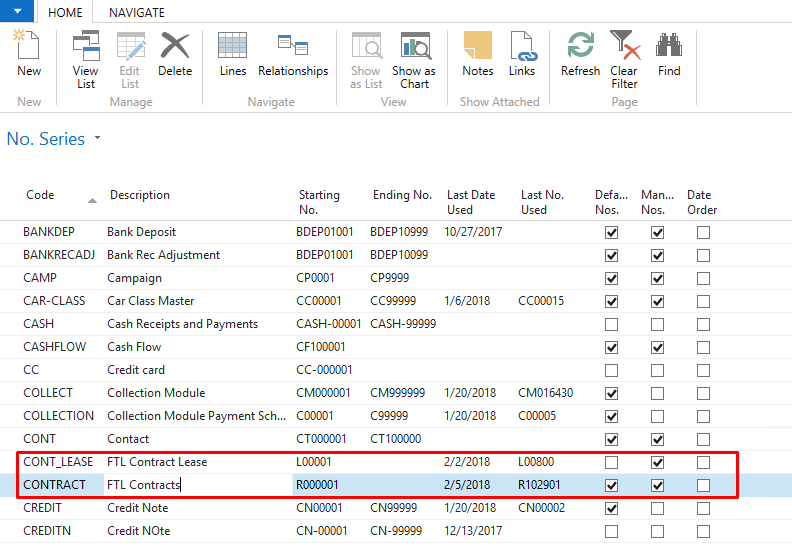
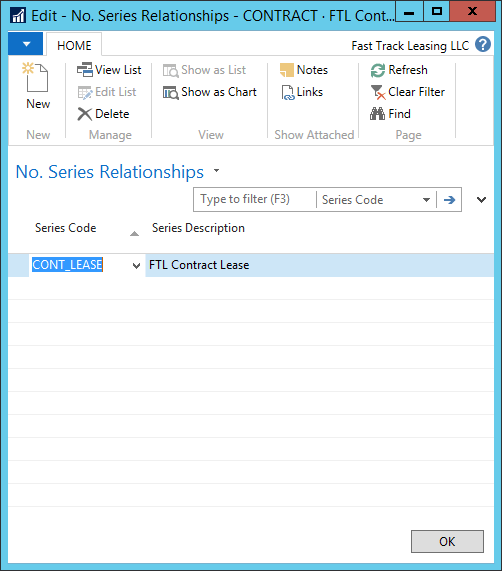
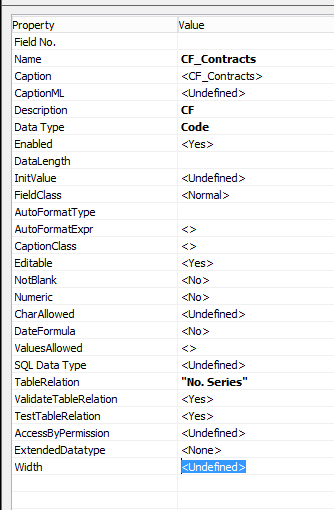
2. Create a field in Sales & Receivable Setup which has relation No. Series Table:
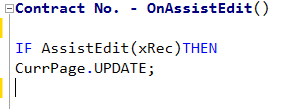
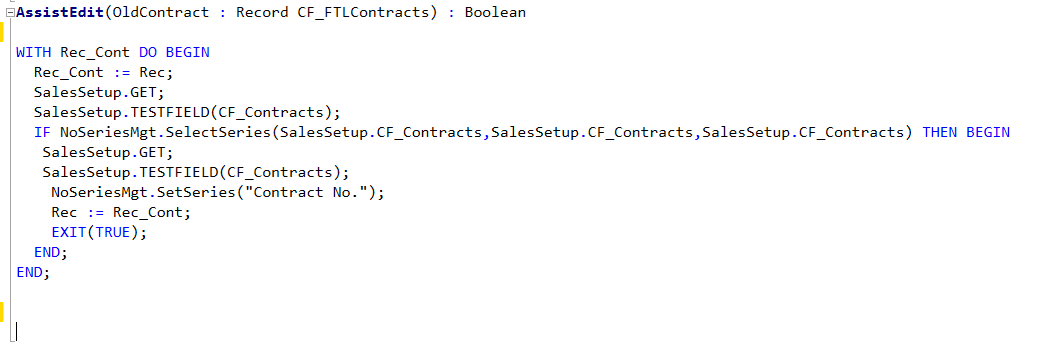
3. On the Card Page Enable the AssistEdit property for that field. On the Assist Edit Trigger add a function call and Update the current page: This function checks whether the field No.Series is present in the Sales & Receivables Setup and then runs the No.Series via RUNMODAL using SelectSeries and selects the current series using SetSeries function.
4. Result:
Conclusion:
Thus, by this method, multiple customized No. Series can be added to a single field.
Related posts:

Resolving SSL/TLS Secure Channel Trust Errors in Dynamics 365 Finance and Operations

How to change a Bill of material (BOM) item on a production order
![Shopify Meets Dynamics 365 Finance and Operations: A Guide to Integration [Part 2]](https://www.cloudfronts.in/wp-content/uploads/2024/12/DALL·E-2024-12-14-12.29.44-A-professional-illustration-depicting-the-integration-between-Shopify-and-Dynamics-365-Finance-and-Operations.-The-image-shows-Shopify-on-one-side-wit-150x150.webp)
Shopify Meets Dynamics 365 Finance and Operations: A Guide to Integration [Part 2]
