

Increase/Decrease Inventory from Item Card in NAV 2017
Introduction:
With Microsoft Dynamics NAV 2017, we can increase or decrease the inventory of an item from the item card itself.
Steps:
1. Navigate to Item card.
2. Select assist Edit next to Inventory and enter the New Inventory.
3. If New Inventory is less than current inventory a Negative Adjustment will be passed behind the scene.
4. If New Inventory is greater than current inventory a positive Adjustment will be passed behind the scene.
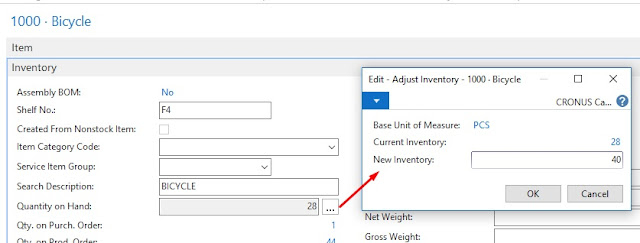
5. As soon as we enter new Inventory and click ok.
6. System Looks for an Item Journal template, Create a New Batch for the Item Journal.
7. Insert a New Item Journal Line with Default Location as Blank.
8.Post the Transaction.
Important points to remember:
1. All the Transaction posted with this will always post with Blank Location Code.
2. The process will not work if item is Mandatory Serial / Lot Tracked.
3. Unit of Measure will be picked from Item Base Unit of Measure.
Related posts:

Resolving SSL/TLS Secure Channel Trust Errors in Dynamics 365 Finance and Operations

How to change a Bill of material (BOM) item on a production order
![Shopify Meets Dynamics 365 Finance and Operations: A Guide to Integration [Part 2]](https://www.cloudfronts.in/wp-content/uploads/2024/12/DALL·E-2024-12-14-12.29.44-A-professional-illustration-depicting-the-integration-between-Shopify-and-Dynamics-365-Finance-and-Operations.-The-image-shows-Shopify-on-one-side-wit-150x150.webp)
Shopify Meets Dynamics 365 Finance and Operations: A Guide to Integration [Part 2]
