

Getting the source code of the .app extension in Microsoft Dynamics Business Central
Objective:
This blog demonstrates how to get the source code of the extension app installed in Microsoft Dynamics Business Central.
Pre-requisite:
- Docker
- Microsoft Dynamics 365 Business Central on Container
- Nav-Container Helper Module installed in Powershell
Demonstration:
1. List the Docker Container:
Command: docker ps
2. Entering the Container:
Command: Enter-NavContainer <Container Name>
3. List all directories in Container:
Command: dir / ls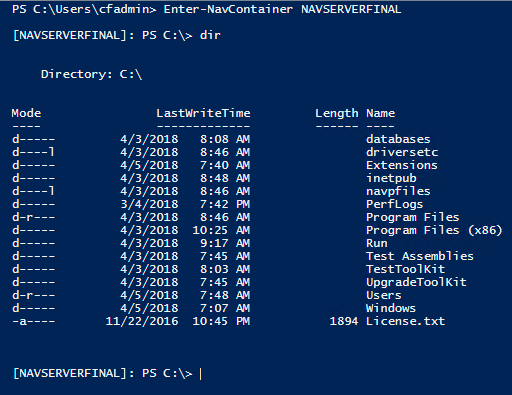
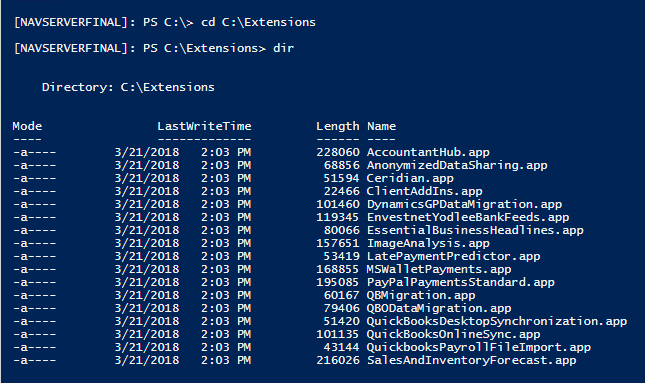
4. As Extensions are stored in C:\Extensions getting into Extension directory
Command:
i. cd C:\Extensions
ii. dir
5. Exit the Container:
Command: exit
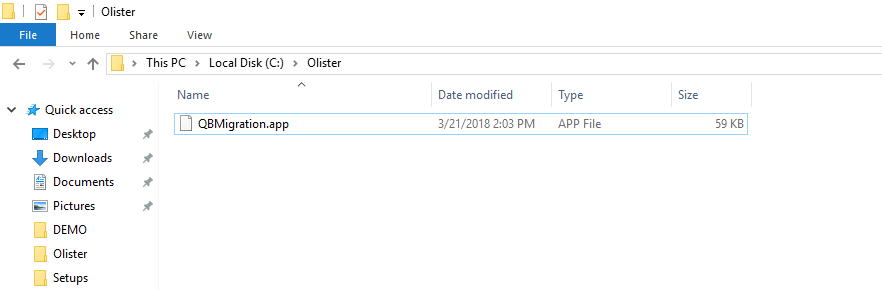
 6. Copy the .app file inside the container to local path:
Command: docker cp <Container Name>:C:\Extensions\<Filename><LocalDirectory>

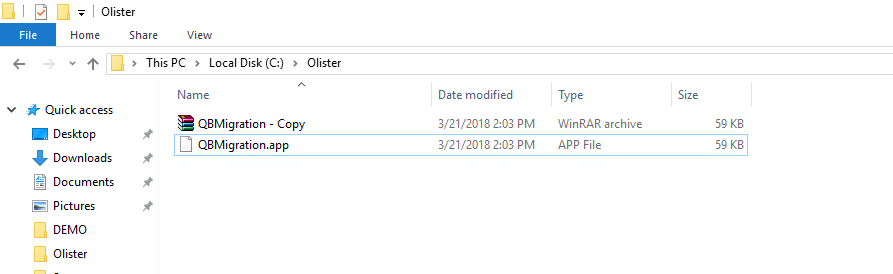
 7. Make a copy & rename the file with .rar as extension
 8. Extract the .rar file and explore the ‘src ‘ folder to get the source code in .AL files
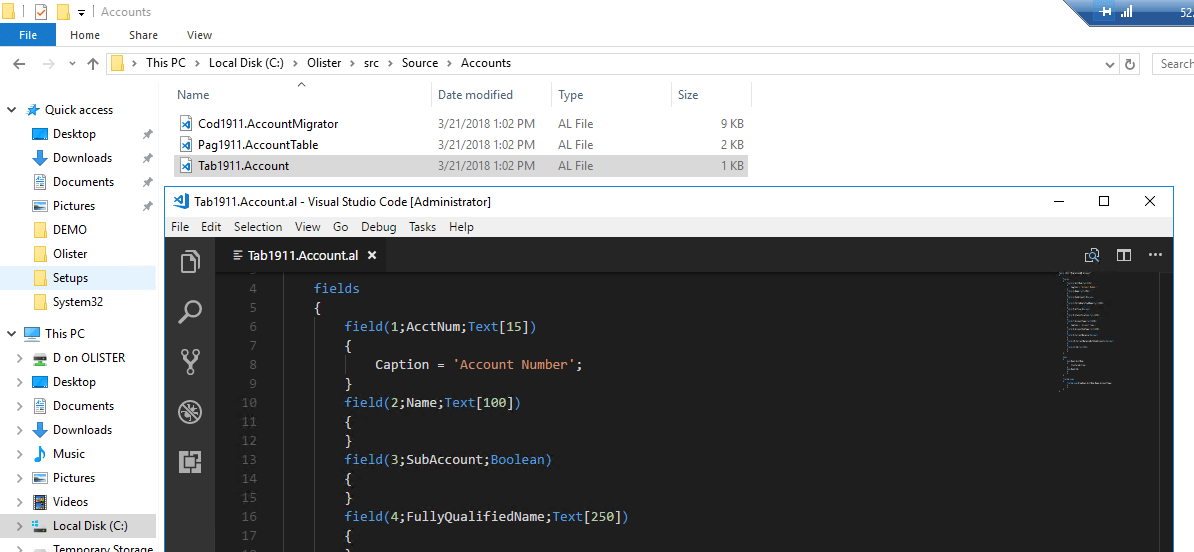
Conclusion:
Thus, in this way the source code is visible and can be used for reference.
Related posts:

Resolving SSL/TLS Secure Channel Trust Errors in Dynamics 365 Finance and Operations

How to change a Bill of material (BOM) item on a production order
![Shopify Meets Dynamics 365 Finance and Operations: A Guide to Integration [Part 2]](https://www.cloudfronts.in/wp-content/uploads/2024/12/DALL·E-2024-12-14-12.29.44-A-professional-illustration-depicting-the-integration-between-Shopify-and-Dynamics-365-Finance-and-Operations.-The-image-shows-Shopify-on-one-side-wit-150x150.webp)
Shopify Meets Dynamics 365 Finance and Operations: A Guide to Integration [Part 2]
