

Correct Posted Sales Invoices – Dynamics 365 Business central
This functionality helpful to correct posted Sales invoice if user make mistake or want to do any changes. You cannot correct posed Sales invoice which are partially or fully paid.
- In search bar enter Posted Sales Invoice and chose the related link.

- Select and open Posted Sales Invoice which you want to correct
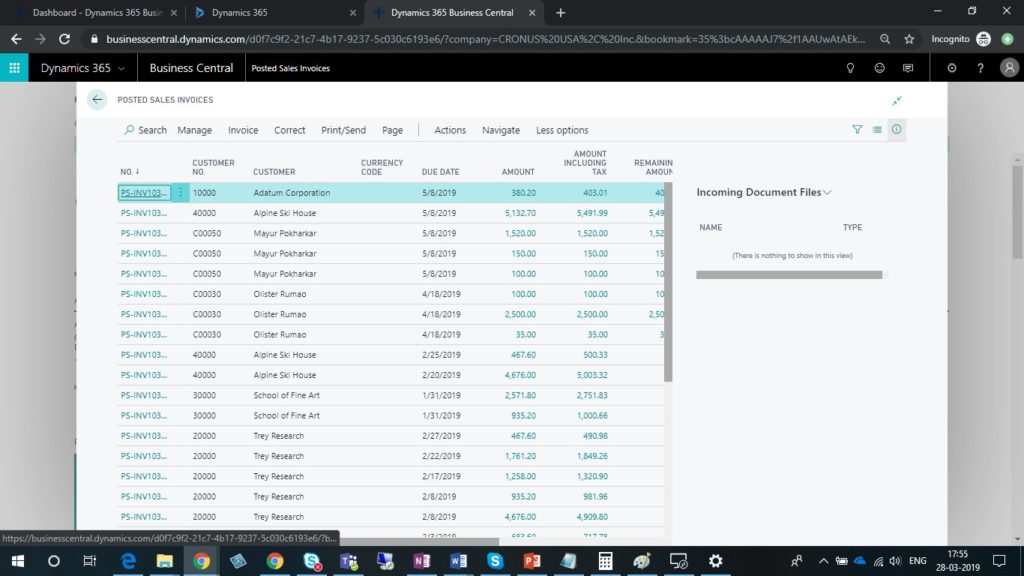
- Click on correct button on Posted Sales Invoice form.

- Once you click on correct then you will get below pop up. Choose yes to continue.
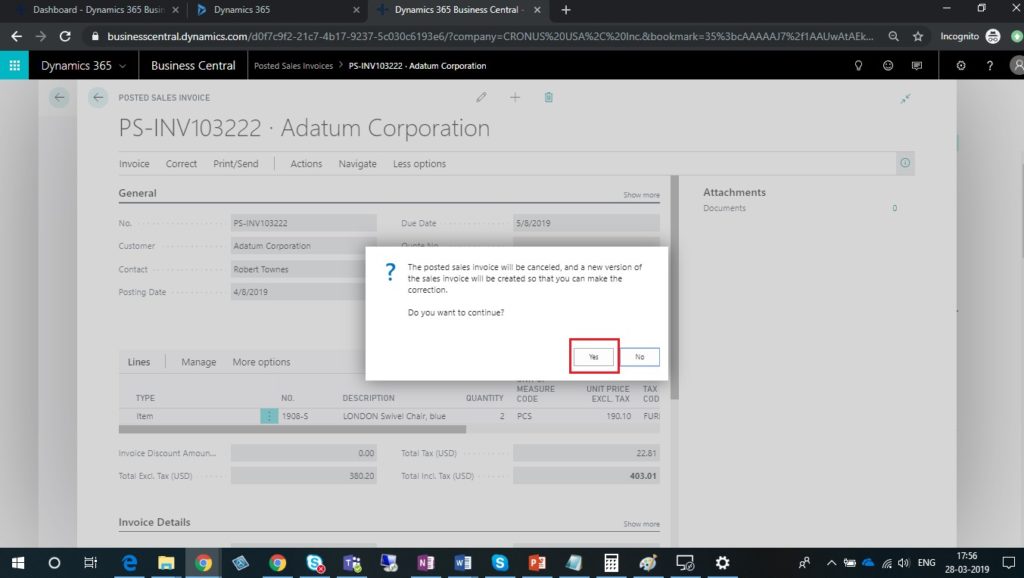
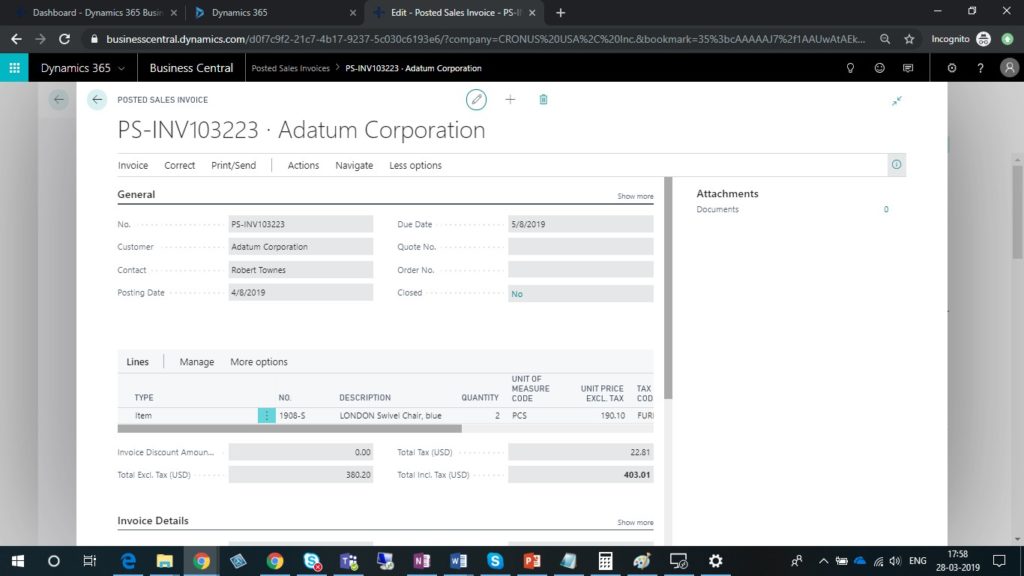
- New Sales Invoice with same information will be created.
- Make the changes whichever are required and click on post button to post Sales invoice.

- In Posted Sales Invoices form, you can check new posted sales invoice.
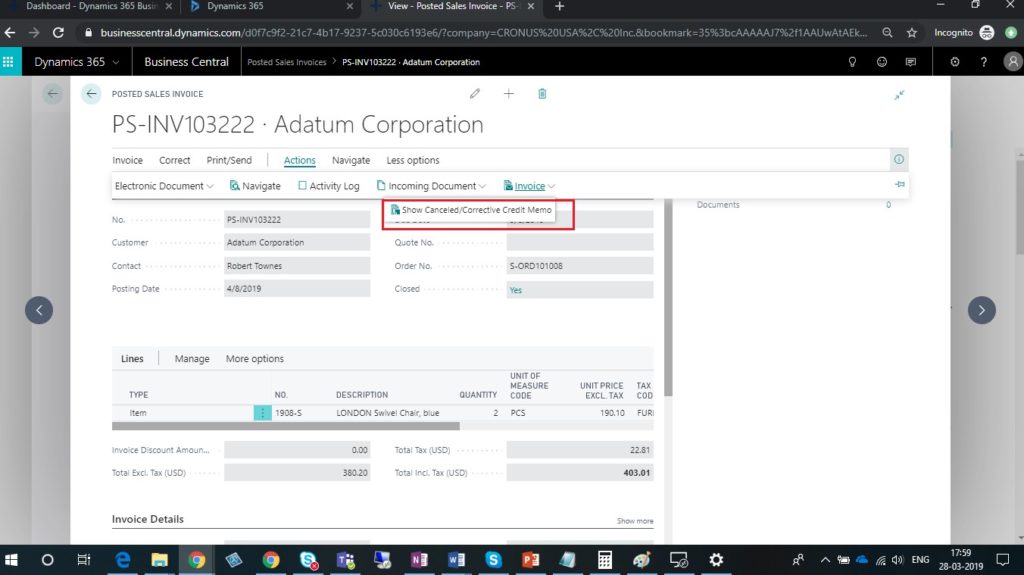
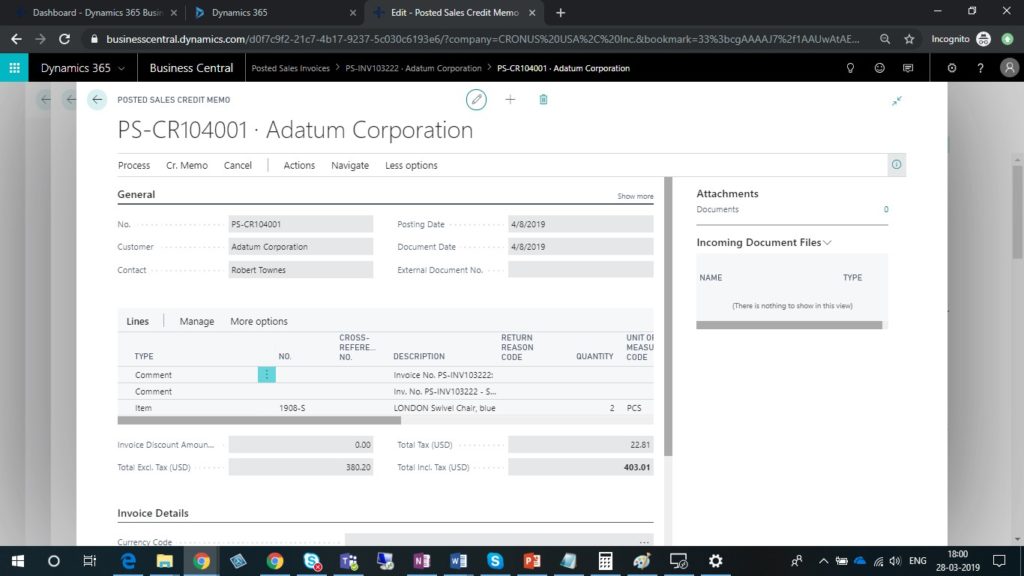
- Choose Show Corrective Credit Memo to view the posted Sales credit memo that voids the initial posted Sales invoice.
Related posts:

Resolving SSL/TLS Secure Channel Trust Errors in Dynamics 365 Finance and Operations

How to change a Bill of material (BOM) item on a production order
![Shopify Meets Dynamics 365 Finance and Operations: A Guide to Integration [Part 2]](https://www.cloudfronts.in/wp-content/uploads/2024/12/DALL·E-2024-12-14-12.29.44-A-professional-illustration-depicting-the-integration-between-Shopify-and-Dynamics-365-Finance-and-Operations.-The-image-shows-Shopify-on-one-side-wit-150x150.webp)
Shopify Meets Dynamics 365 Finance and Operations: A Guide to Integration [Part 2]
