

Business Central Wave 2 Features – Section 6
Introduction:
In this blog, I will be attempting to provide information about the new Application Lifecycle Management features of Business Central Wave 2.
Pre-requisites:
Microsoft Dynamics Business Central Wave 2.
Demonstration:
1.Report Production Outages in Administration Center.
Suppose there occurs a case where the user is having issues on Production Environment, in order to get help on such issues, the user can report such cases to Microsoft, this is achieved by visiting Admin Centre >> Environments >> and then click “Report Production Outage” as shown below.
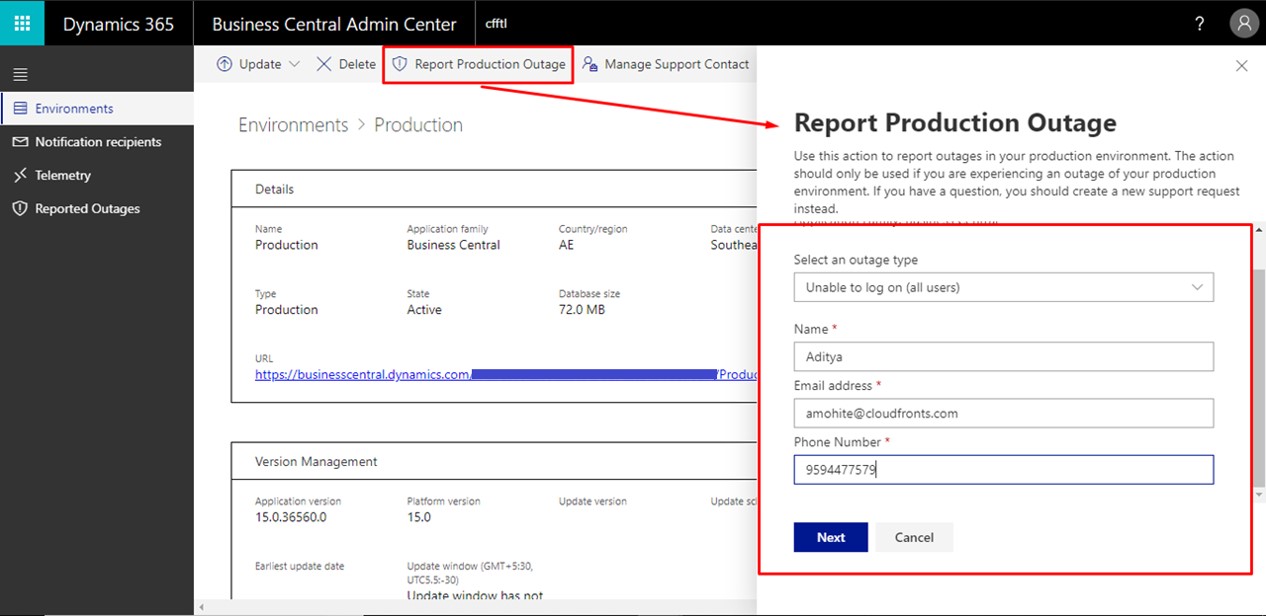
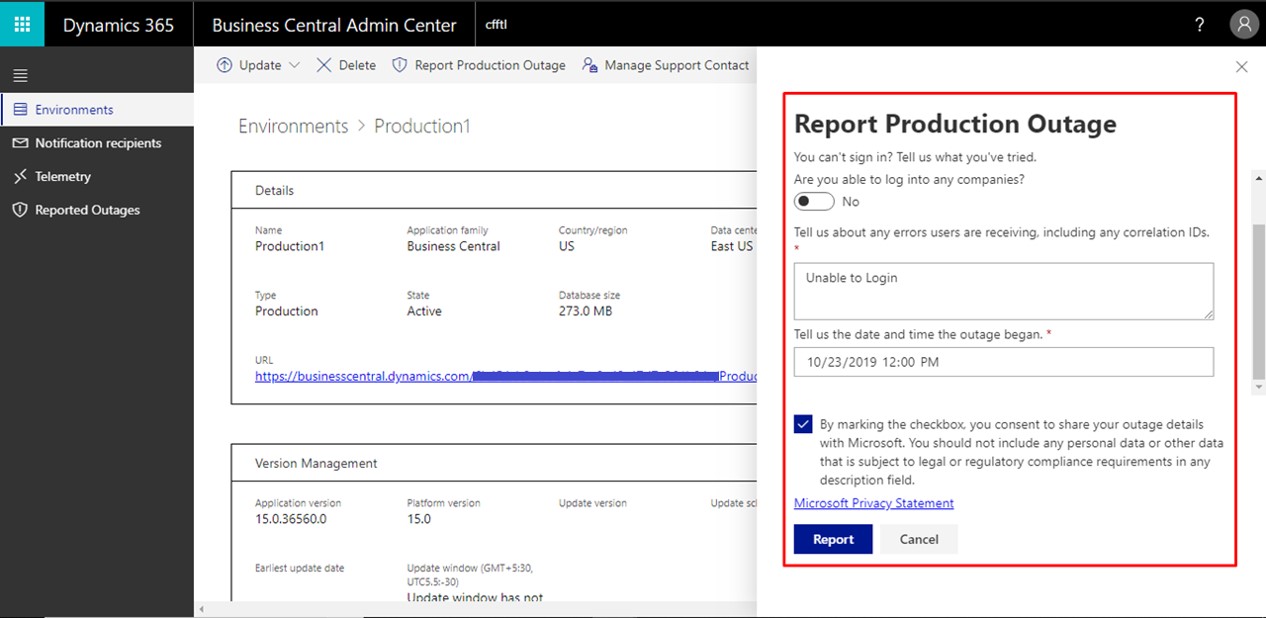
After that fill in the details as shown below, i.e. Outage type, Name, Email address, Contact Number and on the next page fill in the details of errors and the time and date of Outage occurrence as shown below.
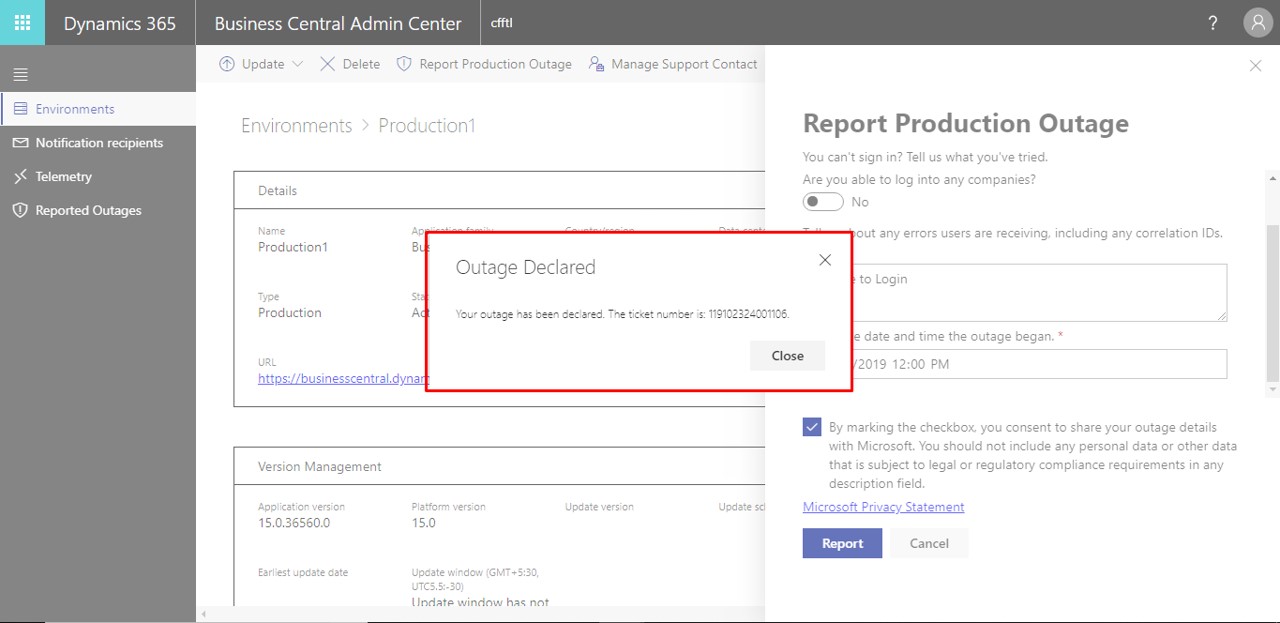
When the user reports the Outage, a message is displayed with the ticket Number.
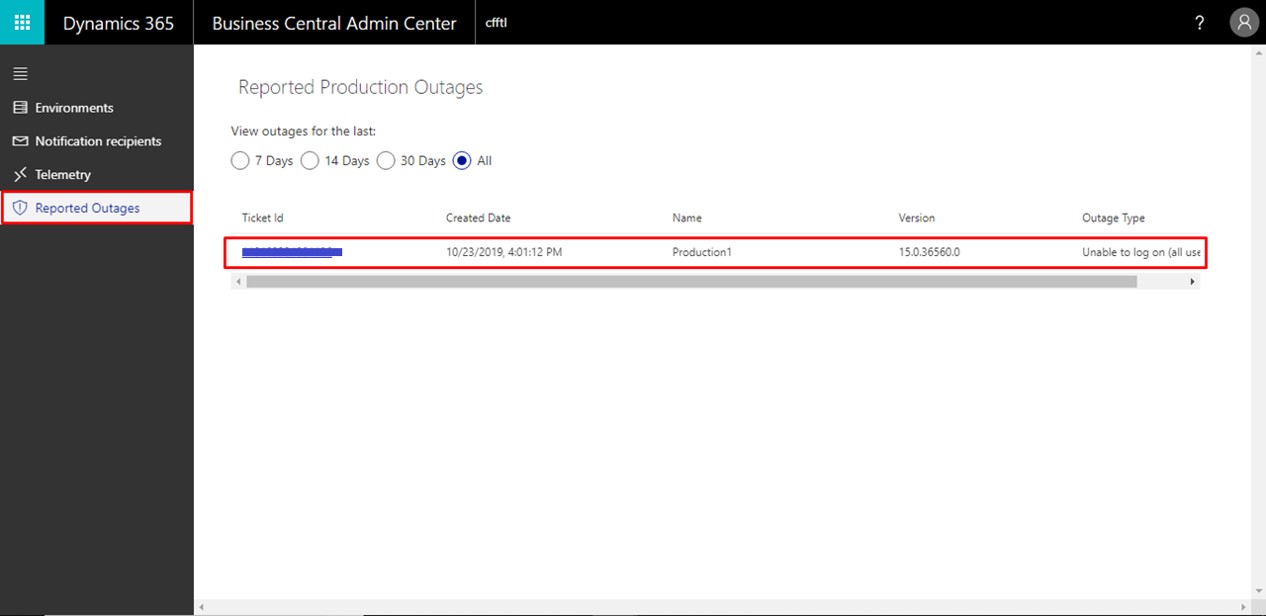
Then the reported outage is displayed on the Reported Outages Menu as shown below:
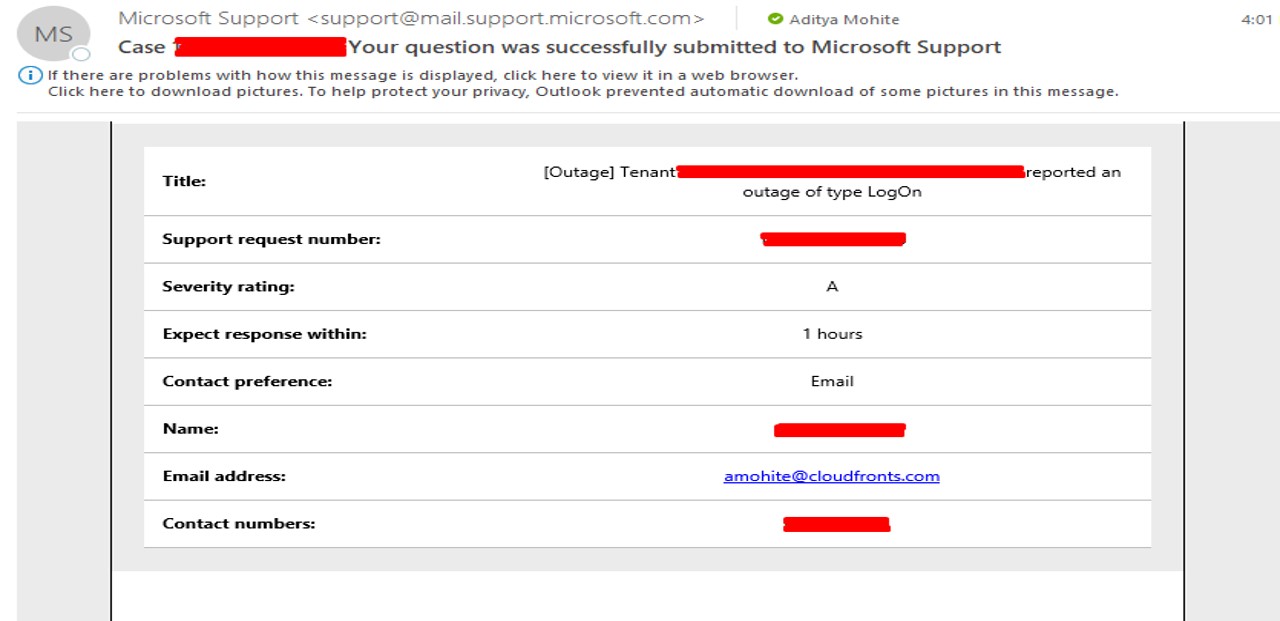
And the user gets an Email regarding the outage.
2. Multiple production environments
New Business Central Wave 2 brings a new feature where users can have multiple Production Environments for different localizations.
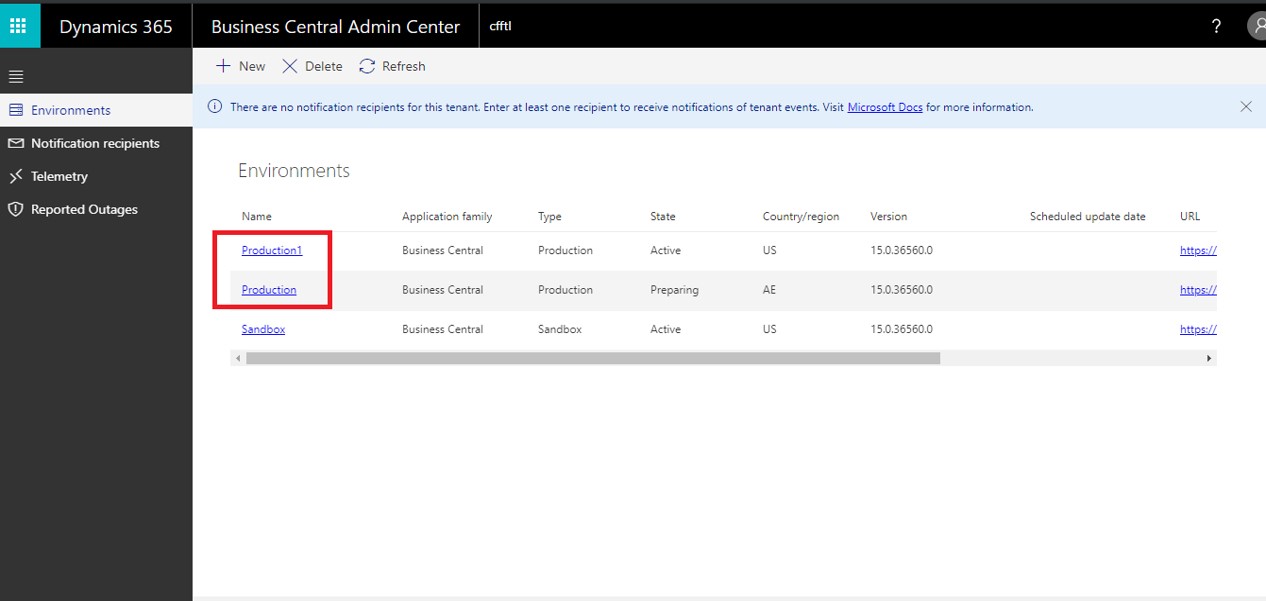
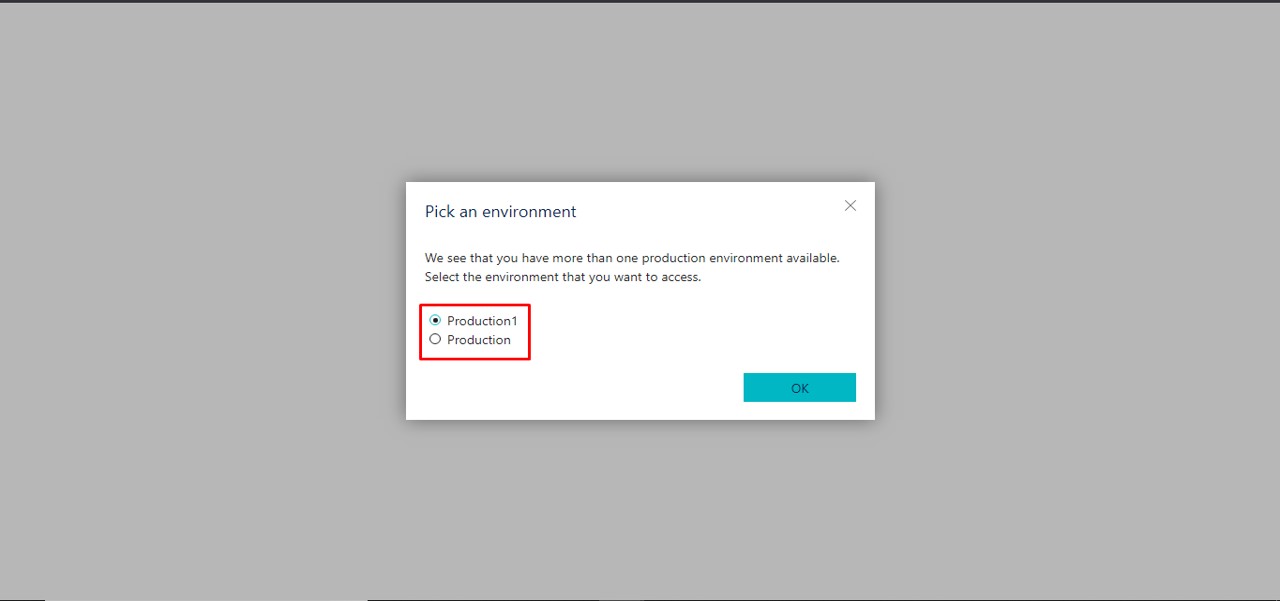
After creating multiple Productions when the user visits “home.dynamics.com”, the user is asked for which Production Environment he wants to visit as shown below.
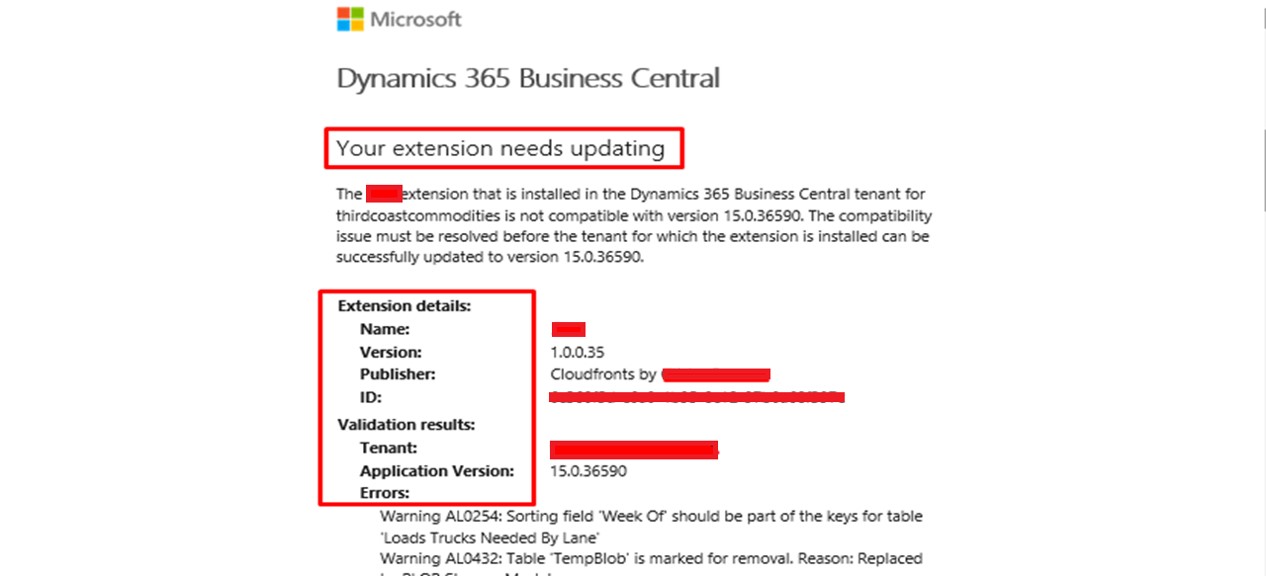
3. Detailed Notification for Update Events
The following image shows a detailed notification mail for the update events of Tenant.
Hope this helps!
Related posts:

Resolving SSL/TLS Secure Channel Trust Errors in Dynamics 365 Finance and Operations

How to change a Bill of material (BOM) item on a production order
![Shopify Meets Dynamics 365 Finance and Operations: A Guide to Integration [Part 2]](https://www.cloudfronts.in/wp-content/uploads/2024/12/DALL·E-2024-12-14-12.29.44-A-professional-illustration-depicting-the-integration-between-Shopify-and-Dynamics-365-Finance-and-Operations.-The-image-shows-Shopify-on-one-side-wit-150x150.webp)
Shopify Meets Dynamics 365 Finance and Operations: A Guide to Integration [Part 2]
