

Azure Logic App for creating an API for SQL DB.
How to create Logic App in Azure Portal
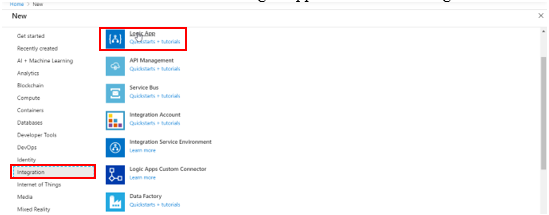
Step 1: Create a new resource and Select Logic App services from Integration section.
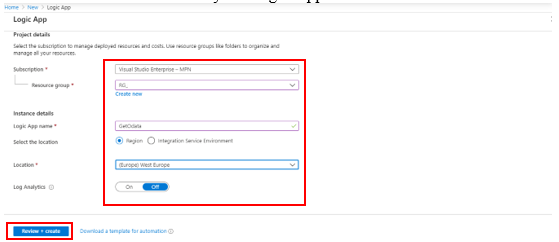
Step 2: Enter the relevant Details for your Logic App and click on Create.
How to create API for Azure SQL DB using Azure Logic App
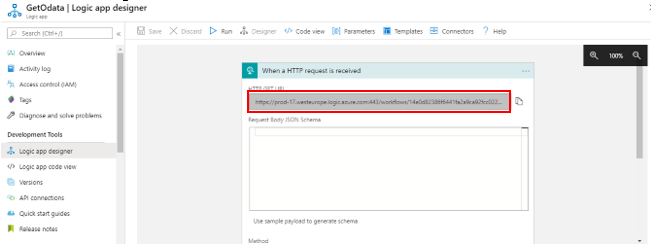
Step 1: Go to Logic App Designer and select a Blank Template > Select HTTP request Block and click save to generate GET URL.
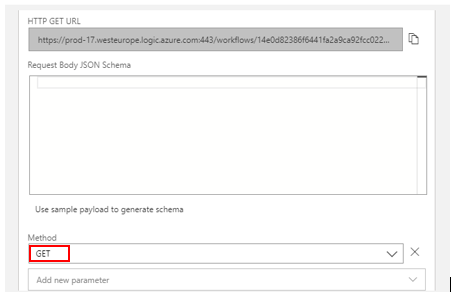
Step 2: Select Method as GET.
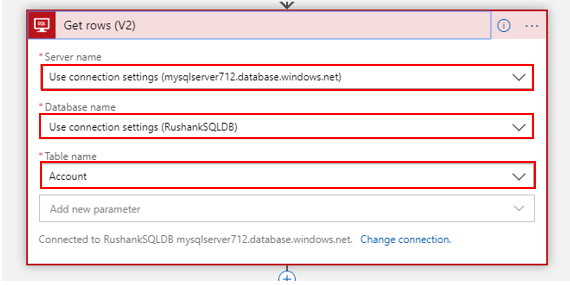
Step 3: Attach a SQL Get Rows Block to the HTTP Request Block and Select the SQL Server Authentication Mode and enter the required fields. Later, Select the fields as shown below for your Azure SQL DB.
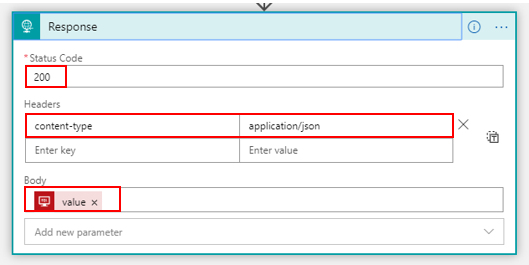
Step 4: Select a Response Block and attach it to Get Rows Block and select the values as shown below.
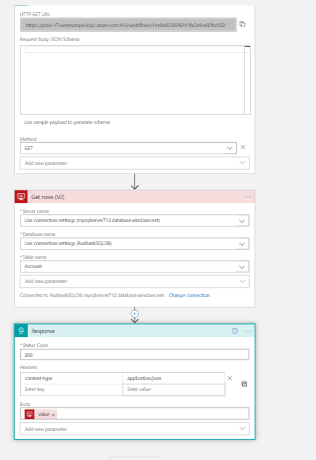
Note: After Completion the logic App looks like below:
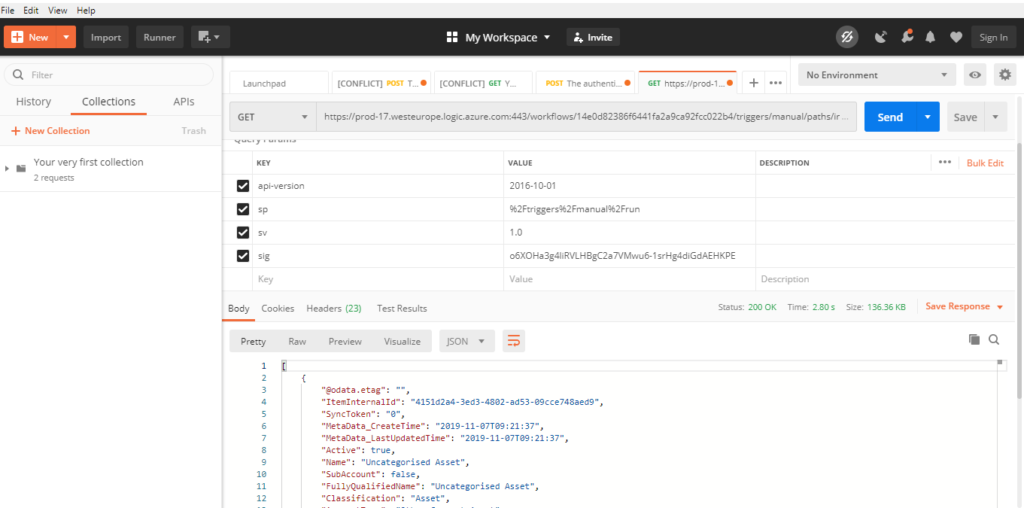
Step 5: Test the GET URL in POSTMAN.
Related posts:

Resolving SSL/TLS Secure Channel Trust Errors in Dynamics 365 Finance and Operations

How to change a Bill of material (BOM) item on a production order
![Shopify Meets Dynamics 365 Finance and Operations: A Guide to Integration [Part 2]](https://www.cloudfronts.in/wp-content/uploads/2024/12/DALL·E-2024-12-14-12.29.44-A-professional-illustration-depicting-the-integration-between-Shopify-and-Dynamics-365-Finance-and-Operations.-The-image-shows-Shopify-on-one-side-wit-150x150.webp)
Shopify Meets Dynamics 365 Finance and Operations: A Guide to Integration [Part 2]
