

Closing Blind Shift in MPOS and CPOS in Dynamics 365 for Retail
Manual For closing Blind shift in POS:
Blind shifts terminate the currently ongoing shift and when logged in a new shift opens. In this blog we shall see how to close the blind shift.
Steps:
1. Login to the POS
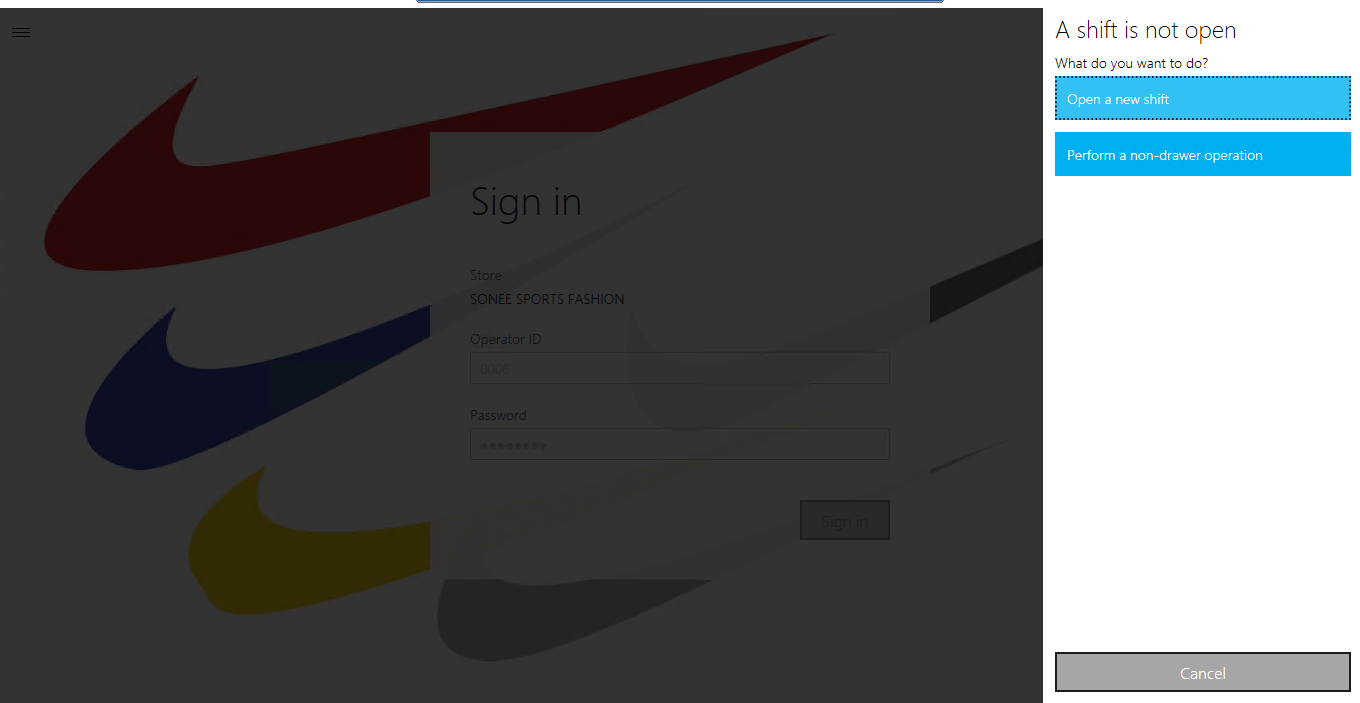
2. Open a new shift or continue with the existing one.
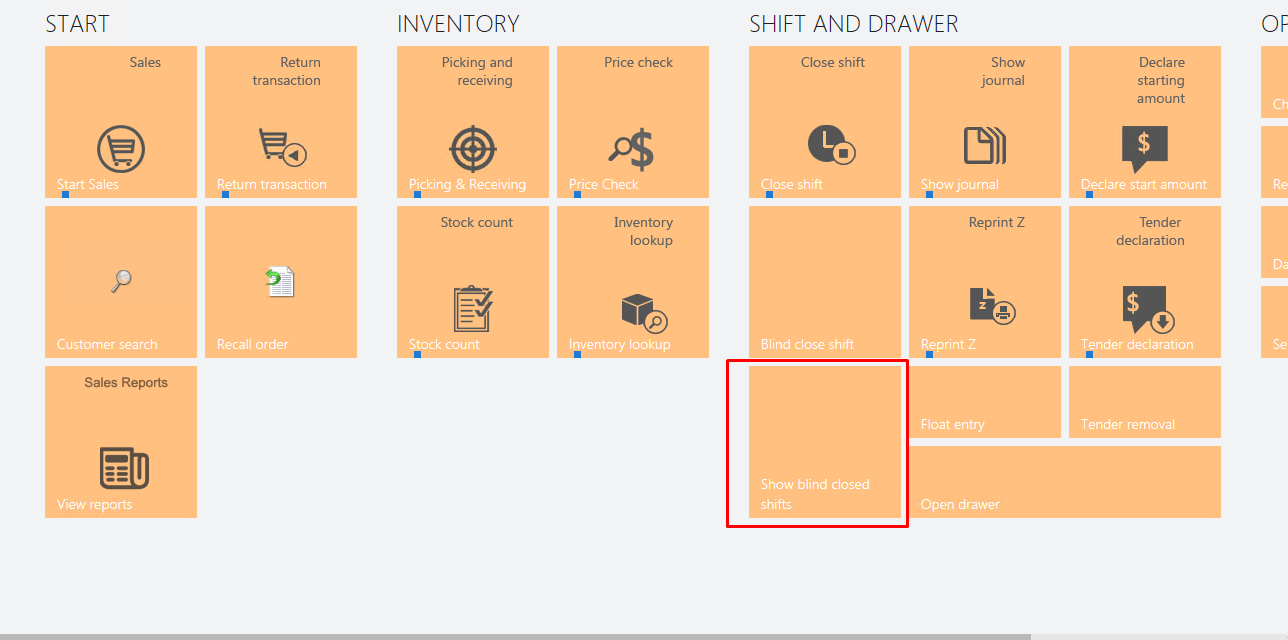
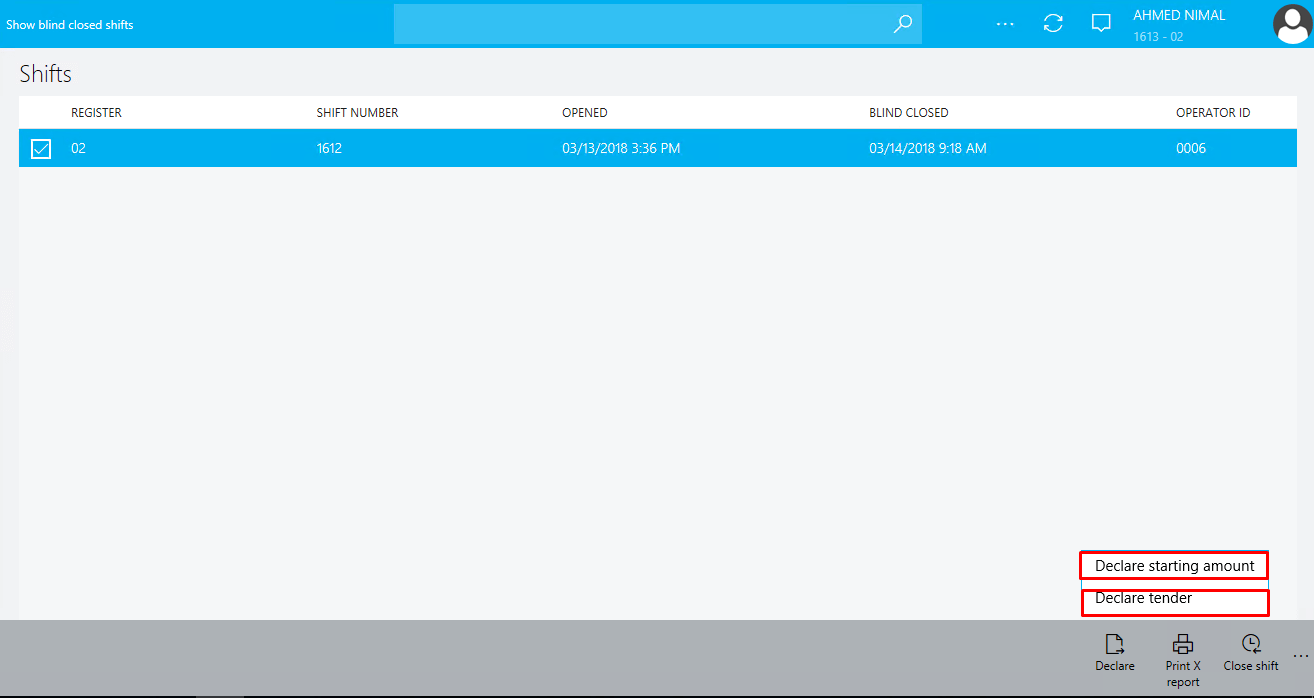
3. Click on Show blind closed shifts.
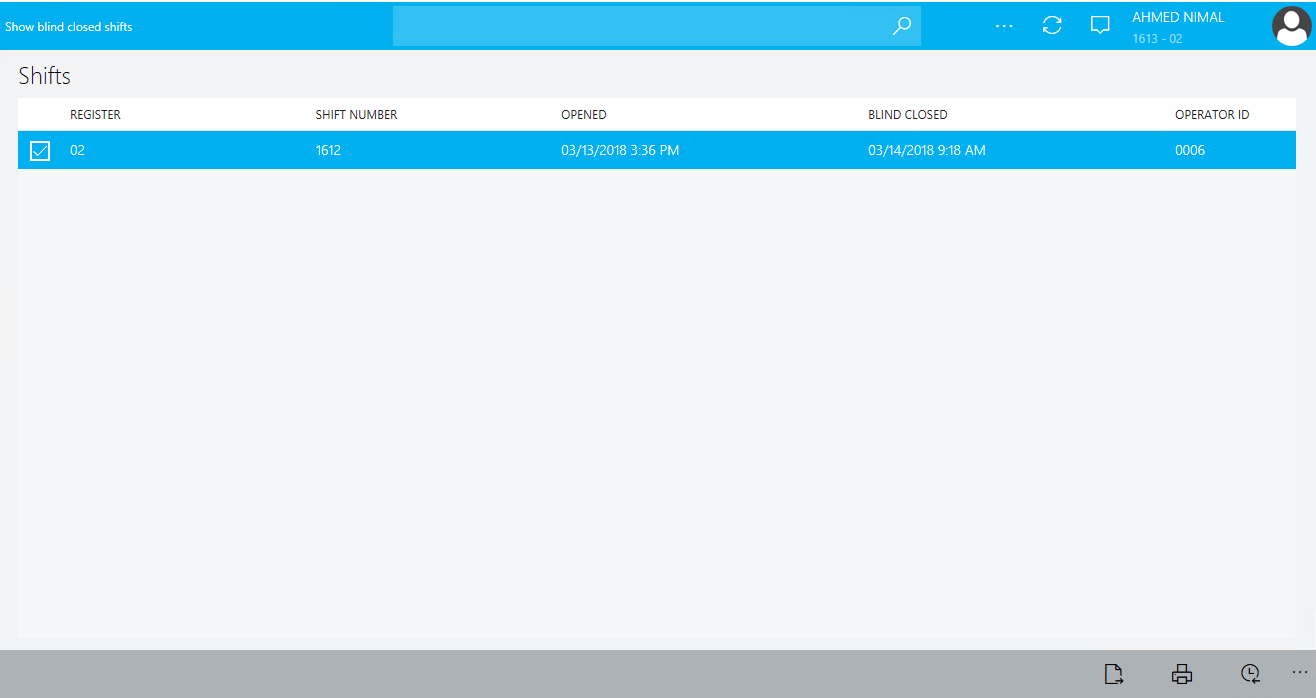
4. Select the shift you want to close.
5. At the bottom click on declare.
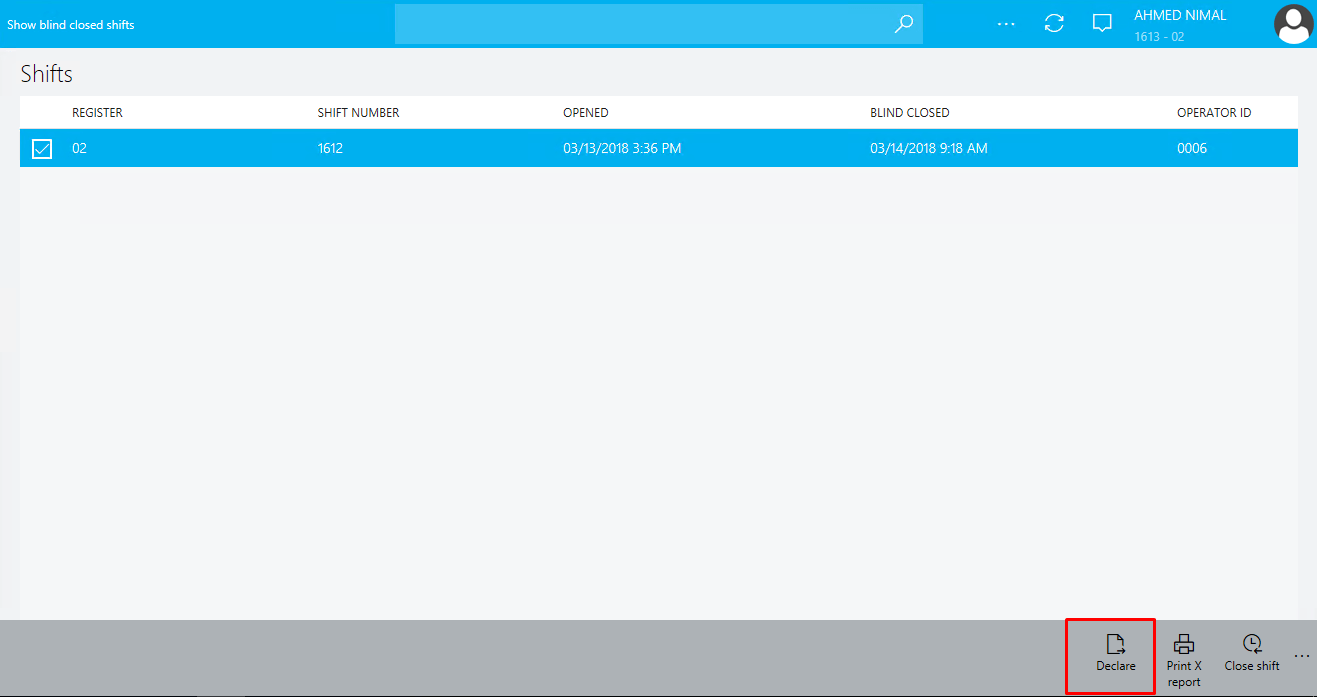
6. Declare the starting amount and the tender amount.
7. Click on close shift.
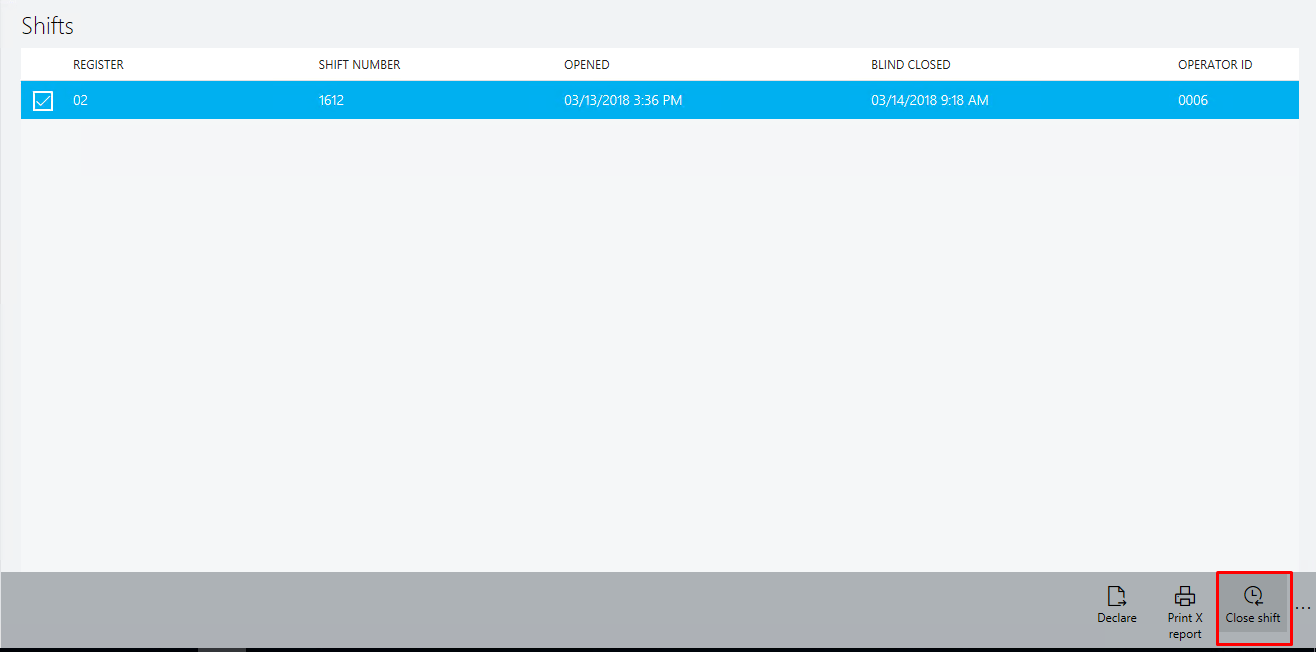
This is how blind shifts can be closed.
Related posts:

Resolving SSL/TLS Secure Channel Trust Errors in Dynamics 365 Finance and Operations

How to change a Bill of material (BOM) item on a production order

Shopify Meets Dynamics 365 Finance and Operations: A Guide to Integration [Part 2]